Participant
April 27, 2020
Answered

How to move elements from or within InDesign sublayers?

  • April 27, 2020
  • 3 replies
  • 662 views

Hi everyone,


I was wondering how I can transfer elements in the sublayers back to the main layer? Or how I can click individual elements within the sublayer?


Thank you!


{Renamed by MOD}

This topic has been closed for replies.
Correct answer Laubender

Hi caitlynna10896704,

What you see as sublayers are nested objects.

Objects that are pasted inside graphic frames or objects that are part of a group.

And then we have objects that are anchored to text.


Unfortunately, the user interface in the Layers panel is not very consistent showing nested objects.

Especially with placed and linked graphics or images. Or with state objects in buttons and multistate objects. Only the active ones are visible and it is not clear that a state object showing up in the Layers panel has indeed two components. The state itself and a group object holding all elements of the state.


Below are some screenshots of an image that was placed and linked in different situations:


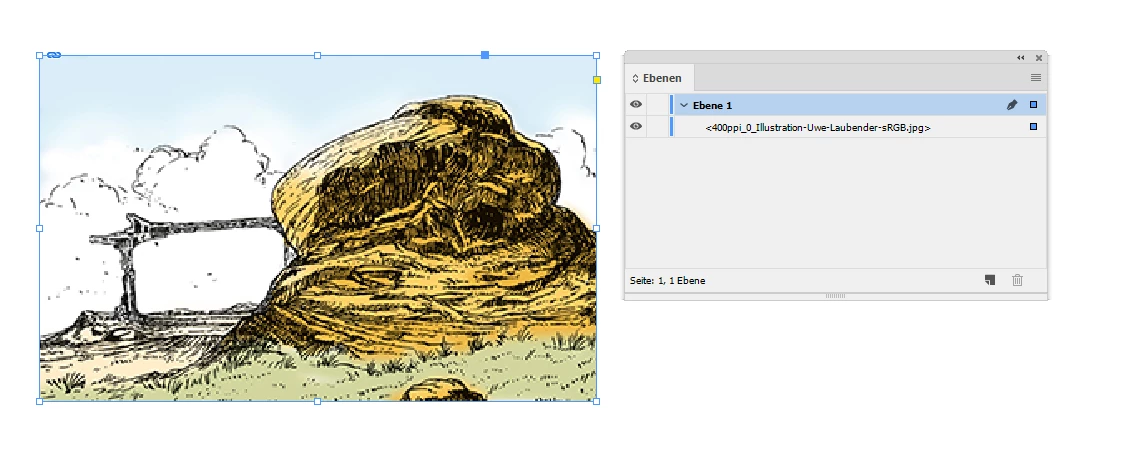
[ 1 ] Image placed. Layers Panel is showing only one object. But there are two objects there. The graphic frame holding the image and the image itself inside the graphic frame. Graphic frame selected. The number of layers in this document is just one. The name of that layer is "Ebene 1" from my German InDesign:


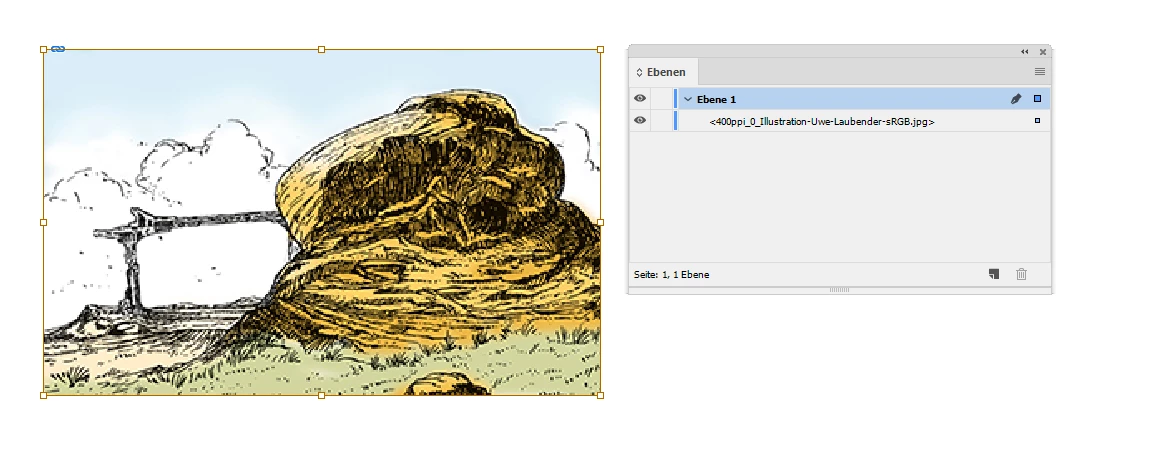
The image inside the graphic frame selected. The tiny blue dot at the right edge of the image name in the Layers panel indicates the selection of the image instead of the graphic frame that holds the image:


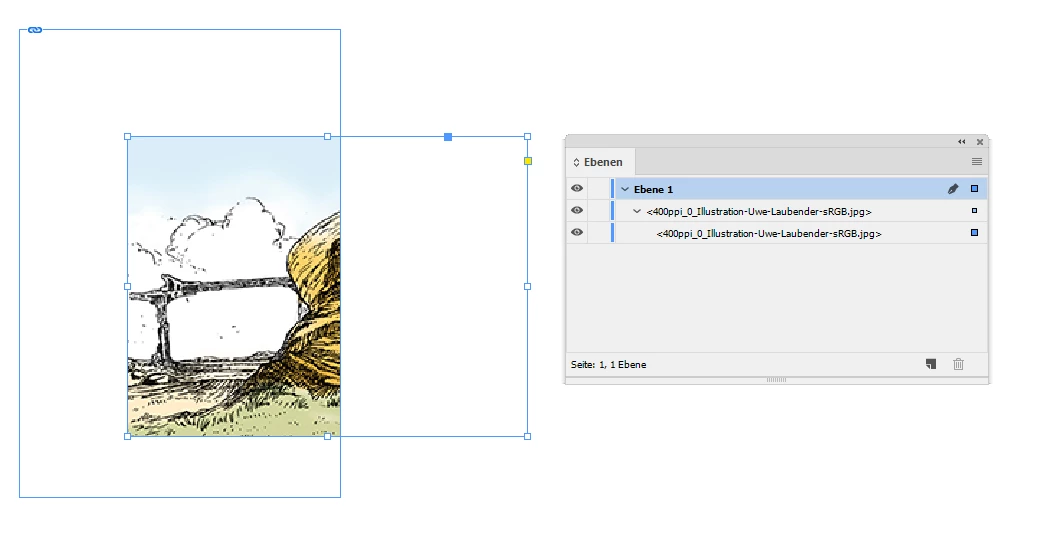
[ 2 ] Graphic frame with an image cut and pasted inside other graphic frame. Now the Layers Panel shows a really odd situation. At first glance, you could think there is an image nested inside another image. But this is not the case!


Regards,
Uwe Laubender

( ACP )



3 replies

LaubenderCommunity ExpertCorrect answer
Community Expert
April 27, 2020

Hi caitlynna10896704,

What you see as sublayers are nested objects.

Objects that are pasted inside graphic frames or objects that are part of a group.

And then we have objects that are anchored to text.


Unfortunately, the user interface in the Layers panel is not very consistent showing nested objects.

Especially with placed and linked graphics or images. Or with state objects in buttons and multistate objects. Only the active ones are visible and it is not clear that a state object showing up in the Layers panel has indeed two components. The state itself and a group object holding all elements of the state.


Below are some screenshots of an image that was placed and linked in different situations:


[ 1 ] Image placed. Layers Panel is showing only one object. But there are two objects there. The graphic frame holding the image and the image itself inside the graphic frame. Graphic frame selected. The number of layers in this document is just one. The name of that layer is "Ebene 1" from my German InDesign:


The image inside the graphic frame selected. The tiny blue dot at the right edge of the image name in the Layers panel indicates the selection of the image instead of the graphic frame that holds the image:


[ 2 ] Graphic frame with an image cut and pasted inside other graphic frame. Now the Layers Panel shows a really odd situation. At first glance, you could think there is an image nested inside another image. But this is not the case!


Regards,
Uwe Laubender

( ACP )



Community Expert
April 27, 2020

For indepth discussion on how to use layers refer the help document provided by Adobe

https://helpx.adobe.com/indesign/using/layers.html

https://helpx.adobe.com/indesign/how-to/work-with-layers.html


-Manan
jmlevy
Community Expert
Community Expert
April 27, 2020

Hi,

There is no sublayer or main layer in InDesign, only layers. To select elements, just click on the hollow square dot on the righ side of the panel
