


Inspiring
April 1, 2016
Answered

How to Remove Broken Links from InDesign's Links Panel

  • April 1, 2016
  • 13 replies
  • 40825 views

I'm reusing an InDesign (2015) document that had many images linked. Those images are gone forever, but the missing links are still in the Links panel. I just want to remove those linked images from the Links panel.

The images or the linked images do not exist in the document structure. There must be a way to remove these useless orphaned linked images from the Links panel.

Thanks!
Correct answer mamafour

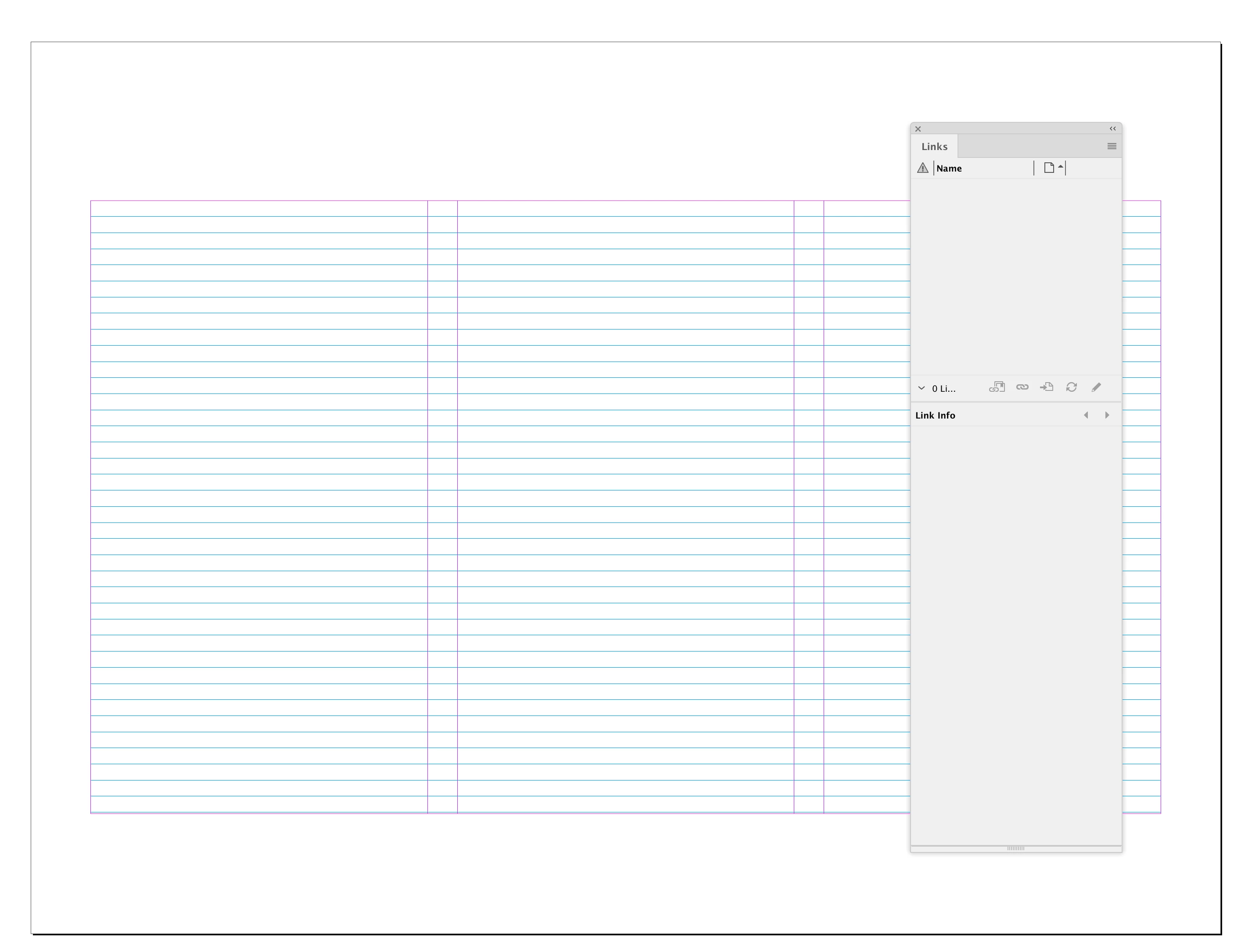
My Links panel is empty:


Are you sure you deleted the correct Caches and Preference folders?:


macOS:

user ▸ ⁨Library⁩ ▸ ⁨Caches⁩ ▸ ⁨Adobe InDesign⁩ ▸ ⁨Version 18.0⁩

⁨user ▸ ⁨Preferences⁩ ▸ ⁨Adobe InDesign⁩ ▸ ⁨Version 18.0⁩


Windows

Users ▸ ⁨AppData⁩ ▸ Local ▸ ⁨Adobe ▸ InDesign⁩ ▸ ⁨Version 18.0⁩

Users ▸ ⁨ UserName ▸ ⁨ AppData ▸ ⁨ Roaming ▸ ⁨ Adobe ▸ ⁨ InDesign ▸ ⁨ Version 18


I had the exact same issue - it occurred when I deleted a page that still had objects on it. They hung around with no associated page and I could NOT get rid of the warning. But saving as an IDML file (just using file > save as, and not exporting), then re-opening and saving as usual reset the file perfectly.

13 replies

Participating Frequently
April 4, 2016

‌Maybe present on a older unused Master Page somewhere? Or on the Pasteboard somewhere?

Participant
April 2, 2016

I think the best way is to actually delete those individual unlinked images in the Document itself and then automatically the missing links will get removed from your links panel.

Inspiring
April 4, 2016

I deleted all the pages where these graphics once lived, so they are no longer in the document. All I can do is find and relink. Not sure why Adobe doesn't have some feature to just remove the link.

Inspiring
April 5, 2016

Hi Paul,

maybe I misunderstood you. I was under the impression that the "phantom" links did not have any connection to items on a page.

The ExtendScript version of Rob's AppleScript would be something like the snippet below.

The descriptional text for missing links in status is:

"The linked file has been moved, renamed, or deleted."

If that will fit your situation, then run the snippet:

var doc = app.documents[0];

var links = doc.links.everyItem().getElements();

var linksLength = links.length;

for(var n=linksLength-1;n>=0;n--)

{

     if(links.status == LinkStatus.LINK_MISSING)

     {

          links.parent.remove(); // That would remove a placed image, but leaves its container alone.

          // OR IF THAT WOULD FAIL REMOVE THAT LINE AND USE THE FOLLOWING ONE (just remove the two // from the beginning of the line):

          // links.parent.parent.remove(); // That would remove the container of the placed image plus the placed image

     }

}

This snippet is not tested.

Uwe


The links were associated to images on pages that were deleted. When the pages were deleted, the links remained in the links panel.

This may have been a result of upgrading an older existing document to a newer version of InDesign (2015).

I did a quick test, creating a multi-page document and placed a few images on pages.I then saved and closed the document.

I then opened the document, deleted the pages containing the images, saved and closed.

Reopened the document and InDesign didn't complain about missing images. So when I deleted the pages, it must have remove the links. The links panel was empty.

So again, I think my issue was directly related to upgrading an older InDesign document with a new version of InDesign (2015). Unfortunately I don't know what version the older document was created in.

~Paul

Steve Werner
Community Expert
Community Expert
April 1, 2016

Try saving the file as an IDML (File > Save As > InDesign CS4 or later). That generally gets rid of phantom links and fonts.

Inspiring
April 4, 2016

Nope, that didn't work.