


Inspiring
April 1, 2016
Answered

How to Remove Broken Links from InDesign's Links Panel

  • April 1, 2016
  • 13 replies
  • 40825 views

I'm reusing an InDesign (2015) document that had many images linked. Those images are gone forever, but the missing links are still in the Links panel. I just want to remove those linked images from the Links panel.

The images or the linked images do not exist in the document structure. There must be a way to remove these useless orphaned linked images from the Links panel.

Thanks!
Correct answer mamafour

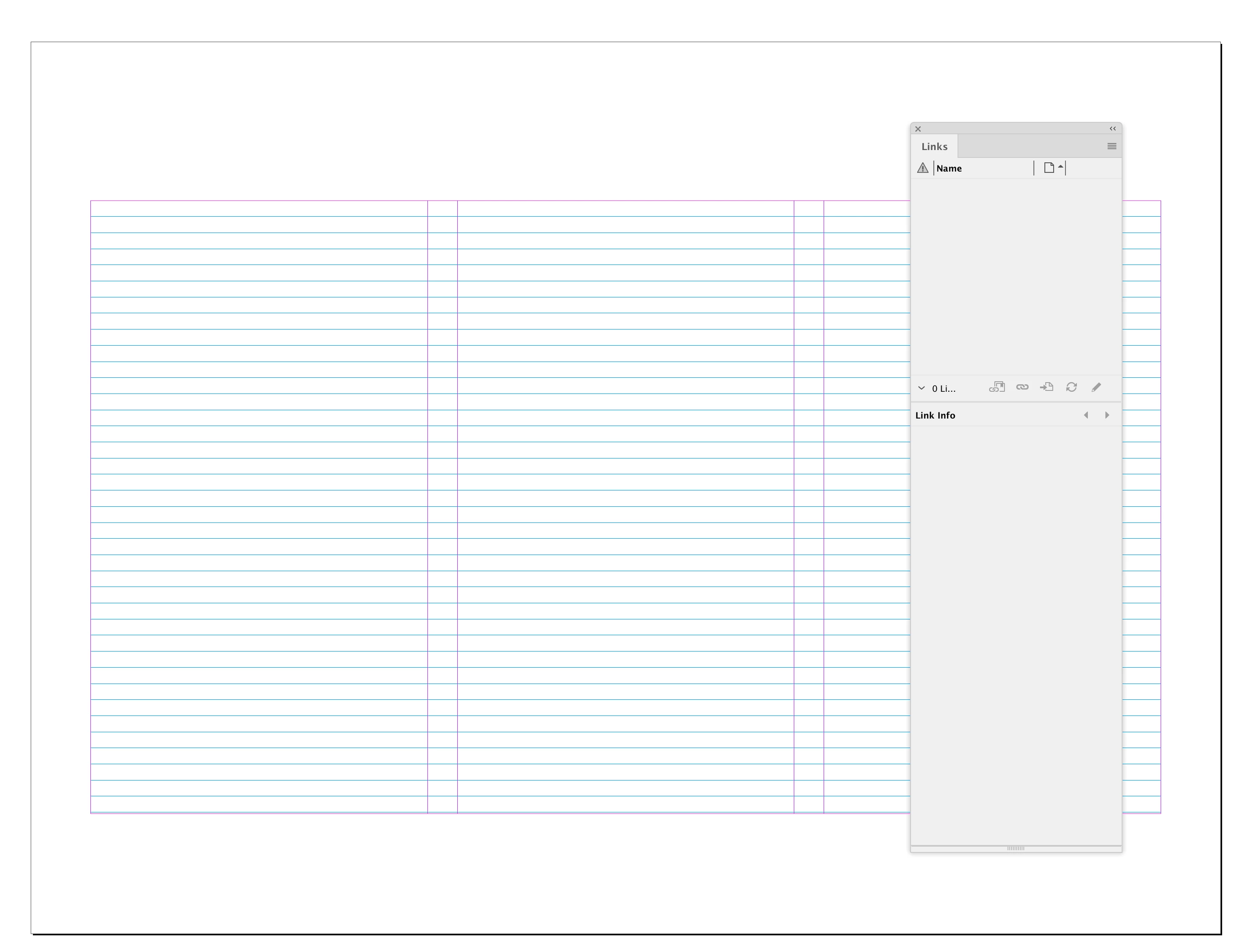
My Links panel is empty:


Are you sure you deleted the correct Caches and Preference folders?:


macOS:

user ▸ ⁨Library⁩ ▸ ⁨Caches⁩ ▸ ⁨Adobe InDesign⁩ ▸ ⁨Version 18.0⁩

⁨user ▸ ⁨Preferences⁩ ▸ ⁨Adobe InDesign⁩ ▸ ⁨Version 18.0⁩


Windows

Users ▸ ⁨AppData⁩ ▸ Local ▸ ⁨Adobe ▸ InDesign⁩ ▸ ⁨Version 18.0⁩

Users ▸ ⁨ UserName ▸ ⁨ AppData ▸ ⁨ Roaming ▸ ⁨ Adobe ▸ ⁨ InDesign ▸ ⁨ Version 18


I had the exact same issue - it occurred when I deleted a page that still had objects on it. They hung around with no associated page and I could NOT get rid of the warning. But saving as an IDML file (just using file > save as, and not exporting), then re-opening and saving as usual reset the file perfectly.

13 replies

Participating Frequently
April 4, 2016

‌Maybe present on a older unused Master Page somewhere? Or on the Pasteboard somewhere?

Participant
April 2, 2016

I think the best way is to actually delete those individual unlinked images in the Document itself and then automatically the missing links will get removed from your links panel.

Inspiring
April 4, 2016

I deleted all the pages where these graphics once lived, so they are no longer in the document. All I can do is find and relink. Not sure why Adobe doesn't have some feature to just remove the link.

Community Expert
April 4, 2016

Hi Paul,

can you upload a sample document containing the "phantom" links to a Dropbox account and post the link for downloading?
Could be an empty document saved with "Save As…".

I'd like to see into it.
Perhaps I can write a little ExtendScript (JavaScript) to get rid of the "phantoms".
There is no straight way, because a Link Object has no remove() method with ExtendScript.

Regards,

Uwe

Steve Werner
Community Expert
Community Expert
April 1, 2016

Try saving the file as an IDML (File > Save As > InDesign CS4 or later). That generally gets rid of phantom links and fonts.

May 6, 2017

Thanks Steve Werner, saving in IDML corrected the problem after years trying to get rid of it:O)))))))))))

Known Participant
March 21, 2022

Saving in IDML solved the issue (due to a sudden crash of the file) for me too, after month wasted to get a way out!

Thanks a lot!