


Inspiring
April 1, 2016
Answered

How to Remove Broken Links from InDesign's Links Panel

  • April 1, 2016
  • 13 replies
  • 40776 views

I'm reusing an InDesign (2015) document that had many images linked. Those images are gone forever, but the missing links are still in the Links panel. I just want to remove those linked images from the Links panel.

The images or the linked images do not exist in the document structure. There must be a way to remove these useless orphaned linked images from the Links panel.

Thanks!
Correct answer mamafour

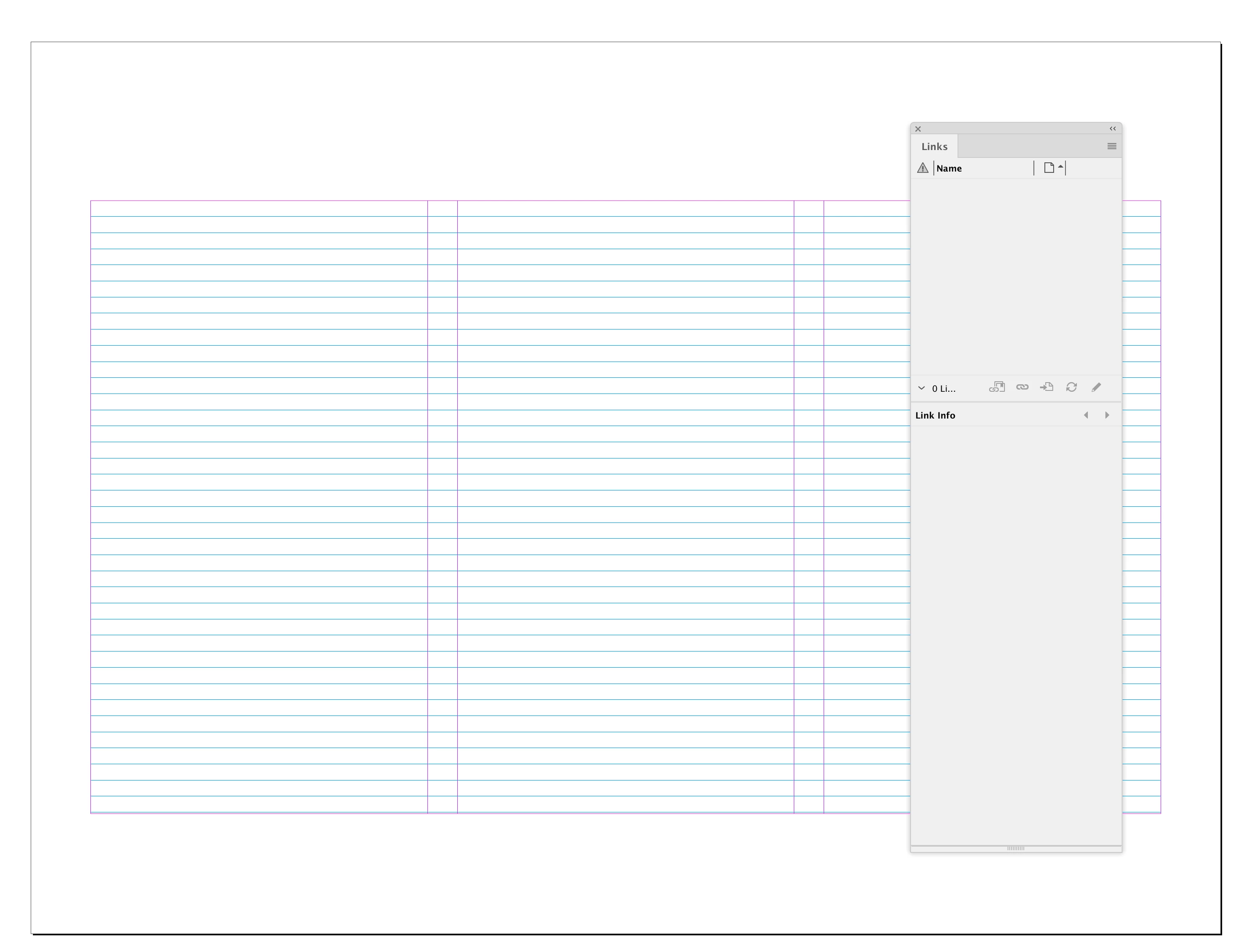
My Links panel is empty:


Are you sure you deleted the correct Caches and Preference folders?:


macOS:

user ▸ ⁨Library⁩ ▸ ⁨Caches⁩ ▸ ⁨Adobe InDesign⁩ ▸ ⁨Version 18.0⁩

⁨user ▸ ⁨Preferences⁩ ▸ ⁨Adobe InDesign⁩ ▸ ⁨Version 18.0⁩


Windows

Users ▸ ⁨AppData⁩ ▸ Local ▸ ⁨Adobe ▸ InDesign⁩ ▸ ⁨Version 18.0⁩

Users ▸ ⁨ UserName ▸ ⁨ AppData ▸ ⁨ Roaming ▸ ⁨ Adobe ▸ ⁨ InDesign ▸ ⁨ Version 18


I had the exact same issue - it occurred when I deleted a page that still had objects on it. They hung around with no associated page and I could NOT get rid of the warning. But saving as an IDML file (just using file > save as, and not exporting), then re-opening and saving as usual reset the file perfectly.

13 replies

New Participant
September 5, 2024

The indd -> idml -> indd procedure took care of our problem. Thank you!

New Participant
June 27, 2024

I was having this problem. The missing PDF's were on a serperate layer, locked and hidden.

New Participant
October 10, 2023

Thank you so much for that tip. Never crossed my mind about the IDML.  See, 6 years later you are still helping. Again, A HUGE THANK YOU!!!

Community Expert
July 8, 2020

Hi Raphnorac,

to analyze the cause of this issue I must be able to look into your document.

I can speculate on and on, but this will not bring us to a solution.


Best,
Uwe Laubender

( ACP )

Participating Frequently
January 4, 2023

I have a weird missing link issue that I've been unable to solve. Hoping to get some help here, please!


As you can see in the screenshot above, I have a missing link that is not associated with any page in the document. It also doesn't have a parent. There is a file with the same name in the links folder. Clicking relink and going through the steps doesn't fix it. Double-clicking the icon and choosing a new file doesn't fix it. I have tried the script suggestion in this thread without success. "Search for missing links" returns "no missing links found", and yet I get a warning that "This document contains a link to a source that is missing" when I open the file.

What to do?

rob day
Community Expert
January 4, 2023

Have you tried deleting your Caches folder and if that doesn’t work trash your Preferences?


Community Expert
July 8, 2020

Hi Raphnorac,

right; that's not for everyone with the issue.

Your suggestion with the Structure window can only work with documents from an XML workflow.

Or with documents resulting from a data merge action where all data field placeholders were positioned on master pages.

( Because this special workflow will add a tagged XML structure to a result document. )


Regards,
Uwe Laubender

( ACP )

Raphnorac
New Participant
July 8, 2020

Hi Laubender,


The document that I worked on was an edition of a printed book, which uses the same structure in all editions. In some edition, these images were created. An XML Workflow was never used, nor was it at the master page. I believe that something corrupt the file when the images and the old text were deleted and the new ones were added, which may have generated this aspect of XML and it was through the images indicating XML (as can be seen in the image attached) that I found this solution. I don't know if that was what happened, probably you know better them I if this is possible. A better option would be to work with a blank structural model. I know that, but here where I work, it's complicated.

Thanks.


Raphnorac
New Participant
July 8, 2020

I found a way to remove these images. Easier and better than script code. But I think that this action only works if you are working on a printed document. Click on Ctrl + Alt + 1 (command + option + 1) to open a Structure panel on the left side. Click "root" and then click to remove it. That's it.

Probably it won't work for everyone, but in my case it worked just fine.

Inspiring
December 13, 2019

I created a video with 5 different methods for fixing broken links. I actually found 3+ methods that actually work when the original document isn't available. The other 2 methods may work if you have the Windows version of Indesign:

https://youtu.be/P8wPLywjXmo

Inspiring
November 14, 2018

Hello--jumping in here because I've got the same issue.

to complicate matters, when I go to the page where the missing links supposedly are, and I remove the photos I've used for this document, there's nothing but extra photo frames.

this may be because the library I'm using has photos in the various elements.

There aren't any lock symbols on the links, and I am working in Windows, not Mac, so an Apple script won't work. I'm working in CS5.5.

Besides fixing my document, can I fix my library somehow?

Can anyone help? Thank you.

Community Expert
November 14, 2018

Hi ladyinblack1964 ,

perhaps a screenshot of your Links panel would help.

Select one of the links you cannot remove and show the info about it.

Thanks,
Uwe

Inspiring
November 15, 2018

Please select one of the links and show the information about the link.

Thanks,
Uwe


I'm sorry--I misunderstood. Hopefully this one is better.

Zesty_self5DC1
New Participant
January 17, 2018

I know I'm a little late but I ran into the same issue as described above with editing an older document and found a solution to delete those links without using a script or saving the file as a different name. If you click on the Window tab located at the top of the screen and click on "Layers" (F7 is the hot key) you will notice all of the layers currently used in the document.  Next look to the left of the desired link that you want to delete and make sure it doesn't have a lock symbol associated with it. If it does, this is why you can't delete that particular link from your file.  Once you unlock that link, you should be able to select it and delete it from your project while still inside of the layers tab.  I hope this helps others in the future.

BradRW
Participating Frequently
June 30, 2016

Don't forget to check (or delete) Master pages. Sometimes, these links exist because of some content on the Master pages that you won't see on pages if the Master's aren't applied somewhere within the document. When you delete unused Master Pages that contain these "linked" graphics, the unwanted link list will update also.

Ask me how I know this...

It's easy to forget.