


Known Participant
February 11, 2024
Answered

how to set up a text link from a text word to a different position of text

  • February 11, 2024
  • 1 reply
  • 1268 views

Hello,
I hope to explain my requirement as best I can.
I have a text on the front page.
more text on page 3
how can i make it so that from a word in the text on page 1 i can go to a specific text on page 3?
bookmarks?
anchored text?
other?
I've been looking for days for information on how to make anchored text (the one on page 3 that I can then direct from my link on page 1)
how can I do that?

Thanks

Renareto

Translated with www.DeepL.com/Translator (free version)
This topic has been closed for replies.
Correct answer James Gifford—NitroPress

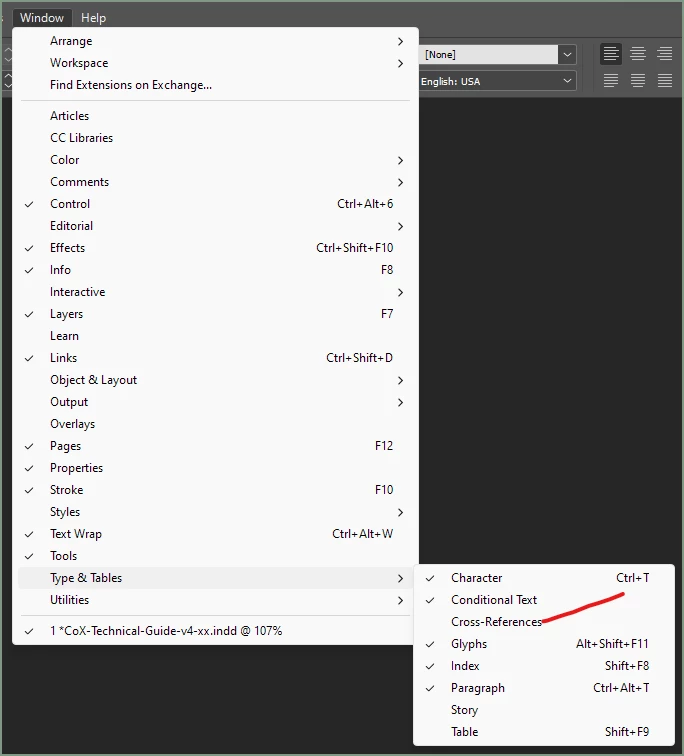
Hi James, I'm sorry I don't answer yet, but I'm trying to find the menu you showed me. As you can see, I’m Italian, not perfect english… so I’ve tried to discover the entry menu for the choice you send.
i.e.: "On the Cross-References pane” where do I find it?wich menu?
I’m sorry for the stupid question, but I’m a begginer. I know what I have to do but still don’t know how


Renareto


First, don't overlook the translate function here. It does a very good job, especially with the limited vocabulary we use.


The Cross-Reference pane is the pane or palette opened when you activate it from the Window menu list:


This list is where you open and close any palettes you need. Saving your setup as a Custom Workspace helps you recall the ones you use.


1 reply

James Gifford—NitroPress
Legend
February 11, 2024

The feature you want to use is a cross-reference, if you want it to automatically update, or a hyperlink, if you can set it up once and be done.


They are more or less identical and both use hyperlinks to connect one spot in a document to another, but a cross-reference can be set up to change as the target text's location and content changes, while a simple hyperlink is fixed until you edit the link.


If that plus a little review of help/how-to seaching doesn't get you going, ask and we can walk you through either procedure.

Known Participant
February 11, 2024

Okay, I looked up the "cross-reference" on the internet, it referred me to this text: https://helpx.adobe.com/indesign/using/cross-references.html. I started reading and immediately found a problem: how do I make text anchors? I couldn't even by looking on the internet.
Could you explain how I can get them?
Thank you

James Gifford—NitroPress
Legend
February 11, 2024

Cross refs and hyperlinks are a very fussy process, and some of the key actions are a bit hidden. I am surprised that help page has essentially no useful links to the other steps and components, and that searches for 'text anchor' turn up nothing. (So: it's not just you. 🙂 )


For the simple case where you have a word or phrase on one page ("Snakes Alive!") and want to create a link to that text, using the same text, on another page, the process is this:


  • Select the destination text ("Snakes Alive!" on the destination page.)
  • Click on the 'hamburger' menu of either the Hyperlinks or Cross-References pane.
  • Select "New Hyperlink Destination..."
  • Select Text Anchor as the type, and modify the selected text as/if desired. This will change the actual cross-reference link text, though.
  • Put the cursor where you want the new link to that text.
  • Click the + button at the bottom of the Cross-References pane, or click on the hamburger menu and select Insert Cross-Reference.
  • Select Link to: Text Anchor.
  • Select the name of the text anchor you just created. (Or, later, any one that is in the list.)
  • At the bottom of the menu, select "Link Name" as the option. (If you did not change the text above, it will be the selected text; if you changed it, that string will be used instead.)
  • Click OK.


You should now have a link reading "Snakes Alive!" that when clicked in a PDF export, takes you to the same text on the other page.


Explore these menus thoroughly. Cross refs in ID are enormously flexible and powerful, which means they have endless configuration and option settings. There are also several elements, including hyperlinks and text anchors, involved without really being explained or differentiated. I know there are better references and how-tos out there; it's annoyuing that Adobe's own help system comes up blank on the topic.