New Participant
October 13, 2017
Answered

inconsistent double primes on linked Excel tables

  • October 13, 2017
  • 1 reply
  • 461 views

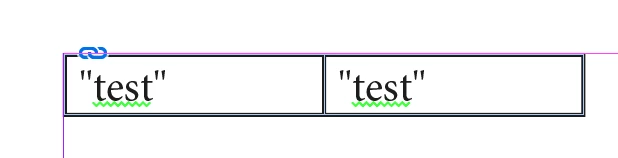
I am building a product catalog for my employer. I am using linked Excel spread sheets to create tables showing fitment, tubing inch sizes and related part numbers. I find that some of the sheets show the straight quotes and some show the correct curly quotes (double primes).

I have checked the original Excel sheets and the cell format is Number _ General and font is Calibri Regular 9 pt. for all of the sheets. I can't figure out why the linked files are showing two different ways in InDesign. I have tried doing a GREP in Paragraph Styles but either I did it wrong or it doesn't work on linked files. Being a total newbie with InDesign, I never even heard of GREP before today and I've never really worked with Paragraph Styles. I am the one who has created all of the Excel sheets and InDesign pages so we can toss out any thoughts that someone did something different on their setup. What am I missing here?
    This topic has been closed for replies.
    Correct answer Colin Flashman

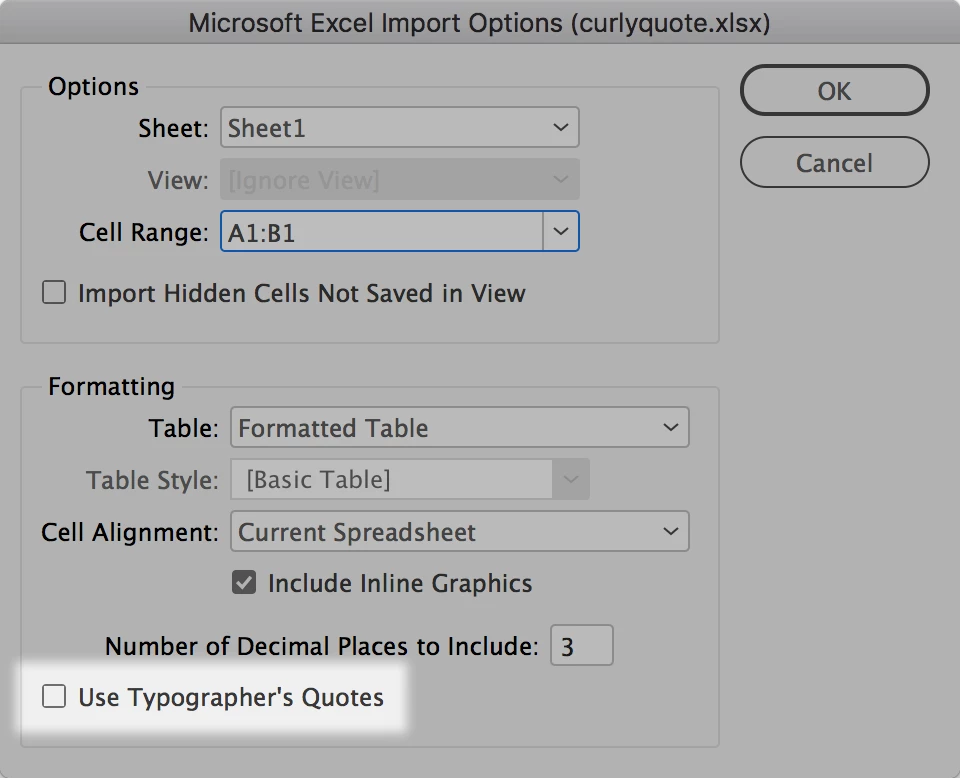
    I just tried to replicate the fault by making a new Excel file, with the word “test” in cell A1 and the word "test" in cell B1 and saved as an XLSX file. Upon trying to import the file into InDesign, I clicked the options button and made sure to show import options, and then selected the XLSX file and clicked OK. I was then presented with the following dialog box, and made sure the "use typographer's quotes" was turned off:

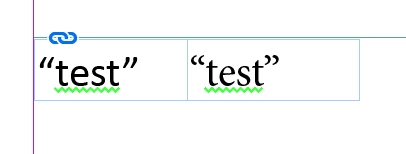
    However, I still encountered the error that the OP experienced!

    Even turning off the "use typographer's quotes" in the preferences of InDesign did not help

    But, I was able to import the file successfully after several goes, the difference was to save the Excel file as an XLS (Microsoft 97-2004) and (still making sure the import options were the same) the straight quotes imported correctly.

    I suspect this is an import bug specifically relating to Microsoft XLSX files but can't be sure until other users attempt to replicate the fault. It would be good if anyone reading this could try to replicate this fault and - if successful, post so in the comments so that a bug report can be filed.

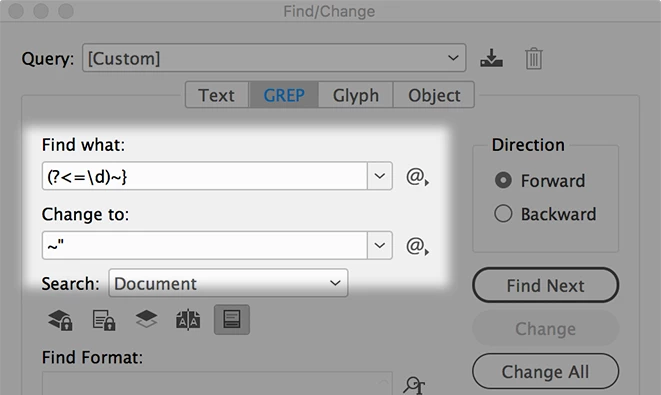
    Anyway, it looks like it's too late for the OP to reimport the excel files now. It would be a case of find and replace to change the curly quotes into straight quotes, a straightforward find/change request if being selective about what is being changed and what is not. If the quotes are always in a specific pattern (i.e. the quote is ALWAYS after a number) then a GREP search will make the replacements easier to make.

    1 reply

    Colin Flashman
    Colin FlashmanCorrect answer
    Braniac
    October 14, 2017

    I just tried to replicate the fault by making a new Excel file, with the word “test” in cell A1 and the word "test" in cell B1 and saved as an XLSX file. Upon trying to import the file into InDesign, I clicked the options button and made sure to show import options, and then selected the XLSX file and clicked OK. I was then presented with the following dialog box, and made sure the "use typographer's quotes" was turned off:

    However, I still encountered the error that the OP experienced!

    Even turning off the "use typographer's quotes" in the preferences of InDesign did not help

    But, I was able to import the file successfully after several goes, the difference was to save the Excel file as an XLS (Microsoft 97-2004) and (still making sure the import options were the same) the straight quotes imported correctly.

    I suspect this is an import bug specifically relating to Microsoft XLSX files but can't be sure until other users attempt to replicate the fault. It would be good if anyone reading this could try to replicate this fault and - if successful, post so in the comments so that a bug report can be filed.

    Anyway, it looks like it's too late for the OP to reimport the excel files now. It would be a case of find and replace to change the curly quotes into straight quotes, a straightforward find/change request if being selective about what is being changed and what is not. If the quotes are always in a specific pattern (i.e. the quote is ALWAYS after a number) then a GREP search will make the replacements easier to make.

    If the answer wasn't in my post, perhaps it might be on my blog at colecandoo!
    Jongware
    Braniac
    October 14, 2017

    Colin, your top image does not show an error. The quotes (not 'primes' as OP calls them) are different only because the fonts are different. Left is Calibri, right is Times New Roman. Both have correct curly double quotes.

    The good news is that you don't need GREP or a very advanced search-and-replace to fix this in InDesign. By default, when searching for a double quote, InDesign finds straight as well as open and close quotes when searching for ' or ". Also by default, when replacing, InDesign automatically applies the correct form for open and close.

    That means all you have to do is change " to ". Per the above, all quotes will get fixed automagically.

    Colin Flashman
    Braniac
    October 14, 2017

    G'day Jongware.

    I think there's a little confusion here. In my control setup in Excel, I'd made two cells, one with test with typographer's quotes, and one with straight quotes, both in Excel. When imported as an XLSX into ID, both sets of quotes came out as typographer's quotes, despite the options to not change them. I think the OP is using the straight quotes to denote inches, so straight quotes will be required (I'm sure I'll be told if I'm wrong by my North American friends ).

    Could easily be solved if metric/SI units were being used, like they do in Australia and the Netherlands.

    If the answer wasn't in my post, perhaps it might be on my blog at colecandoo!