


New Participant
March 15, 2020
Answered

Increase page size without adjusting layout in InDesign

  • March 15, 2020
  • 3 replies
  • 15528 views

Thank you in advance for any help you can provide. I've wasted so much time on this. 


All I want to do is increase my page by a 1/2 inch at the inner margin (for a binding). Whenever I do it, it adjusts the layout and everything changes just a little bit - fonts change, layouts change... just a pinch, but enough to knock everything out of whack on a menu I'm trying to finish up. I've tried playing around with checking and not checking the adjust layouts and fonts boxes. It never stays exactly the same.


Isn't there a way where I can leave everything else exactly as it is but make the page bigger on one side?

    This topic has been closed for replies.
    Correct answer Colin Flashman

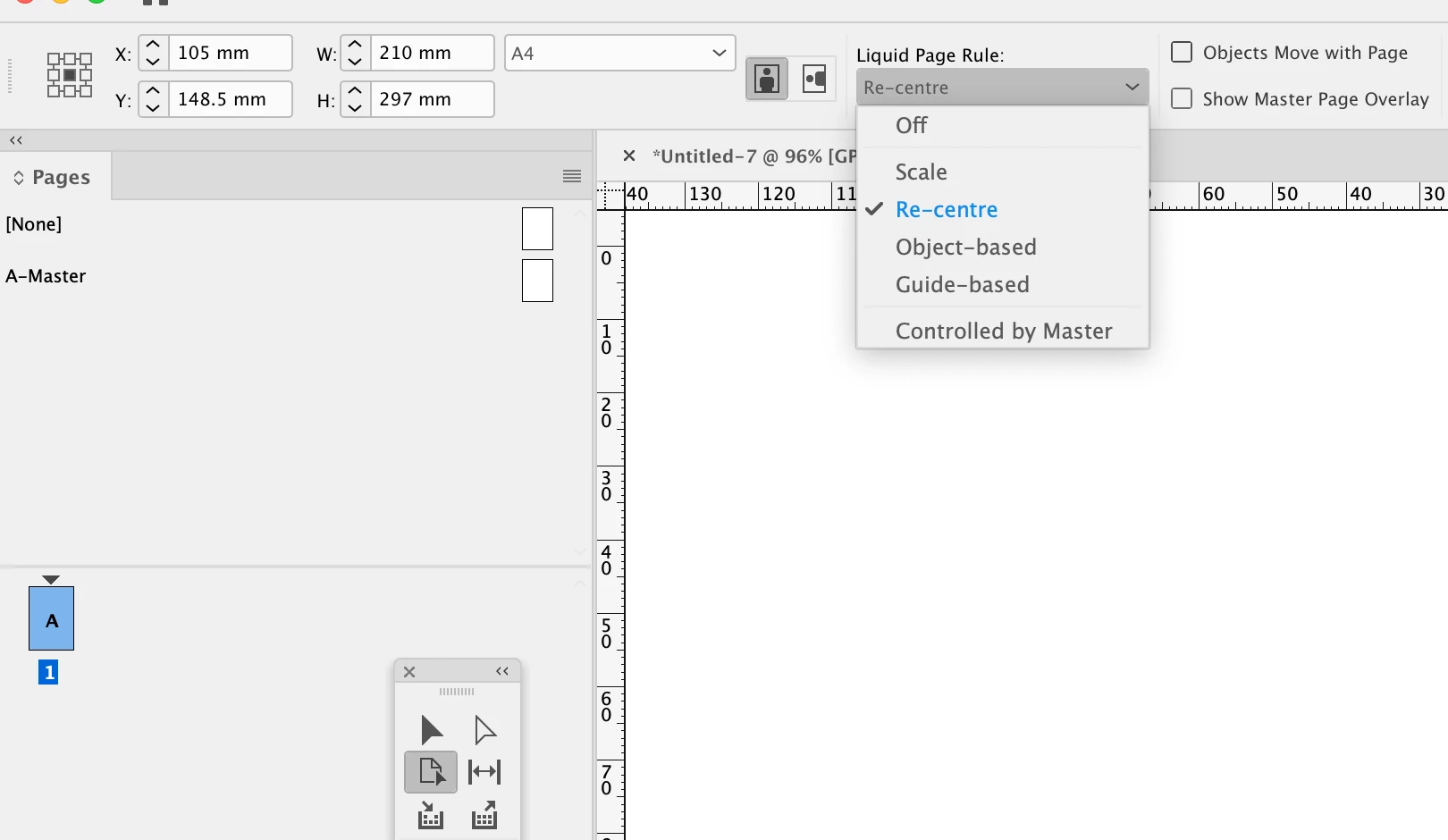
    select the page tool, and in the dropdown options in the control panel select "recenter" and then click off of the page tool and onto the black arrow tool. from here, you should be able to resize your page from the centrepoint outwards.

    3 replies

    Inspiring
    December 13, 2023

    This program is pure junk now. There is NO reason this should be so difficult. FWIW, the old CS 3 version of Indesign doesn't do this - you simply resize the page, and the content remains centered, at the original size.


    In my opinion, the way this SHOULD work is that however you have the "reference point" set - the button in the upper left corner that controls how content is placed - then when you resize, the content should follow that guide. So if you have it set to center, the content stays centered; upper left, centered left, etc.


    I'll refrain from the shade that Adobe deserves.

    Inspiring
    March 16, 2020

    Thanks Colin! Not knowing how to control this has frustrated me for a lot of years.


    I could be resizing a set of poster files from A3 to A2 and some would add space to the left, some to the right and I never worked out why. Proof that there's always something new to learn 🙂


    Edit: Turns out I was getting mixed up with changing the document size. The reference point fails to influence how the page resizes there. Still, good to know it is controllable with the page resize tool. You just have to watch out for the document still reporting its size as what the original page size was.

    rob day
    Adobe Expert
    March 18, 2020

    Still, good to know it is controllable with the page resize tool. You just have to watch out for the document still reporting its size as what the original page size was.


    After you transform the page via the Page tool with Liquid Page Rule set to Off, you can open Document Setup and update the document to the new size.

    TᴀW
    Brainiac
    March 15, 2020

    Try this: Go to Layout > Margins and Columns, and uncheck the "Adjust Layout" checkbox.

    Now try changing your page size, and hopefully nothing will jump around and only the page size will change.

    Inspiring
    March 16, 2020

    That should stop things resizing, but is there any way to control where InDesign adds the extra 1/2 in on the page?


    I've never worked out how InDesign allocates the space. Sometimes it adds it to the left side, sometimes the right, sometimes both. Same goes for top and bottom when resizing a page.


    It doesn't seem to have anything to do with your reference point settings, but is it truly random as it appears to be or is there a trick I've been missing all these years 🙂

    Colin Flashman
    Colin FlashmanCorrect answer
    Adobe Expert
    March 16, 2020

    select the page tool, and in the dropdown options in the control panel select "recenter" and then click off of the page tool and onto the black arrow tool. from here, you should be able to resize your page from the centrepoint outwards.

    If the answer wasn't in my post, perhaps it might be on my blog at colecandoo!