Oreri
Known Participant
December 6, 2020
Answered

inDesign (and Illustrator) won't open Pantone Yellow U photos as is, instead opens it as CMYK Yellow

  • December 6, 2020
  • 1 reply
  • 845 views

I have this weird problem: I'm going to print with a Riso machine, and I need to work with spot channel and assign each one to a print drum. I'm preparing a multichannel file in Photoshop, assign each channel a spot color, and export the photo as DCS 2.0, as I'm told this format manages the spot colors. Then I import it in inDesign (or Illustrator, it depends what I'm working on), where I can print as PostScript and obtain greyscale PDFs ready to send to my Riso, one for each spot color of my file.

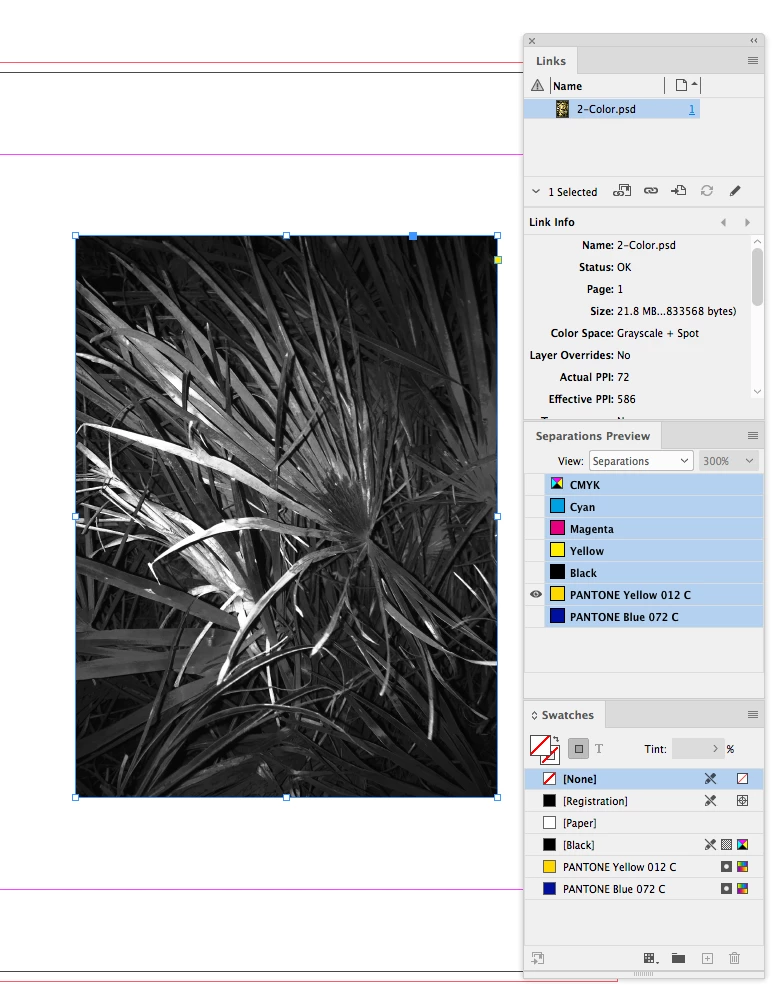
All good, except the fact that I have a problem with the Yellow color: each time I import a DCS photo file, and the channel color happens to be Pantone Yellow U (commonly used as placeholder as it's the closest one to the RIso yellow ink), inDesign or Illustrator will assign that photo to the Yellow swatch color, and in Separations preview I see it as CMYK yellow.

Now, when I only have photos in that channel, it works fine, as it doesn't really matter for the Riso printing (ultimately I can decide which PDF prints in which color by switching drums), BUT if I happen to have both graphics and text (made in inDesign or Illustrator) AND images (DCS exported from Photoshot), the yollow objects show as spot colors, while the photo is imported as CMYK Yellow. This means that I will obtain 2 greyscale PDFs for 1 color, and that's not good.


Any thoughts on what can be happening here?

Thank you!!


Ps. one workaround could be not to use a spot color for the yellow, and use the CMYK yellow for all that I want to print with that color, but there must be something I'm doing wrong and I want to find out and solve it.
This topic has been closed for replies.
Correct answer rob day

Thanks, but it just doesn't appear at all. It's not there. Here a link to the PSD file: https://shared-assets.adobe.com/link/a1a08162-8493-4c03-4b53-a2a87875153b

The original problem remains unaddressed.


It’s because you have named the channel Yellow, which InDesign reserves for process yellow—if you try to make a swatch named Yellow in ID you’ll get an error. 


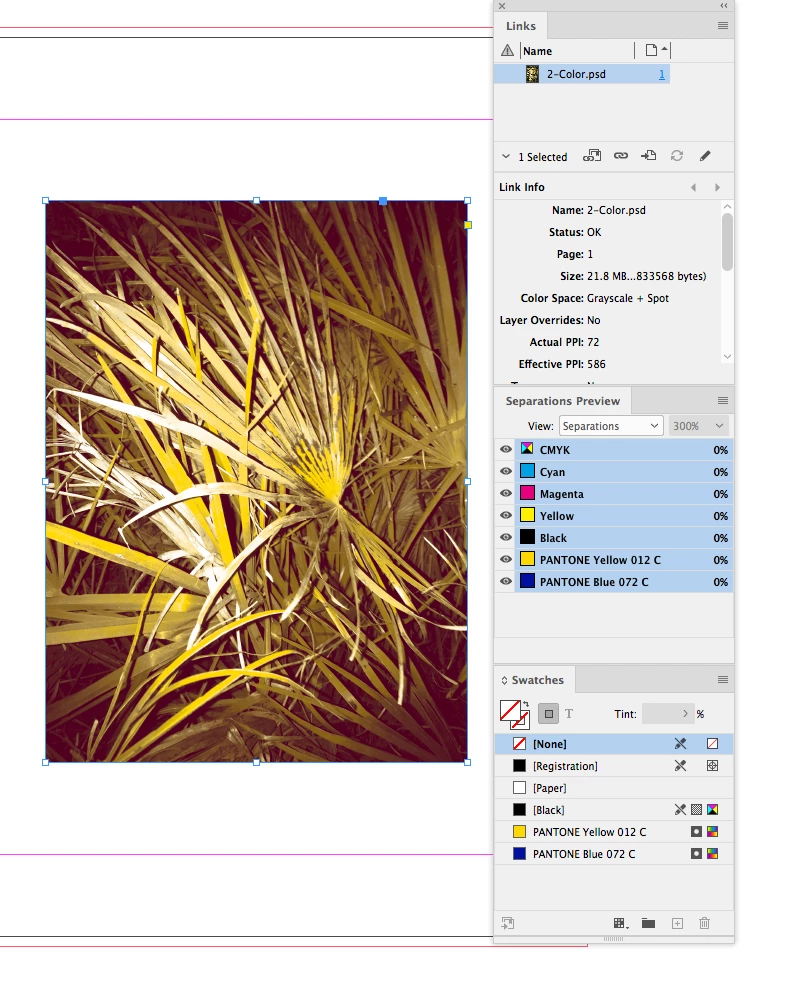
Here I’ve named the channels using the Pantone names:


Here’s the revised file


https://shared-assets.adobe.com/link/dd3c5452-24fe-4b95-7699-c9ad95af537c

1 reply

rob day
Community Expert
Community Expert
December 6, 2020

DCS is an older EPS format, you should be able to save and placed a regular .PSD file and get the spot channels into InDesign.


Here I have a grayscale with a Pantone Yellow spot channel and nothing in the gray channel:


PSD placed in InDesign


Oreri
OreriAuthor
Known Participant
December 6, 2020

Thank you for your answer. I have a 2 channel image (a pantone blue, and a pantone yellow). I have saved it as PSD, but I can't place it in InDesign. How should I save it?

Any idea on what can be causing the issue of my Yellow spot color to not being recognised as such, when I export as DCS 2.0? I know that should work...

rob day
Community Expert
Community Expert
December 6, 2020

Thank you again for your answer, I have done as you suggested, but when I import the PDS in InDesign or Illustrator, it only imports one of the 2 channels (the blue one), and as I go to the separations preview, I can see that the yellow channel is not imported. What is happening?

The workflow with the DCS 2.0 file works fine with all other spot colors, as they don't get messed up with the CMYK, I'm just trying to find a solution to avoid ending up with 2 different yellow colors in 1 file...


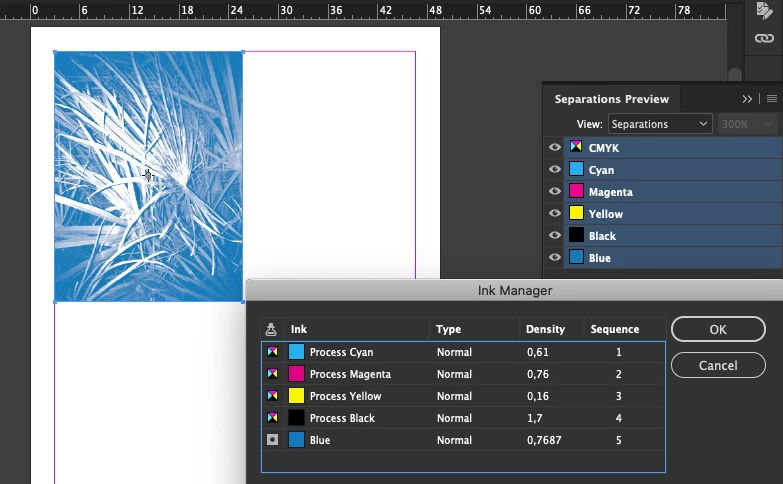
Is the Yellow showing as a Spot in Ink Manager—you don’t have it set to convert to process as I’m showing below?


If that’s not it can you share the Photoshop file via Dropbox or your CC account?