


New Participant
May 20, 2022
Answered

InDesign Blank Document Presets slightly off (example: 8.5319 x 11.0412)

  • May 20, 2022
  • 3 replies
  • 722 views

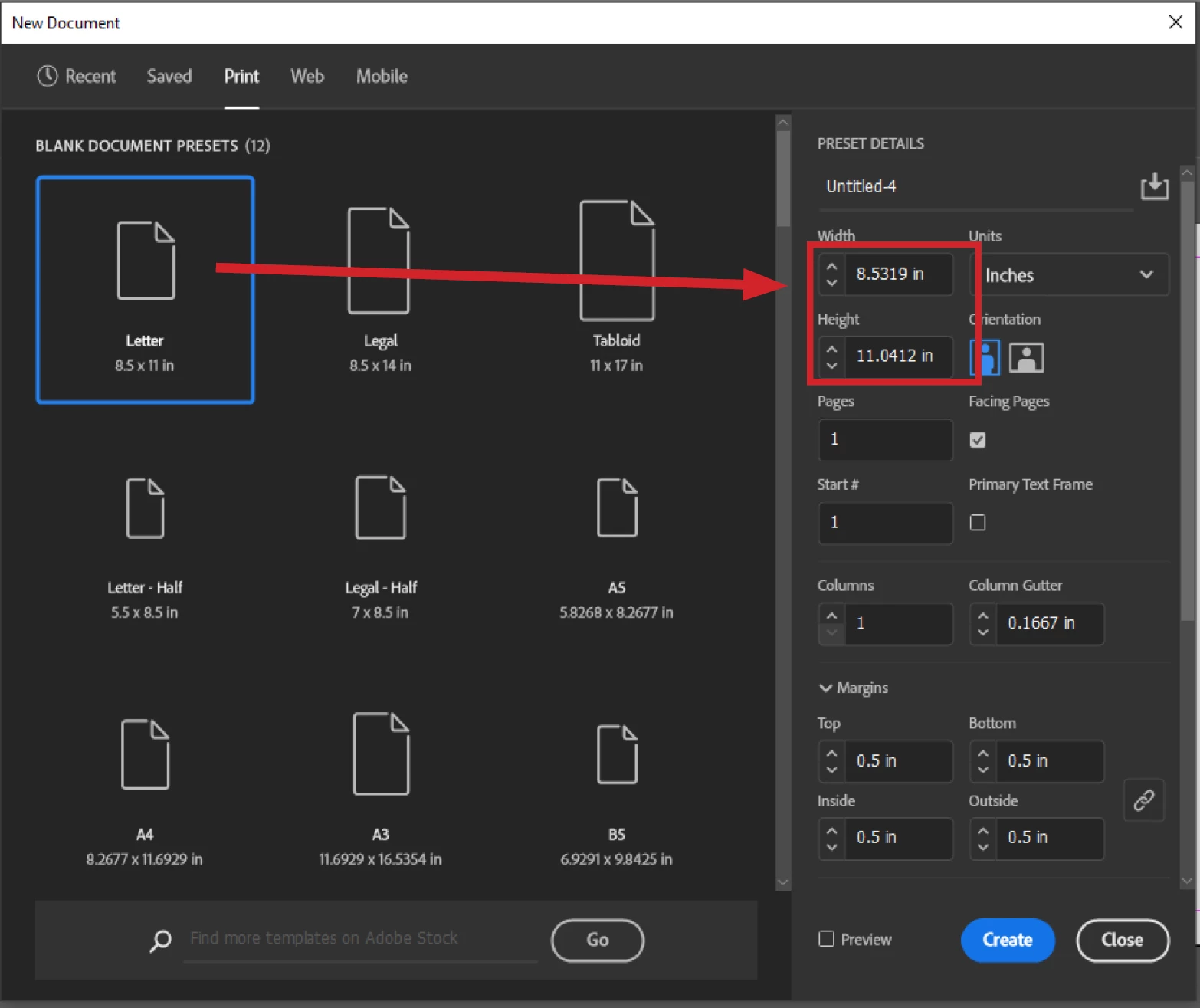
Hoping someone know how to fix this! Something is wonky with my blank document presets in InDesign. Nothing custom, just the normal standard pages (letter, legal, tabloid, etc.) are all slightly larger. For example the preset for a new "print" 8.5 x 11 letter size document looks like this: 
 

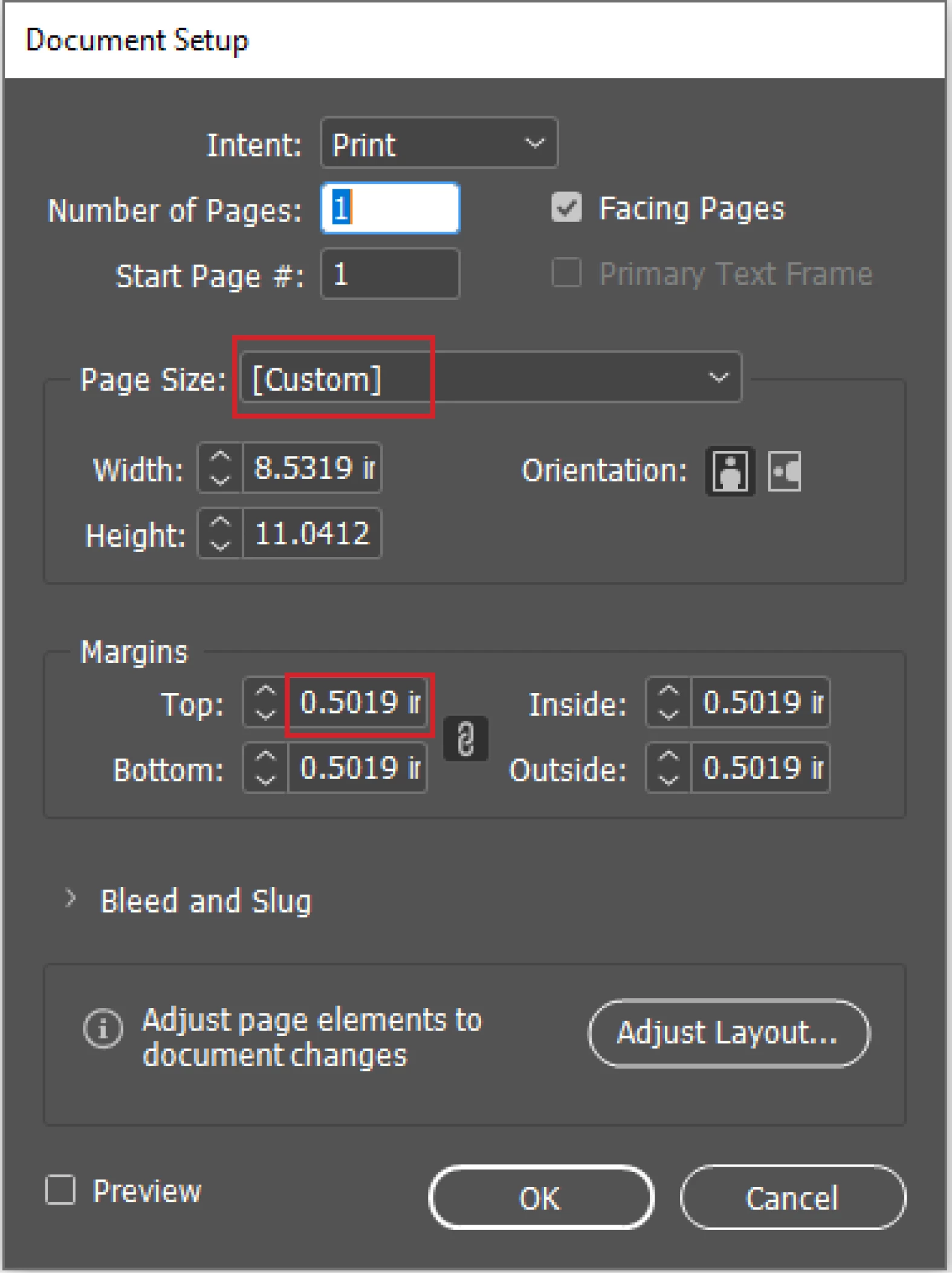
If I create this file, the document setup shows the page size as "custom" and also increases the margins from 0.5 to 0.5019 like this:
Any idea how I set these back to normal?

This topic has been closed for replies.
Correct answer Barb Binder

Hi @stylish_maker6609 :


Change your Preferences > Units and Increments back to Points/Inch: PostScript 72 pts/in.


~Barb

3 replies

Community Expert
May 25, 2022

James said: "I read Uwe's comment as that points are the fundamental unit for measurements in ID. Is that true? Is there a base unit, at the code level, used and translated into all the others?"


Exactly!

If you look into an IDMS file or an IDML file and inspect how the dimensions of a page or an object on a spread are defined you see only numbers. You will not see a measurement system attached to the numbers. The numbers clearly refer to PostScript points (72/Inch).


Below a sample, an excerpt of an IDMS file, a square's path geometry description, 100 Pt x 100 Pt, that was created and immediately exported after creation from the first spread of a facing pages document. I tried to catch the document's zero point*, but failed a bit:


<Properties>
<PathGeometry>
<GeometryPathType PathOpen="false">

<PathPointArray>
<PathPointType Anchor="0 -14.17322834636626" LeftDirection="0 -14.17322834636626" RightDirection="0 -14.17322834636626" />
<PathPointType Anchor="0 85.82677165363374" LeftDirection="0 85.82677165363374" RightDirection="0 85.82677165363374" />
<PathPointType Anchor="100 85.82677165363374" LeftDirection="100 85.82677165363374" RightDirection="100 85.82677165363374" />
<PathPointType Anchor="100 -14.17322834636626" LeftDirection="100 -14.17322834636626" RightDirection="100 -14.17322834636626" />
</PathPointArray>

</GeometryPathType>
</PathGeometry>
</Properties>


For the numbers it does not count how my rulers in the layout window are currently defined; which measurement system, where the zero point is positioned on the spread. The numbers of that rectangle in the IDMS file will not change if you do a new export.


FWIW: The zero point of the values in that IDMS file is the document's zero point* that is usually (always?) on the first spread of a document. And the numbers describe the numbers at creation time. If you move the rectangle somewhere else the new position is described by a transformation matrix with transform values for  x and y direction.


*The horizontal zero value of the document's zero point, something that is not revealed in the GUI, is "usually" positioned exactly on the spine of a facing pages document, the vertical position is "about" half way down the length of the page on the first spread of the document.


If you create and export an object from a different spread the spine between two spreads, that gray horizontal bar between the spreads in the Layout window does also count when you look at the numbers for the y-values. It's not only the pasteboard's area.


Regards,
Uwe Laubender
( Adobe Community Professional )


Barb Binder
Barb BinderCorrect answer
Community Expert
May 20, 2022

Hi @stylish_maker6609 :


Change your Preferences > Units and Increments back to Points/Inch: PostScript 72 pts/in.


~Barb

~Barb at Rocky Mountain Training
Brad @ Roaring Mouse
Community Expert
May 21, 2022

Yup.


James Gifford—NitroPress
Brainiac
May 20, 2022

The only time I have seen odd, tiny increases in object sizes is when a border rule is defined. It's a long shot, but check your standard objects (default text frame, etc.) to see if a border has been applied to them that is being used by the page defaults and thus generating this slightly oversized layout.