



Morazan
Known Participant
August 25, 2020
Question

InDesign Buttons Distorted in Interactive pdf

  • August 25, 2020
  • 3 replies
  • 4692 views

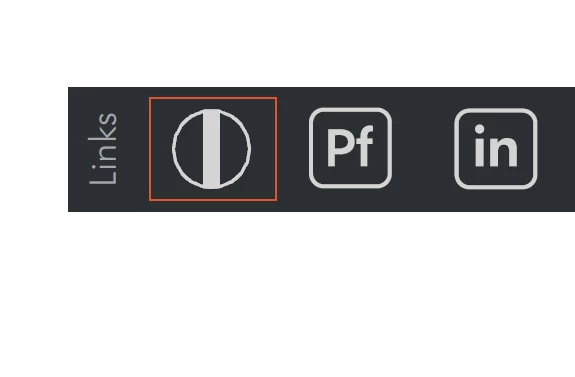
  I'm making an interactive pdf with several vector objects I've converted to buttons, either as links or simply to highlight on rollover (the Hyperlinks controls don't seem to offer different states). When I export as an interactive pdf, whichever vector objects I've turned to buttons are distorted (please see attached image). I have been through the usless copy-and-paste troubleshooting steps with Adobe support (or rather "support") -- renaming the ID folder in Roaming and Local App Data folders with ".old," uninstalling and reinstalling ID, etc, but nothing works. Has anyone else run into this issue and if so how did you manage to fix it, if at all? Thanks in advance for any help. 
 

This topic has been closed for replies.

3 replies

TᴀW
Brainiac
August 28, 2020

In Acrobat, what options have you checked under Preferences > Page Display.

Perhaps if you check "Smooth line art" it will display more smoothly?

Morazan
MorazanAuthor
Known Participant
August 28, 2020

Thanks for your reply. I've got the highest settings in Page Display, please see below. The lines on all buttons are still shaky/aliased upon export to interactive PDF. As mentioned above, when those same items are not buttons, they're 100% smooth, so the issue seems to be with the way buttons are being rendered by Acrobat rather than with any general graphics settings.


Derek Cross
Community Expert
August 25, 2020

Roll-over buttons won't work on tablets and smart phones.

Morazan
MorazanAuthor
Known Participant
August 25, 2020

I know that part, thanks. This is meant to be viewed on a PC. Does the circle look wavy to you?

jane-e
Community Expert
August 25, 2020

Hi

They do not look distorted in your screenshot. Can you look at the Width and Height in both Acrobat and InDesign and give us the numbers?

  • InDesign: Selection tool > look in the Control panel
  • Acrobat: Prepare Form tool > Properties > Position

~ Jane


Morazan
MorazanAuthor
Known Participant
August 25, 2020

In the icon with the red box around it, the circle doesn't look wavy? The circle icon is the only button; the other two aren't. I left them in for comparison. But if the circle looks smooth to you, that's odd, because it's a screenshot, I though that would be an exact picture of what I'm seeing on my screen. Could you please share a screen shot of my screen shot?


Anyway, the dimensions are 0.2409" square. The dimensions and position in the pdf are attached as a png. Thanks for your help.

jane-e
Community Expert
August 25, 2020

Hi

I zoomed in and see the fuzziness now. The rectangle looks sharp; the circle looks pixelated. You said it's vector. Did you draw it in InDesign or elsewhere? Assuming your screenshot is from Acrobat, what does it look like when you zoom in on it in InDesign? Can you try drawing another circle to see if that works?


Your png did not come through, btw. Is it the same W and H in both Acrobat and InDesign?


~ Jane