


New Participant
April 16, 2020
Answered

[InDesign] Can't select/remove object in any way

  • April 16, 2020
  • 5 replies
  • 11020 views

Greetings,


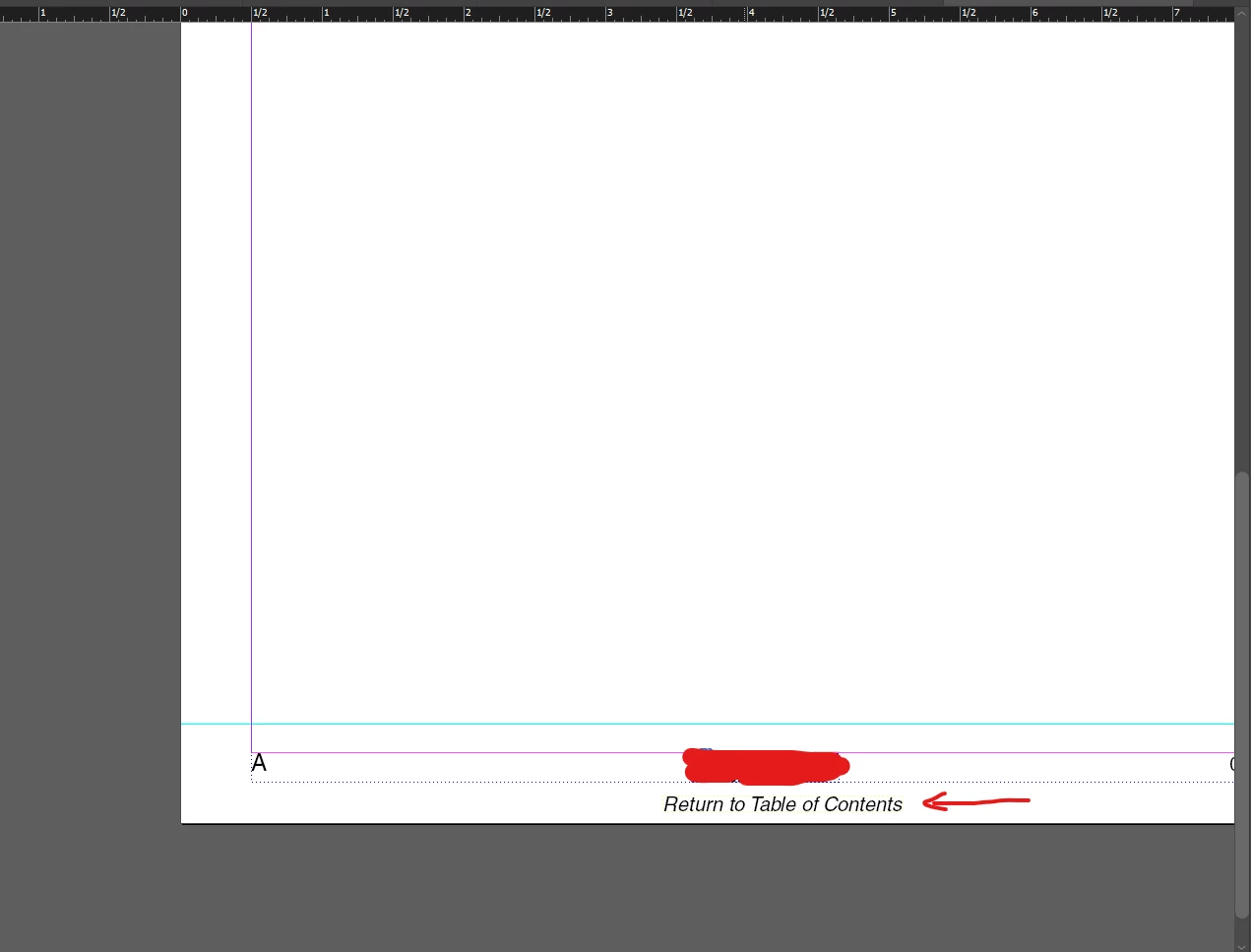
I seem to have encountered a strange issue with an InDesign file, where there is an object on a Master Page in one of the book files, that I want to remove, yet I cannot even select it (not even using force-select), see screenshot below for more detail. It's as if it is embedded into the page/background somehow, even though it's a text box as far as I can tell. I tried deleting the Master Pages with that item, then importing Master Pages without that object from other files in the Book, but then said object magically appears on the newly imported Master Pages as well, even though it's not there in any other file within the Book. Any ideas? It's the "Return to Table of Contents" box.


Correct answer Peter Spier

Did you check for a locked layer?


5 replies

Brainiac
April 17, 2020

None of your masterss are based on other masters so it is not an override issue. Did you try saving as .idml and reopening?


~Barb

New Participant
June 28, 2020

I have the same/a similar issue. I have objects that appear to be "in" or from a master page, but simply don't exist on any layer and cannot be unlocked, or forced to be unlocked, or overridden on a page as described by the OP. Very frustrating. The only workaround appears is to put another object above them to hide them. I have tried quitting, resaving. Saving as in .idml but no luck yet in finding their location and deleting them. Any suggestions gratefully received. 

Cheers, Ben

New Participant
October 22, 2020

Hi I had this same issue & what I did was select & right click on the item on the Master page, there should be a selection called "Allow Master Item Overrides". Once I did this I could finally delete the item in the document. 


Dom

Inspiring
April 17, 2020

Is the frame locked? Choose Object>Unlock all on Spread to find out. Or is it on a layer which is locked?

New Participant
April 17, 2020

That selection is inactive for me, it was one of the first things I checked.

Peter Spier
Peter SpierCorrect answer
Brainiac
March 8, 2022

Did you check for a locked layer?


Inspiring
April 17, 2020

Did you try resetting your preferences? Could the file be corrupt? If you rebuilt the file does it still exist?

New Participant
April 17, 2020

Yeah, I've tried resetting my preferences, but it did not have an effect on this issue. I've no way of determining whether or not the file is corrupt, I mean, it might be, but who knows. It's a rather large file from a client, so rebuilding is probably out of the question, I'd rather just mask the unwanted text boxes and leave it at that.

Brainiac
April 16, 2020

Is the A-Master the parent master in that file, or is A based on another master? Can you show us the Master page section of the Pages panel? Or can you share a copy of the file? (Deleting content first is fine.)


~Barb

New Participant
April 17, 2020

Thanks for the reply. Here's a screenshot:

When I mouse over any Master Page, it says that "None" was applied to them, so I guess that might be the Parent Master? It's non-selectable, though, unlike other Master Pages (I can select it, but cannot open it for edits or anything).


Steve Werner
Brainiac
April 16, 2020

To override a master page item, hold down Cmd + Shift (Mac) or Ctrl + Shift (Windows) and click on the item. Then you can select it and delete it if desired.

New Participant
April 17, 2020

When I said force-selecting it did not work, that's what I meant. That combo does nothing on this particular item.