


Participating Frequently
October 7, 2018
Answered

Indesign CC rendering Bitmap preview in low quality compared to CS6

  • October 7, 2018
  • 5 replies
  • 3848 views

Hello,

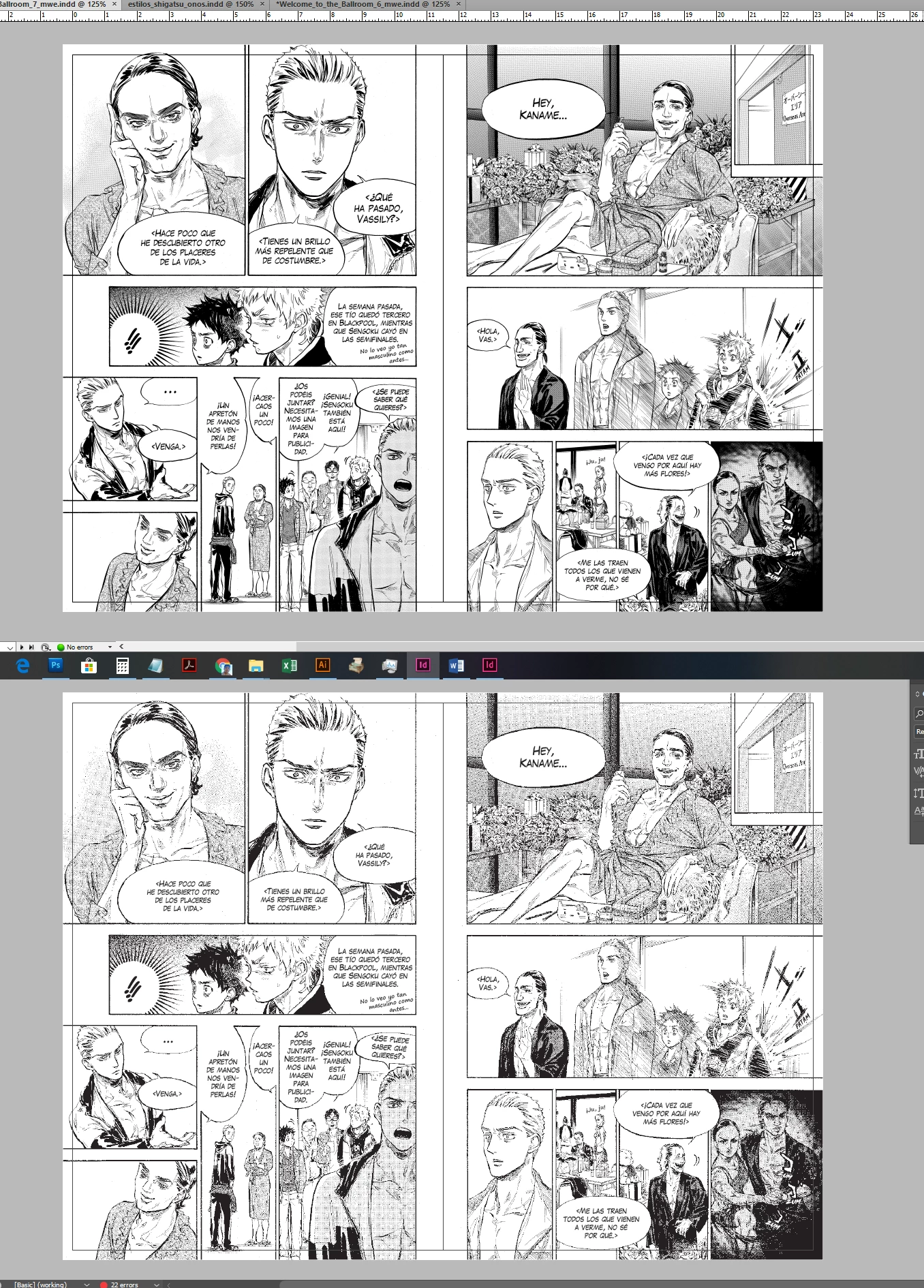
We have being working with Indesign CS6 for a long time now. We work in the manga industry and recently we upgraded to CC. The thing is that manga images are all bitmap files. While working in CS6 the images look fine, but same files in CC look terrible.

Please find attached screen capture of same pages in both versions ID. Top one is CS6, bottom ones is CC 2018. Both Windows 10.

ID Prefereces are both set to High Quality Display and all quality settings for High Quality Display are set to the maximum.

For a long time, we have being resistant to change to CC because of this issue, but we work with lots of designer and we want to make use of the new features of recent versions of ID, but working with bitmap files is an every thing for us and it is really annoying to the eye.

This only happens with bitmap images, if we convert to grayscale, it looks good, but in professional manga industry, working with grayscale images is not an option for us.

Hope anyone can help us. Thanks a lot.
This topic has been closed for replies.
Correct answer Laubender

Hi Carlos,

please do a bug report here:

Adobe InDesign Feedback

Come back when done and post the link to the report so that we can vote for fixing the issue.

Regards,
Uwe

5 replies

rob day
Community Expert
June 12, 2024

This only happens with bitmap images, if we convert to grayscale, it looks good, but in professional manga industry, working with grayscale images is not an option for us.


Hi All, @carloss62701757 in the original post mentioned that converting to Grayscale fixes the problem, which is what I am seeing on my Cinema display.


It‘s worth noting that a conversion from Bitmap to Grayscale Mode does not introduce gray values in the image—the pixels remain either black or white, so there would be no affect on print output as long as there is no compression or downsampling allowed on the PDF Export.

Participating Frequently
June 12, 2024

I really appreciate your help and I thank you for it, I know this is an option and have already used this method at the beginning, but I personnaly would prefer Adobe trying to fix something that used to work than having to wait for a script to run for 200 page 2 times (bmp to gray then reverse, we are asked to keep the weight of the package on the lighter side) on every title that I work on...

Participating Frequently
October 19, 2022

We are at the end of 2022 and it's still a problem with the newest version (18.0), what a shame.

New Participant
June 9, 2024

It's 2024 and unfortunately, the issue persists. I would really like to know why this is happening.

I work with a very large quantity of BMP files, and I would like to use the latest programs in my subscription, not be stuck with the outdated CS6 because of this.

rob day
Community Expert
June 11, 2024

In all versions after CS6, the dots only looks good if I zoom in a lot on the image. But it's not possible to work like that, I (and my team) need to see the whole page.

The issue is the same as the creator of this thread in 2018, it seems that the program can no longer process the image correctly at a certain distance.

In CS6 it doesn't matter how much zoom I use, it always displays the image correctly. See the new attached image, even though CS6 is much smaller, it still has the correct display.

I am also attaching the original image file for you to check.


This seems to be hardware related, I get different results depending on the display. I get this on my 2019 iMac Retina display running at 3200 x 1800 px:


And this on my 2nd monitor which is an old Cinema display running at 1900x1200:


You are including a crude halftone screen in the bitmap to create gray values, and the halfone dots are going to moire as the art scales relative to any diplay’s relatively low resolution. I wonder what the value of including a halftone screen in the BM art is? Why not use grayscale art and let the output device screen the gray levels to the desired LPI?

Participating Frequently
October 30, 2018

It is really annoying.

The thing is that it seems to only happen in Windows version because Mac version supports GPU acceleration and antialiasing works better...

I got in contact with Adobe support at the same time as I open this forum topic and they say they would try to fix it... But that's all.

It is really annoying and I cancelled my subscription to CC because of it...

LaubenderCorrect answer
Community Expert
October 30, 2018

Hi Carlos,

please do a bug report here:

Adobe InDesign Feedback

Come back when done and post the link to the report so that we can vote for fixing the issue.

Regards,
Uwe

Bill Silbert
Community Expert
October 7, 2018

Please note my last post was about testing a bitmap import in InDesign on a Mac. I initially typed Illustrator but fixed it as soon as I realized. Bitmaps in CC InDesign on a Mac do seem to display OK.

Participating Frequently
October 8, 2018

We are suspecting is the anti-aliasing setting which is not working for bitmaps in ID CC.

Anybody, please? =?

Community Expert
October 22, 2018

Hi Carlos,

I'm willing to test this on my Windows 10 machine.

InDesign CS6, CC all versions are installed.

Unfortunately your sample bitmap is not available anymore.

Regards,
Uwe

Bill Silbert
Community Expert
October 7, 2018

I tried to reproduce your results using images of my own converted to bitmaps but did not have the same problems that you had? Is this happening on just one PC or on more than one? When you make the bitmaps what settings are you using?

Participating Frequently
October 7, 2018

Hi, Thanks for your reply.

This is happening in all my PCs. It is really annoying. We thought it might have to do with the Windows version of the program?

You can download a sample of files we use from the following URL: WeTransfer

It is a 600 dpi bitmap image.

Bill Silbert
Community Expert
October 7, 2018

I tested your image and it looked fine in InDesign CC 2018. But, unfortunately in this instance, I am on a Mac which supports your theory that it is a Windows 10 issue. Hopefully, someone more versed in Windows will respond for you with a solution.