



Yamonov
Legend
June 30, 2025
Question

InDesign Color Settings Are Overwritten by Other Versions

  • June 30, 2025
  • 2 replies
  • 185 views

Summary:
InDesign is unable to maintain separate color settings for each version. Whenever a different version is activated, the color settings are forcibly overwritten by the last activated version.


Steps to Reproduce:
Launch InDesign 2025 and set the color settings to “Preset A” (e.g., a print vendor’s recommended settings).
Launch and activate InDesign 2024.
Without any warning, InDesign 2024 will adopt the same Preset A color settings.
This also occurs in the opposite direction: activating either version will overwrite the other’s previously configured color settings.


Expected Behavior:
Like Photoshop and Illustrator, InDesign should maintain independent color settings for each version.

Actual Behavior:
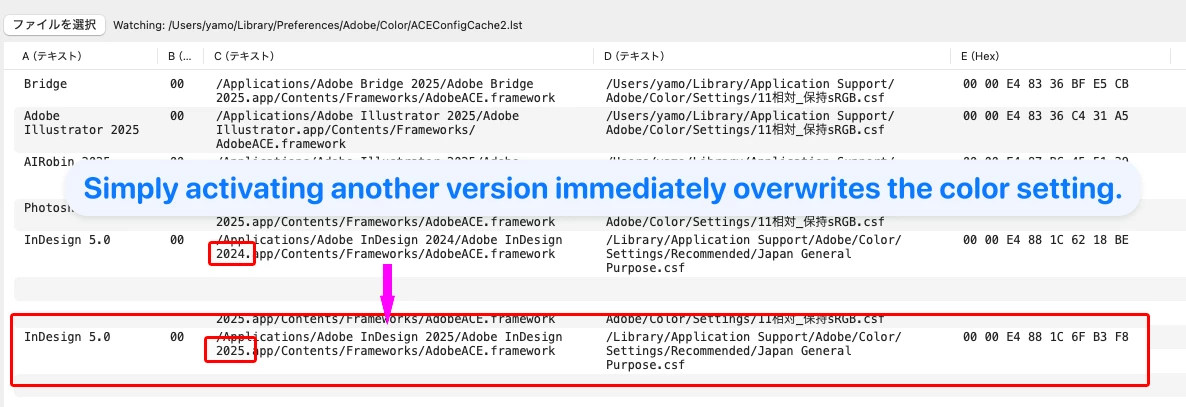
InDesign, Illustrator, Photoshop, and Bridge all write the currently selected color setting preset to the shared sync file:
~/Library/Preferences/Adobe/Color/ACEConfigCache2.lst
This file is what allows Bridge to synchronize color settings across Adobe apps.

However, InDesign is the only application that overwrites the settings record for another version of InDesign, regardless of version.


Root Cause:
All apps use the same file, but only InDesign fails to differentiate versions.
This causes one version of InDesign to overwrite the color settings of another—simply by being activated.


Commentary:
This behavior disrupts professional workflows.
In environments such as print production where different versions of InDesign must use different color settings (e.g., for different clients or print vendors), this is a critical issue.

InDesign should follow the same behavior as Photoshop and Illustrator:
Write version-specific entries to ACEConfigCache2.lst, and avoid overwriting other versions’ settings.
 

2 replies

rob day
Community Expert
Community Expert
June 30, 2025

Hi @Yamonov and @Abhishek Rao , This has always been the behaviour with InDesign—here’s CC2021 and CC2018 running together:


It would not affect existing documents with Assigned Profiles—it’s the Assigned spaces that CMs the document. Color Settings would only be used when there are no profile assignments —Discard (use current working space)


Yamonov
YamonovAuthor
Legend
July 1, 2025

Yes, in InDesign, the RGB and CMYK profiles and rendering intent used at the time of document creation are usually embedded in the file, regardless of the document color mode.
So as long as the document was created under the correct color settings, opening it in another environment will typically just trigger a profile mismatch warning — the content itself is not affected.

If all InDesign versions used the same color settings, this behavior wouldn’t be a problem.
However, especially in Japan’s print industry, it’s not uncommon for clients or print vendors to request that submitted InDesign files be created in a specific version, using a specific color setting.
In such cases, simply launching multiple versions of InDesign and having the color settings automatically synced and overwritten can cause serious workflow issues.
Ideally, color settings should only be synced across versions when the user explicitly does so via Bridge.
But InDesign, unlike Photoshop or Illustrator which store settings per version, writes a single shared setting into one common file (ACEConfigCache2.lst), which causes silent overwrites without the user’s awareness.
This design seems flawed, as it can result in unintentional and unnoticed changes to the working color settings, even in professional production environments.

--Yamonov
Abhishek Rao
Community Manager
Community Manager
June 30, 2025

Hi @Yamonov,


Thank you so much for sharing these detailed observations. I completely understand how important this is for your workflow. I'm currently checking with the team to confirm whether this behavior is by design in InDesign or if it needs to be addressed differently.

I'll keep you posted as soon as I have more information.


Thank you for your patience!

Abhishek