


Inspiring
May 19, 2025
Question

InDesign is selecting the wrong page in page display

  • May 19, 2025
  • 8 replies
  • 4639 views

I wonder how much time this bug has wasted.


I noticed that when changing section-specific info in the Layout / Number & Section Options menu, sometimes it would produce totally unexpected results and screw up multiple sections and page layout.


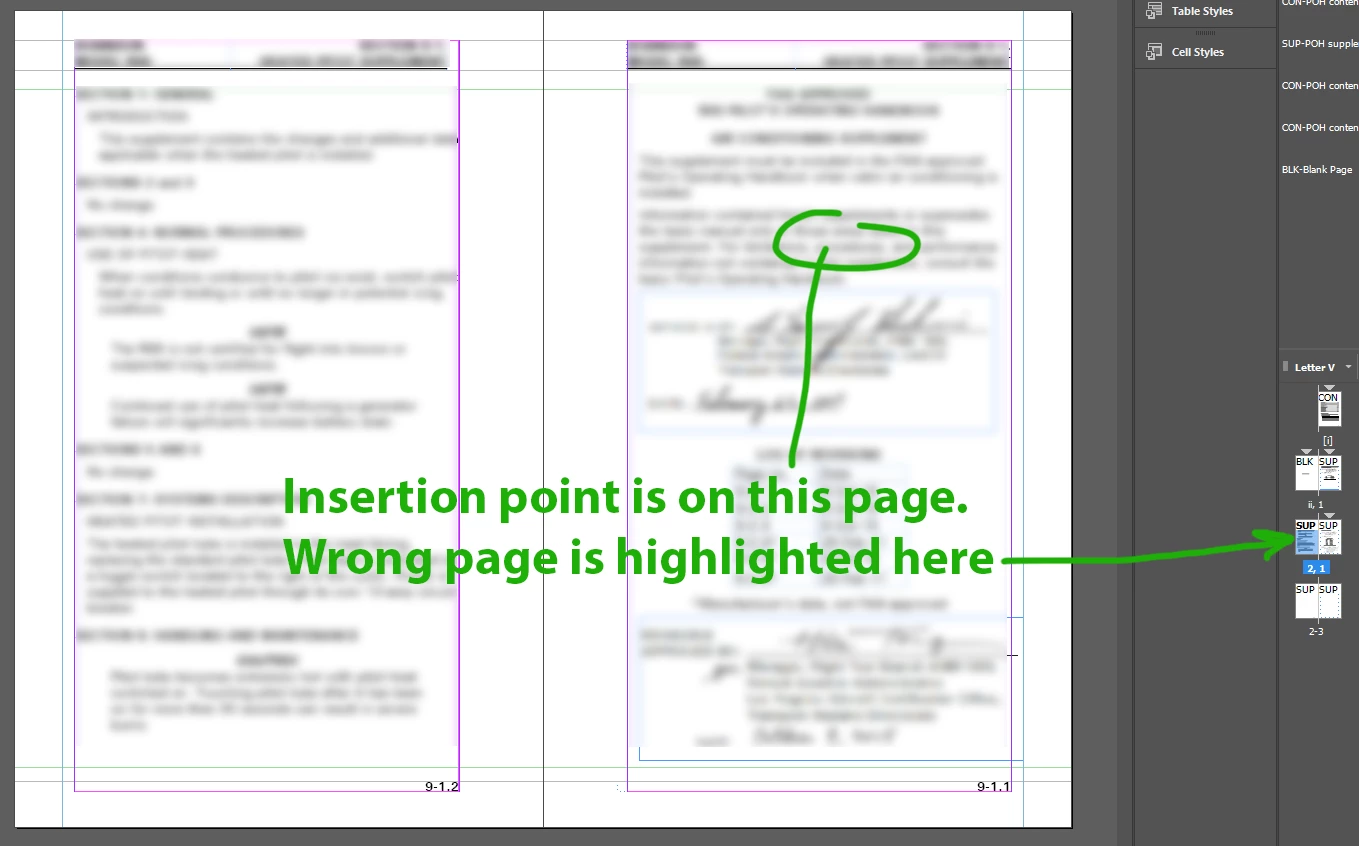
It turns out that this is because pages are inexplicably selected in the Pages tab, unrelated to where the insertion point resides. Sometimes two pages are selected at once in that pane, other times only one... but frequently the selected one(s) is wrong. I didn't select it, and it doesn't reflect the page on which I'm working.


Further experimentation shows that it usually selects both pages of a spread, instead of the one you put the insertion point on. That is a major PITA; if you click on the right page thinking you're going to start a new section, InDesign will instead start the section with the left page, messing things up.


With the insertion point sitting in text, I expect any changes made to the section or chapter options to affect the section in which I'm working; not in some arbitrarily (and automatically) highlighted thumbnail in a disconnected pane.
 

8 replies

Frans v.d. Geest
Community Expert
May 21, 2025

Bug? No bug, the difference between a single click (selection, for an action for example) and double clicking (navigating to, depending on where you double click, left, right, or under on the numers). Or simply use the pop up menu for pages in the left lower corner where the page number is also listed.

or use Cmnd (Ctrl on PC) J

Maybe follow some more classes or look here: https://www.youtube.com/watch?v=W0D5ePoHx9c

Inspiring
May 21, 2025

Thanks for the references. But this isn't about clicking in the Pages pane. The bug is what happens when you click in the editor.

Robert at ID-Tasker
Brainiac
May 21, 2025

@Thomas_Calvin


But being in "text editing mode" has zero influence on the rest.


Barb Binder
Community Expert
May 21, 2025

Great reference, @Mike Witherell and worth the re-read. 


@Thomas_Calvin Have you figured out yet that Sync Options is a better practice than Sync Book (because it forces you to consider what you are—and are not—syncing)?


~Barb

~Barb at Rocky Mountain Training
Inspiring
May 21, 2025

Doesn't Sync Options simply control what happens in Sync Book?

Dave Creamer of IDEAS
Community Expert
May 21, 2025
quote

Doesn't Sync Options simply control what happens in Sync Book?


By @Thomas_Calvin

Yes, but you can sync from the Options panel but you can check your settings first, so it's best to use the Sync Options menu.

David Creamer: Community Expert (ACI and ACE 1995-2023)
Mike Witherell
Community Expert
May 21, 2025

Here is the too-subtle language from the helpx files:

Target or select a page or spread

You either select or target pages or spreads, depending on the task you are performing. Some commands affect the currently selected page or spread, while others affect the target page or spread. For example, you can drag ruler guides only to the target page or spread, but page-related commands, such as Duplicate Spread or Delete Page, affect the page or spread selected in the Pages panel. Targeting makes a page or spread active and is helpful when, for example, several spreads are visible in the document window and you want to paste an object onto a specific spread.

1. In the Pages panel: To both target and select a page or spread, double-click its icon or the page numbers under the icon. If the page or spread is not visible in the document window, it shifts into view.

  • Tip: You can also both target and select a page or spread by clicking a page, any object on the page, or its pasteboard in the document window.

    The vertical ruler is dimmed alongside all but the targeted page or spread.

  • To select a page, click its icon. (Don’t double-click unless you want to select it and move it into view.)

  • To select a spread, click the page numbers under the spread icon.

Note:  Some spread options, such as those in the Pages panel menu, are available only when an entire spread is selected.


[My thought: notice it does not mention about clicking a Type tool into text. That is why my practice is to get out of the Type tool in favor of the Selection tool anytime I want to administer things done to pages in the Pages panel.]

Mike Witherell
Inspiring
May 21, 2025

Thanks for that reference, Mike.


And indeed it's significant that it doesn't mention clicking a Type tool into text. Its omission supports my claim that nothing would break if the auto-selection behavior were fixed to select only the one page upon which the user is working. At any time (just like now), the user can make selections in the Pages pane and perform the actions described above. Upon return to the editing pane, the selection in the Pages pane would adjust accordingly (as it does today, but erroneously).

Barb Binder
Community Expert
May 20, 2025

Ha. Here you are! 


Your final image is what is was referring to by  "And Leo has an excellent example of the perils of the Pages panel in his second screen shot—the page numbers 4–5 are selected but the page icons on some other spread are selected. They need to all be blue." I call that view "Never Never Land"—not sure what Mike calls it—but it's a place you don't ever want to be. It happens when you single click and don't double click when navigating with the Pages panel. 


As for training classes, how effective they are depends on the instructor. A lot of people teach InDesign, but don't know it well. In my opinion, they need to know InDesign, they need to use it for layout outside of class, they need to be effective communicators and in your specific case, they need to understand long document layout, which is very different from designing brochures and flyers, etc. You would likely benefit from a custom class tailored to your specific needs, rather than most of the public classes out there.


Or maybe this course would be both beneficial and cost-effective: https://www.linkedin.com/learning/indesign-creating-long-documents-13887227/creating-indesign-book-files though you might want to skim David Blatner's Essentials Training first. Mastering the interface is surprisingly important, as you are learning.


~Barb

~Barb at Rocky Mountain Training
Inspiring
May 21, 2025

Thanks! I'll check that out. I've had some success creating a book and syncing styles and parent pages across the documents.

Barb Binder
Community Expert
May 20, 2025

Hello again, @Thomas_Calvin:


I'm going to visually support the other helpful answers already here...


I head off this confusion by having all my students undock the Pages panel, keep it visible and focus on using it for page navigation. As you are belatedly figuring out, the blue highlighting is critical.


Below, I am showing with Mike is saying. (BTW, we are both InDesign instructors. As a matter of fact, Mike taught InDesign a million years ago because he saw the writing on the wall noting PageMaker's demise so much more quickly than I did.)


  • When I double click the page 2 icon, page 2 is selected and is centered. The page 2 thumbnail and the page numbers underneaath are both blue. 
  • When I double click the page 3 icon, page 3 is selected and is centered. The page 3 thumbnail and the page numbers underneaath are both blue. 
  • When I double click the dash between pages 2 and 3, the spread is selected and centered. The thumbnail for the spread and the page numbers are both blue. 


To get to the A-Parent, double click the words A-Parent. Both the page icons and the words A-Parent will be blue.


I'm going to respectfully disagree with Mike and say you can also change the selected spread by scrolling and clicking/selecting—but you always have one eye on the Pages panel to be sure you are where you think you are. And Leo has an excellent example of the perils of the Pages panel in his second screen shot—the page numbers 4–5 are selected but the page icons on some other spread are selected. They need to all be blue.


It's tough to teach yourself a mature application like InDesign without buying a book or taking a class. There are so many little things to trip us up that just aren't obvious or discoverable.


~Barb

~Barb at Rocky Mountain Training
Inspiring
May 20, 2025

Thanks Barb. I actually have two classes and a book at my disposal. However, going through these, I (and coworkers) have found that they focus on things that have nothing to do with our work. Making brochures and whatnot. Positioning graphics and doing funky layouts. I doubt that it would adequately emphasize the incompetence of this particular display... although if it did, I would be impressed.


leo.r
Community Expert
May 20, 2025
quote

I doubt that it would adequately emphasize the incompetence of this particular display... although if it did, I would be impressed.

By @Thomas_Calvin


In your screenshot, you selected a master page in the Pages panel. You might have wanted to delete this page or perform some other page management tasks. Certainly you wouldn't want some other page to remain selected while you don't want to perform any actions with that page. The highlighted numbers indicate the active spread.

Mike Witherell
Community Expert
May 20, 2025

Hi Thomas,

Why would you have 4 triangles indicating Start Sections in the first 5 pages? What really are you trying to do?

If I was going to add or remove or move pages around, the first thing I would do is get out of the Type tool and into the black Selection tool. Page icons in the Pages panel can be targeted by clicking the individual page icon for an individual page, or selected by double-clicking the individual page icon or double-clicking the number label beneath the Page Spread icons to target a spread and also to be selected to and viewing that page or spread. A technique I would not practice is sliding up and down the OS vertical scrolling slider to go from page spread to page spread. Cmd/Ctrl+J is the go-to-page command. I like to be targeted to the page icon and viewing the page before I operate the Type tool in that page.

Mike Witherell
Inspiring
May 20, 2025

Was that directed at me? I don't know what that's about; I never said anything about moving pages around.

leo.r
Community Expert
May 19, 2025

To illustrate the point made by @Robert at ID-Tasker, in the Pages panel you can select multiple pages or deselect all pages. Basically, in the Pages panel you can only reliably identify the active spread by its highlighted page numbers, but not the active page.


I do agree that it can be confusing in situations where the highlighted page is not the actual active page.


Inspiring
May 21, 2025

Thanks guys.


Just now I was reminded that there's yet another hole in this mess, making this

"in the Pages panel you can only reliably identify the active spread by its highlighted page numbers"


not true.


If you apply a parent page to a child and then add another page to your document, whoops: It doesn't add another page to your document. It adds another parent page, because using a parent page leaves it somewhat selected?


Therefore it is not reliable to perform all your page operations in the Pages pane. Oh well.


Screen grab of this ridiculousness attached.

Robert at ID-Tasker
Brainiac
May 19, 2025

The best thing to do, when adding Sections - is to first double-click in the Pages panel, on the page you want to make active.


Page that is highlighted in the Pages panel - doesn't have to be the one that you've displayed.