


Copy link to clipboard
Copied
Hi everyone! I have a 28-page booklet, and everytime I create it, InDesign adds an extra to the front. 28 divide 4 is 7...so it is fine. So why??? I just noticed it says 12 pages that it's printing, when it should be more. I also noticed that when I click forward to see the pages, all the blank pages I have are missing. However, I clicked on Print Blank Printer Spreads, but that doesn't seem to fix things.
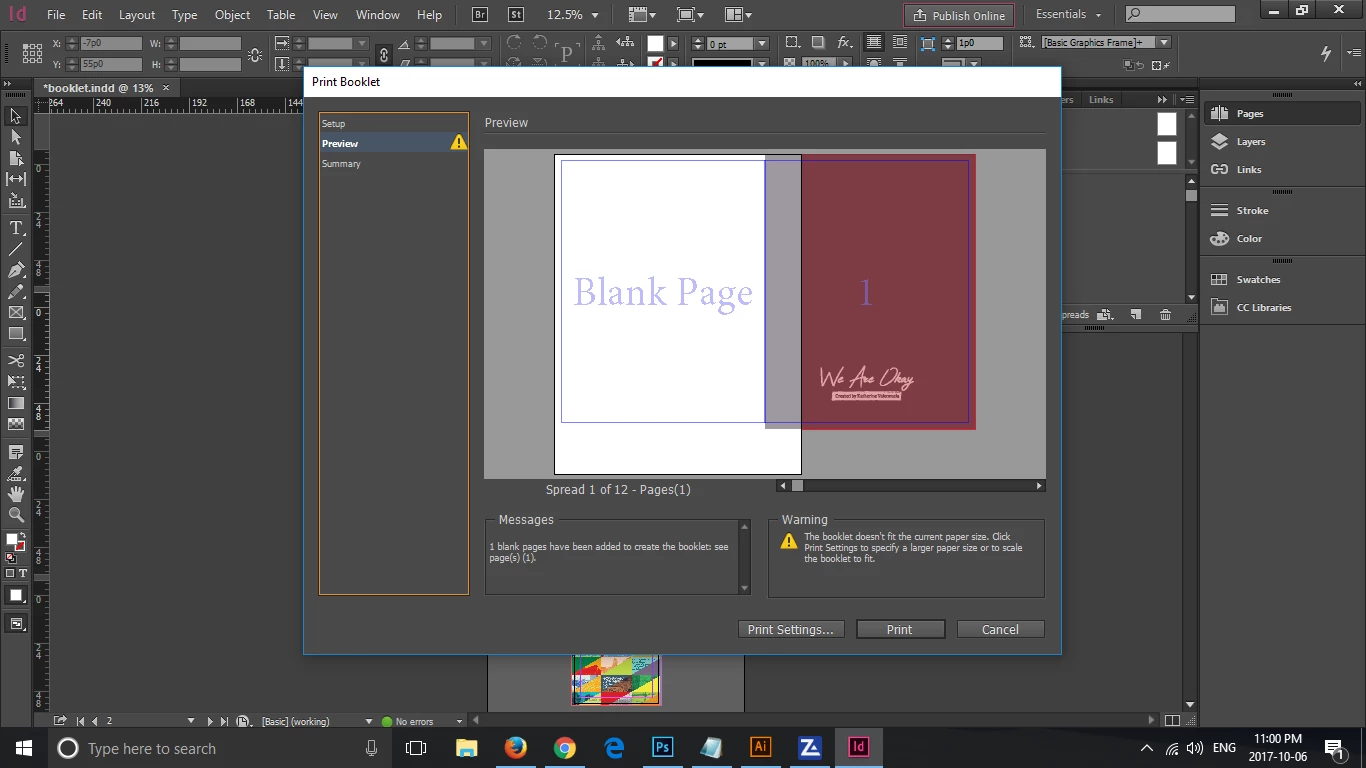
Hi, so I just fixed this.
It seems that InDesign doesn't include blank pages into InDesign.
I checked Print Blank Printer Spreads and that doesn't seem to work.
I added a white rectangle on the 'blank' pages and that doesn't seem to work.
What seems to work is putting a white rectangle with a blank outline on my blank pages, with the rectangle extending beyond the document so the black outline doesn't show. Oh and make sure when you're on Print Booklet, to uncheck Automatically Adjust to Fit Marks a
...Copy link to clipboard
Copied
Hi, so I just fixed this.
It seems that InDesign doesn't include blank pages into InDesign.
I checked Print Blank Printer Spreads and that doesn't seem to work.
I added a white rectangle on the 'blank' pages and that doesn't seem to work.
What seems to work is putting a white rectangle with a blank outline on my blank pages, with the rectangle extending beyond the document so the black outline doesn't show. Oh and make sure when you're on Print Booklet, to uncheck Automatically Adjust to Fit Marks and Bleeds.
Hope this helps others.
Copy link to clipboard
Copied
You have to click on Print Settings.... and make sure print blank pages is included there.
You also have to use Print Settings to setup the paper size and orientation, your setup won't work because the printer spread isn't fitting on the smaller paper size and that's why you are getting the yellow warning triangle in the booklet dialog.

The paper size has to be large enough to hold the printer spread

Copy link to clipboard
Copied
Indesigh works in multiples and in case the multiple number is not reached it adds two pages. The solution is for you to add the two pages and make the booklet maybe 32
Copy link to clipboard
Copied
Hi @katrison,
@katherinev7222705 ’s document has 28 pages (7, 4 page signatures), so Print Booklet will impose it without adding blank pages as long as Print Blank Pages is checked in the Print dialog:
Copy link to clipboard
Copied
Thanks for the help, worked perfectly
Get ready! An upgraded Adobe Community experience is coming in January.
Learn more