


New Participant
November 10, 2017
Answered

Indesign: Lines appear systematically in the background

  • November 10, 2017
  • 2 replies
  • 3302 views

Hello,

I am a relative newbie using Adobe Indesign and have been hitting a seemingly easy issue for hours, without managing to solve it -- I hope you can help me.

I am using the Line tool to trace a simple set of lines. I am only using one layer for the whole graphic. For some reason, the line appears systematically in the background, even that it's clearly at the top of the layer.

Here is a screen shot, showing 4 lines. The background is transparent, which means that the black line appears as if it is on top, but it's actually below. The white line is invisible, and the yellow and green line are faded, because they are behind the background image.
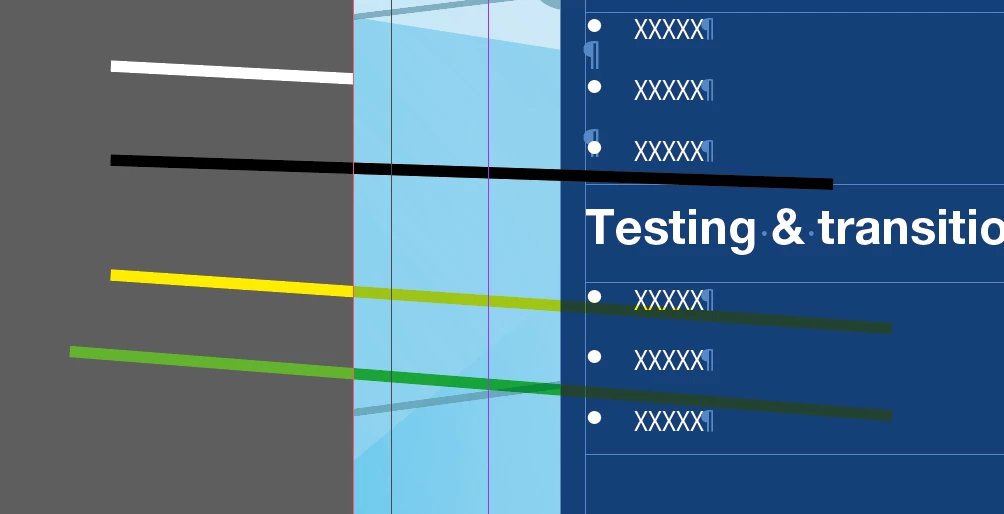
I am only using 1 layer, and these 4 lines are clearly shown at the top:
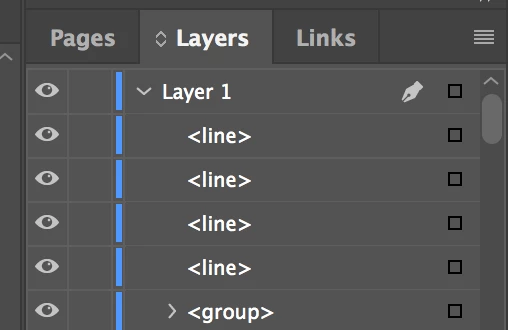
If I try to right-click "arrange", I can only send the lines "backward", but not to the front, since they are already at the very front.

Could anyone help me solve this mystery? How do I get the lines produced with the line tool to appear on top?

Thanks a lot!!!

This topic has been closed for replies.
Correct answer vinny38

Yep!

In addition: if Overprint is set to none, check the Effects panel and see if your lines are set to "Multiply". Apply "Normal" mode to your lines. If the Object is already set to "Normal", check "Stroke" transparency effect and set it to normal.

2 replies

Braniac
November 10, 2017

I think, that your graphic lines are indeed on top of the group (as seen from the Layers Panel).
The thing is: They do overprint. Also the white one.

Select all your graphic lines, go to the Attributes Panel and check for "overprint".

Regards,
Uwe

vinny38
vinny38Correct answer
Braniac
November 10, 2017

Yep!

In addition: if Overprint is set to none, check the Effects panel and see if your lines are set to "Multiply". Apply "Normal" mode to your lines. If the Object is already set to "Normal", check "Stroke" transparency effect and set it to normal.

Braniac
November 10, 2017

Haaa! You're my hero of the day, Uwe :-)

Setting the Effect from "multiply" to "normal", solved it for me!

I would've have NEVER found this... I don't know what "multiply" means -- but anyway, the lines are now showing on top. That's all I wanted. :-)

Thanks!!!


Vinny is the hero. Not me :-)

amaarora
Community Manager
Community Manager
November 10, 2017

Hi,

Is View->Overprint preview on?

-Aman