



InDesign: Remove unwanted padding placed images
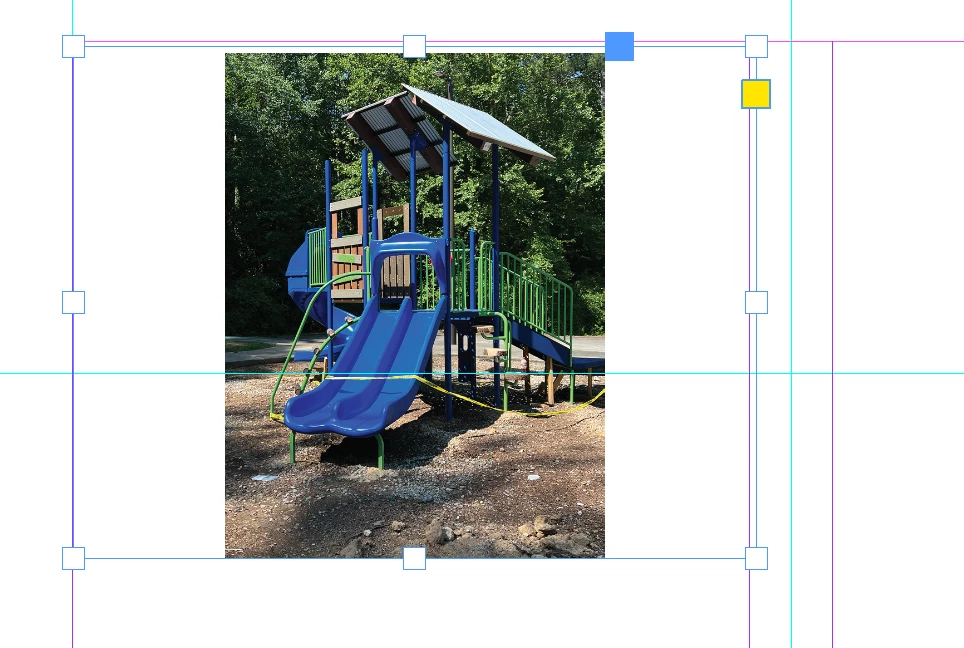
I am placing images into a document template and would like them to fit edge to edge within the template's column guides. When I select an image to place, then draw a marque from column guide to column guide the image appears with about 3 points of transparent padding above the image's top edge; it also creates a fixed proportional frame, which results in vertical images with white space on either side. Yes, I can fix this by cropping, but this extra step wasn't necessary before. In the past, I would select an image to place, drag to a frame to my desired width and the image would fill the width with the height remaining proportional to the original image's height. The placed image seems to be fixated on the vertical dimension. How do I need to adjust my settings so the image fits the width I've indicated (without top/left inset from the frame) while maintaining the proportion of the original?
Mac OS 12.6.6; InDesign v.18.3
 AdChoices