


Participating Frequently
April 4, 2025
Answered

InDesign save as dialog is blank - not able to save document

  • April 4, 2025
  • 6 replies
  • 2471 views

Windows 11
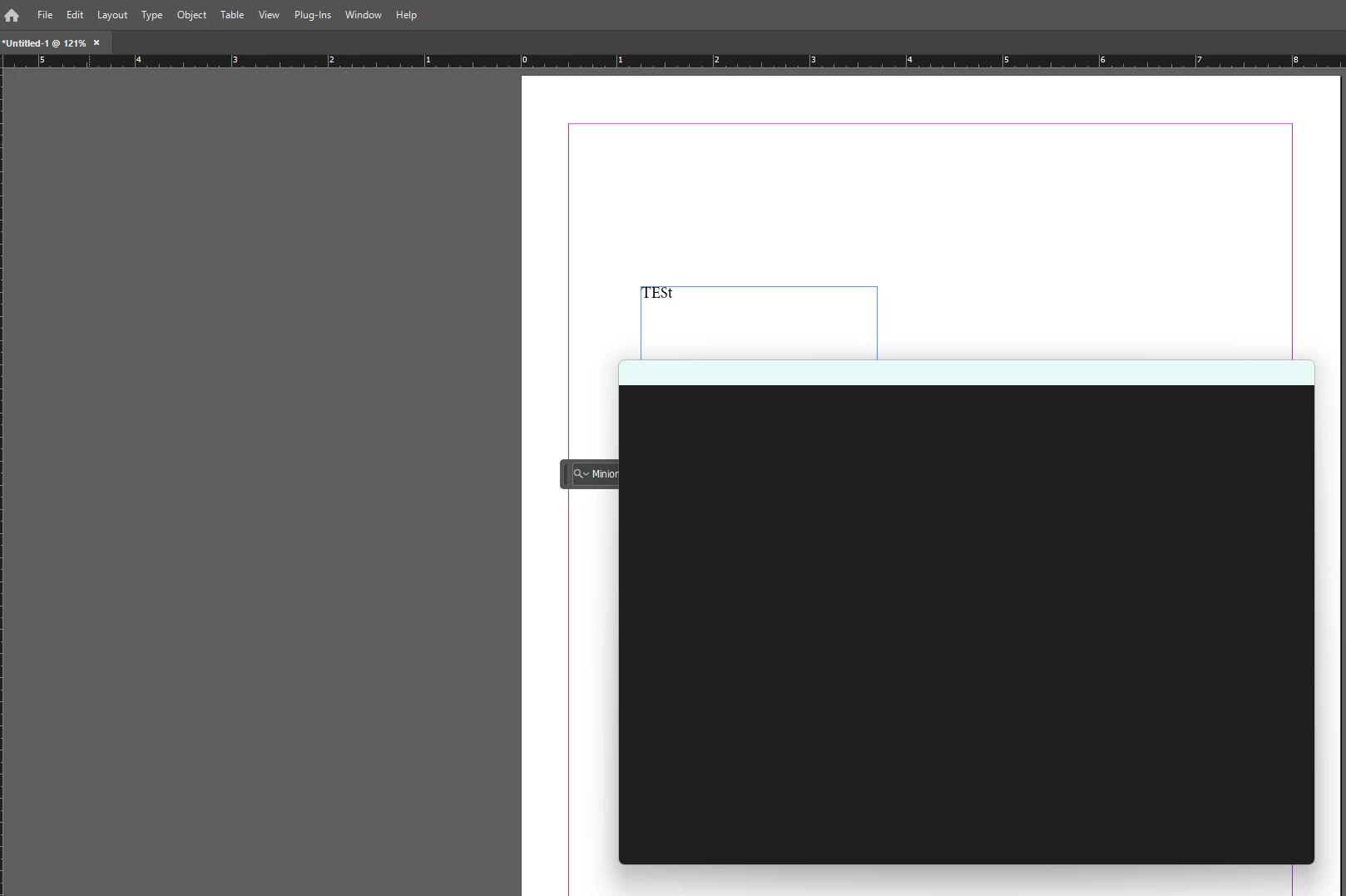
See Screenshot: Blank Document -> File -> Save As -> Dialog freezes
InDesign Version 20.2
I have also opened old .indd files and tried to save them -> same result

Tried to uninstall and install again - same result
Tried to uninstall all previous versions and install InDesign Version 20.2 - same result

Need help!


Correct answer diego_wla_dtp

I was able to fix it by going to InDesign Preferences / General / Use Legacy "New Document" Dialog (enable).
I hope it helps.

6 replies

New Participant
November 19, 2025

I got exactly the same problem but with a 2025 version.

I applied some of the suggested options to fix this.... nothing to do.

Could be that it is because I have no GPU and only 1024Mb available on my laptop?


Community Manager
November 19, 2025

Hello @defaultxngk4rfyphfl,

I'm sorry to hear you're having similar trouble with InDesign. Would you mind trying the following steps and checking if they help:

- Close all Adobe applications.

- Rename the UXP folder to UXP.old from the following location:

(Windows) Navigate to C:\Program Files\Common Files\Adobe\UXP

(macOS) Navigate to Macintosh HD/Library/Application Support/Adobe/UXP

- Relaunch InDesign


Looking forward to hearing from you.

Anubhav

New Participant
November 20, 2025

Since working in a company. I am not the system administrator.

This doesn't let me rename files.

To experiment that way, I should create Tickets, involving IT and HelpDesks. Quite complicated and long.

For now I settle by using  "Save a Copy" and choosing  the "Save as type " "Indesign CS4 or later" to keep legacy with former versions".


diego_wla_dtpCorrect answer
New Participant
August 7, 2025

I was able to fix it by going to InDesign Preferences / General / Use Legacy "New Document" Dialog (enable).
I hope it helps.

Bill Silbert
Community Expert
Community Expert
April 15, 2025

It is not clear from your posts if you have tried deleting your InDesign cache files. This process is not the same as deleting preferences. Deleting caches can fix issues that occur with the interface itself such as possibly the blank window that you're seeing.

To delete caches on a PC:

On Windows 7 and above the caches files are hidden. To find them go to the Control Panel and open Folder Options and then click the View tab. Then select “Show hidden files and folders” or “Show hidden files, folders or drive options” in Advanced Settings. Then delete (or rename) the folder at the end of this path: C:\Users\[User Name]\AppData\Local\Adobe\InDesign\Version [#]\<Language>\Cache.

Abhishek Rao
Community Manager
Community Manager
April 7, 2025

Hi @nice_amazement9191,


Thanks a lot for sharing all the steps you've already tried. Since the issue still persists, please confirm if this happens with all files or only with a specific to this document?

Please try restarting your system in Safe Mode and then launching InDesign to see if the Save As dialog behaves normally there? Ref: Start your PC in Safe Mode.

Also, just to isolate whether this might be profile-related, can you try creating a new Admin user account on your system and test if the issue occurs there as well? Ref: Manage user accounts in Windows.

If the Save As dialog is still blank or frozen even after that, would you mind testing this on InDesign version 20.1 to check if the issue might be specific to 20.2? Refer this article to revert: Install previous version of InDesign.


Let me know how it goes. 


^

Abhishek

Participating Frequently
April 15, 2025

After hours of trying to reset and clean up all the preferences it still did not work, so I installed it on another device to be able to work with it

Community Manager
April 4, 2025

Hello @nice_amazement9191,

Would you mind trying the following steps and checking if they help:


- Close all Adobe applications.

- Rename the UXP folder to UXP.old from the following location:

(Windows) Navigate to C:\Program Files\Common Files\Adobe\UXP

(macOS) Navigate to Macintosh HD/Library/Application Support/Adobe/UXP


- Relaunch InDesign


Looking forward to hearing from you.


Anubhav

Participating Frequently
April 7, 2025

Unfortunately renaming folder 
(Windows) Navigate to C:\Program Files\Common Files\Adobe\UXP
did not work


I followed the instructions from here 

https://community.adobe.com/t5/indesign-discussions/reset-indesign-preferences-and-other-troubleshooting/td-p/11990234 
Close InDesign; then rename these InDesign folders:

C:\Users\user\AppData\Roaming\Adobe\InDesign

C:\Users\user\AppData\Local\Adobe\InDesign

In both places, rename the InDesign folder to InDesign.old. Now try to relaunch/restart InDesign
did not work either (same result)


Next try was "Reset with the nuclear option (4)"

A fourth and final way to reset InDesign is to uninstall the application using the CC Cleaner tool and reinstall from the Creative Cloud Desktop app. https://helpx.adobe.com/at/creative-cloud/kb/cc-cleaner-tool-installation-problems.html

Does not work either but now I get a different error message right at the begining:


BobLevine
Community Expert
Community Expert
April 4, 2025

Reset your preferences.