Inspiring
April 30, 2017
Answered

Index based on para. style

  • April 30, 2017
  • 2 replies
  • 16960 views

Would one of you please point me to the procedure for creating an index based on one or more paragraph styles. As recently as late 2016 or early 2017 I successfully published a book in inDesign containing an index based on paragraph styles, but my note-taking/procedure logging was not sufficient to allow me to recreate the procedure in a new, subsequent book now in final preparation.

Any assistance appreciated, as always.

Best,

jwc

    This topic has been closed for replies.
    Correct answer Randy Hagan

    Hi Jack.

    If I understand you, you're looking for a way to 1) define different index styles for genus and species, 2) style them differently and 3) be able to transfer those index styles from book to book.

    This can be done simply and easily. For example, for my one-page orchid book I've created the descriptions below:
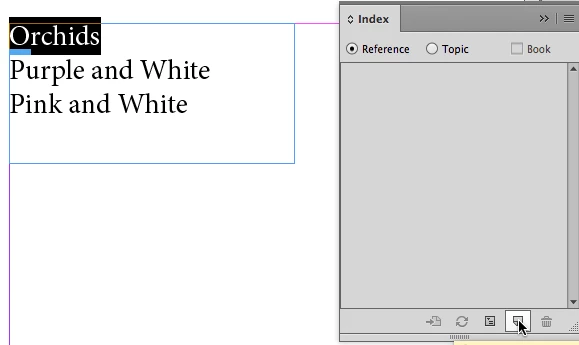
    Here's a simple illustration of what I think you're looking for. I'm not a botanist, so please excuse the simplified explanations for the genus (Orchids) and species (Purple and White, Pink and White).

    Creating and styling the index is a three part process -- define the styles, create the index entries, then generate the index.

    Step 1 - Define the Styles
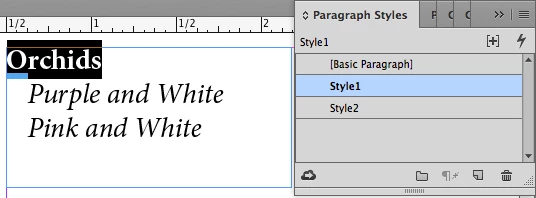
    I've created two simple styles: Style1, which is bold and flush-left; and Style2, which is italicized, indented an eighth of an inch, has a right-align tab with a dot leader at 2 inches. There's no tab in my book copy, so only part of the style attributes show here. For more detail on creating paragraph styles, refer to the link below:

    Apply paragraph and character text styles in Adobe InDesign

    Step 2 (and 2a) - Creating Index Entries

    We'll start by creating the Level 1/genus index entry:
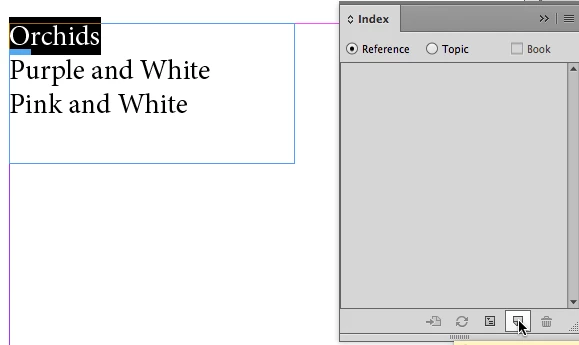
    Open the Index panel. Highlight the word Orchids and then click the button indicated above to Create a new index entry.

    This opens the New Page Reference dialog box, as shown below.
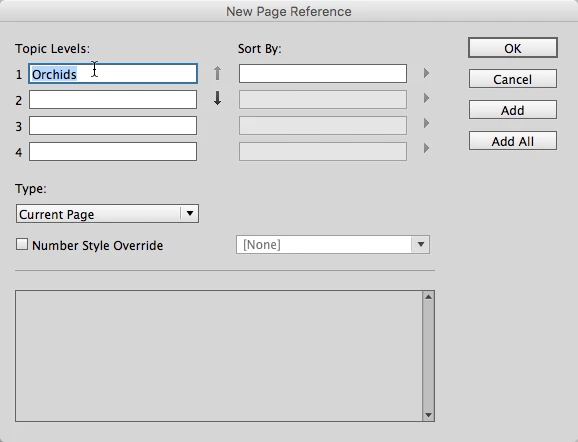
    Since we highlighted the word Orchids in our text, it will be the default text in the 1 edit box under Topic Levels: -- All is good, so all you have to do is click on the OK button to create a Level 1 Index entry of Orchids in the Index panel as shown below. Withe the word Orchids in your text still selected, press Cmd/Ctrl+C to copy it (depending on whether you're on a Mac- or Windows-based system).

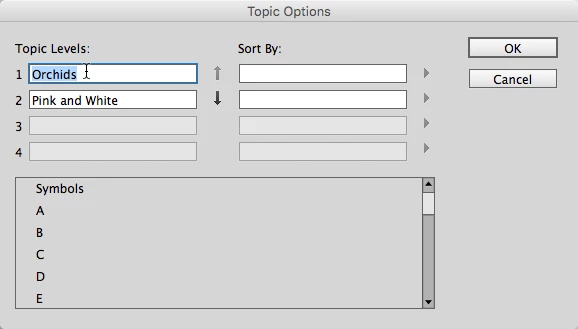
    Then highlight the words Pink and White, and click the Create a new index entry button in the Index panel. You'll see the highlighted words in the Level 1 edit box, as we had before. Click the downward-pointing arrow in the middle of the dialog box to skip that entry down to the Level 2 edit box, then click in the Level 1 edit box and press Cmd/Ctrl+V, as shown below.
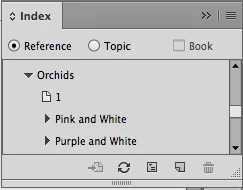
    If it all looks good, Click the OK button. Repeat for the Purple and White entry, whereupon your Index panel should look like the example below.
    Step 3 - Generate the Index and Associate the Index Styles

    Click the Generate Index button in the index panel, which will open the Generate Index panel as shown below.
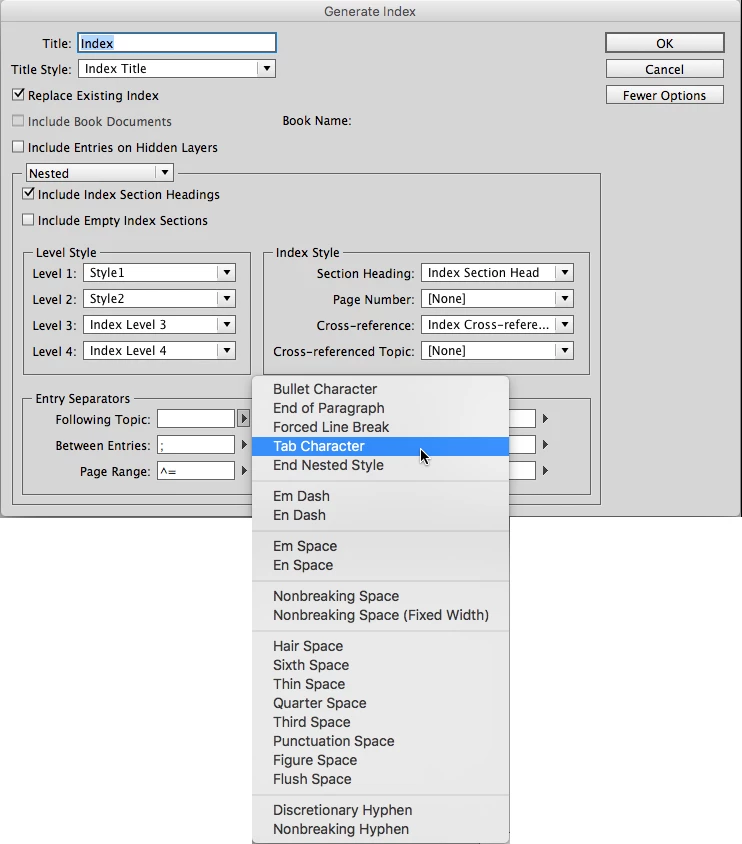
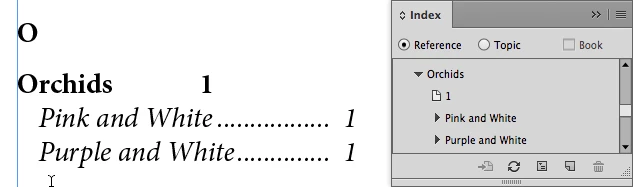
    In the Level Style portion of the panel, choose Style1 in the Level 1: edit box, and Style2 in the Level 2: edit box. Then, in the Entry Separators section, choose Tab Character in the Following Topic: options box. When your example looks like the illustration above, click the OK button. This creates an index text file. Place it, and it should look like the successful example below.
    Your styling may vary, of course. And you can create/change it as you see fit. But this illustrates the example. Once paragraph styles are created in one document, they can be copied into subsequent documents easily.

    Hope this helps you. If this does work for you, please mark this as correct to forum moderators can see that and archive it to help others who find themselves in a similar predicament.

    Hope this works well for you,

    Randy

    2 replies

    Willi Adelberger
    Community Expert
    April 30, 2017

    On Paragraph Styles you con't build any Index as Index are based on single words or toppics. There are several scripts which build index up on Character Styles.

    JackAuthor
    Inspiring
    April 30, 2017

    OK, understood. The earlier book (first of a series), consists mainly of photographs of orchids, Every orchid genus has given rise to one or more species over many years of evolution. There are (and will be in, my new book as well) two levels of character style, for genus and species, each with its own formatting.  The index in my previous book appears with genus entry (ies) followed by species entry (ies) indented below the respective genus. As stated above, I'm no longer certain of the procedures/scripts followed in generating the index of the first book

    I expect to produce multiple, additional books of orchid photos, so I really need a well-organized, reusable approach to index-generation based on genus and species. Please advise if I can somehow 'lift', duplicate or modify/adapt the script used in generating the index of the first book, for use in the second, etc. Failing that, would you please point me to procedure(s) for creating a script along the lines indicated above.

    Thanks,

    jwc

    Randy HaganCorrect answer
    Community Expert
    April 30, 2017

    Hi Jack.

    If I understand you, you're looking for a way to 1) define different index styles for genus and species, 2) style them differently and 3) be able to transfer those index styles from book to book.

    This can be done simply and easily. For example, for my one-page orchid book I've created the descriptions below:

    Here's a simple illustration of what I think you're looking for. I'm not a botanist, so please excuse the simplified explanations for the genus (Orchids) and species (Purple and White, Pink and White).

    Creating and styling the index is a three part process -- define the styles, create the index entries, then generate the index.

    Step 1 - Define the Styles

    I've created two simple styles: Style1, which is bold and flush-left; and Style2, which is italicized, indented an eighth of an inch, has a right-align tab with a dot leader at 2 inches. There's no tab in my book copy, so only part of the style attributes show here. For more detail on creating paragraph styles, refer to the link below:

    Apply paragraph and character text styles in Adobe InDesign

    Step 2 (and 2a) - Creating Index Entries

    We'll start by creating the Level 1/genus index entry:

    Open the Index panel. Highlight the word Orchids and then click the button indicated above to Create a new index entry.

    This opens the New Page Reference dialog box, as shown below.

    Since we highlighted the word Orchids in our text, it will be the default text in the 1 edit box under Topic Levels: -- All is good, so all you have to do is click on the OK button to create a Level 1 Index entry of Orchids in the Index panel as shown below. Withe the word Orchids in your text still selected, press Cmd/Ctrl+C to copy it (depending on whether you're on a Mac- or Windows-based system).

    Then highlight the words Pink and White, and click the Create a new index entry button in the Index panel. You'll see the highlighted words in the Level 1 edit box, as we had before. Click the downward-pointing arrow in the middle of the dialog box to skip that entry down to the Level 2 edit box, then click in the Level 1 edit box and press Cmd/Ctrl+V, as shown below.

    If it all looks good, Click the OK button. Repeat for the Purple and White entry, whereupon your Index panel should look like the example below.

    Step 3 - Generate the Index and Associate the Index Styles

    Click the Generate Index button in the index panel, which will open the Generate Index panel as shown below.

    In the Level Style portion of the panel, choose Style1 in the Level 1: edit box, and Style2 in the Level 2: edit box. Then, in the Entry Separators section, choose Tab Character in the Following Topic: options box. When your example looks like the illustration above, click the OK button. This creates an index text file. Place it, and it should look like the successful example below.

    Your styling may vary, of course. And you can create/change it as you see fit. But this illustrates the example. Once paragraph styles are created in one document, they can be copied into subsequent documents easily.

    Hope this helps you. If this does work for you, please mark this as correct to forum moderators can see that and archive it to help others who find themselves in a similar predicament.

    Hope this works well for you,

    Randy

    Obi-wan Kenobi
    Brainiac
    April 30, 2017

    Hi,

    Give us more explanations! Thanks!

    (^/)
