


Known Participant
July 31, 2019
Answered

Is there a way to create this stylized text with a single text frame?

  • July 31, 2019
  • 1 reply
  • 1452 views

I'm trying to recreate this design I made in Photoshop...

...and I want recreate it only using InDesign.

I want this because a client wants to re-purpose it with different wording, so I need to make something that is easily editable. My initial thought was a single text box, but I'd need 2 strokes, right? Can InDesign do that? Also, there are unique gradients on the top word and bottom word of the inner stroke, but a connected outer stroke around both words.

Anyone have any ideas?
This topic has been closed for replies.
Correct answer DBLjan

This way I did it:

  • Choose a text with stroke/outline, adjust the outline to your desire, e.g. radial fill.
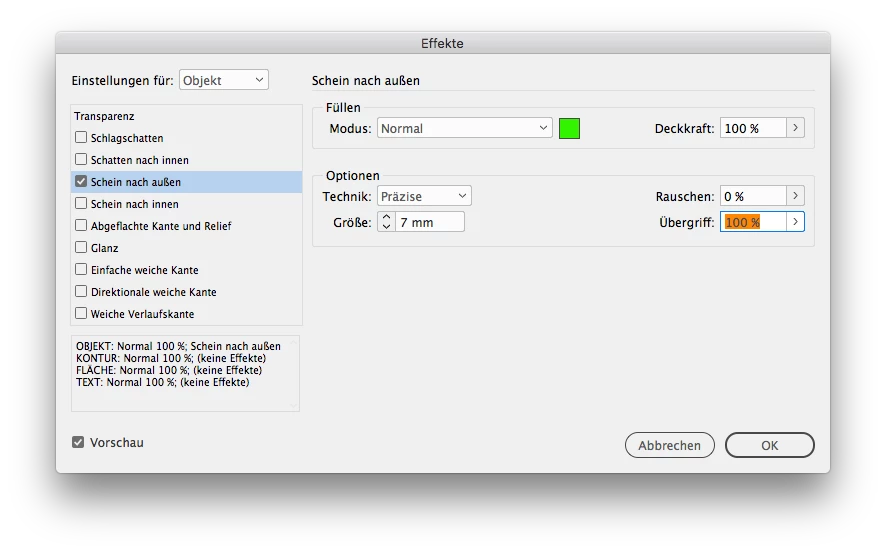
  • Now use on the text the effect "Schein nach Außen" == "Glow @ outside"* (see below for screenshot, dunno whats that in english. Important here ist the option "Übergriff" to set to 100%. Tipp: Anywhere in InDesign you can use any units, so you can enter "7 pt" at size if you want instead of mm)
  • Now take that textframe and paste it into another frame
  • apply Bevel effect on the textbox (which holds the other textbox) » because you cant use outline+bevel in first textbox, because the bevel doesnt include the outline that way).
  • Now you can just edit the text from within InDesign by just using the text-tool onto the text.

1 reply

Brainiac
July 31, 2019

DBLjanCorrect answer
Brainiac
July 31, 2019

This way I did it:

  • Choose a text with stroke/outline, adjust the outline to your desire, e.g. radial fill.
  • Now use on the text the effect "Schein nach Außen" == "Glow @ outside"* (see below for screenshot, dunno whats that in english. Important here ist the option "Übergriff" to set to 100%. Tipp: Anywhere in InDesign you can use any units, so you can enter "7 pt" at size if you want instead of mm)
  • Now take that textframe and paste it into another frame
  • apply Bevel effect on the textbox (which holds the other textbox) » because you cant use outline+bevel in first textbox, because the bevel doesnt include the outline that way).
  • Now you can just edit the text from within InDesign by just using the text-tool onto the text.

Steve Werner
Community Expert
July 31, 2019

Thanks for the help DBLjan,

This looks good, and has taught me something I didn't know was possible with InDesign, but it is still missing the bevels around the inner stroke. Any thoughts on how I could approach that with your method?


Truthfully, while you may be able to produce close to such a thing in InDesign, it wasn't really built for this. You get much more control and capabilities by doing it In Adobe Illustrator.