


Participant
August 2, 2023
Question

Is there a way to filter a TOC?

  • August 2, 2023
  • 5 replies
  • 678 views

Hey all!


Quick question... is there a way to 'filter' a TOC?

I have a list of figures set up at the back of my current project that is listing all figures throughout the document. This has been set up using paragrah styles.


Currently, I'm using a custom TOC formated to show the list of figures divided by what heading they fall under. The trouble is the TOC is also listing chapters of the document that don't contain any figures. Is there a funtion that will allow me to filter any headings without figures from showing? ie, have the TOC only show chapter headings that have figures?


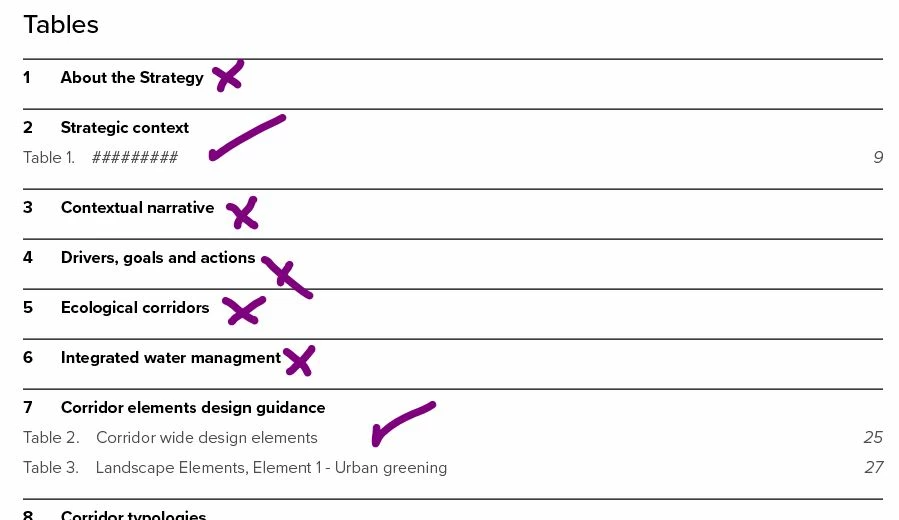
This is how my TOC currently looks. I don't want any headings with the 'x' from showing as these chapters contain no figures:
 

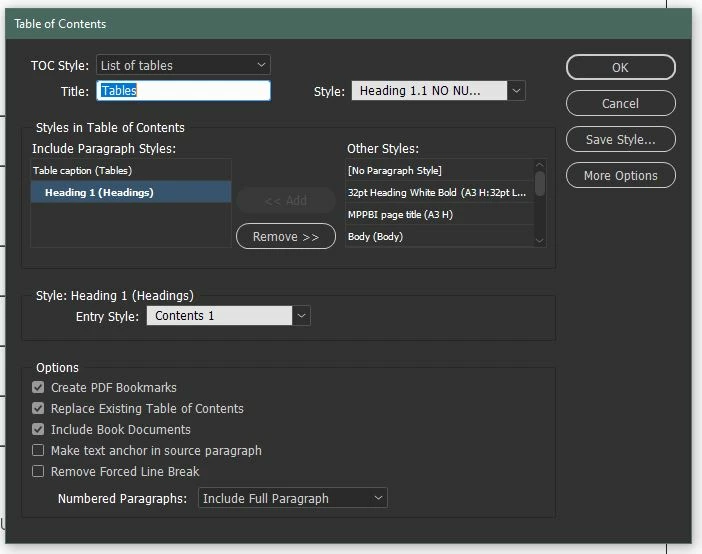
This is the current setup of the TOC:
 

Cheers,

This topic has been closed for replies.

5 replies

Community Expert
August 2, 2023

Sort of, by sorting out styles and filtering them yourself.


  • Get your Selection/Arrow tool, with no text selected.
  • Go to your Paragraph Styles panel and select the style you use for your table header. Click once on it to highlight the style.
  • Go to the Flyaway Menu at the upper right of the panel and select the Duplicate Style... flyaway menu command.
  • When the Duplicate Paragraph Style dialog box appears, name it [Whatever your style name is] - No ToC.
  • Unless you choose to change something, all other style attributes will be unaffected. Click the OK button.
  • Now, tag all your ToC offenders with your No ToC style.


When you run your next ToC for the document(s), the No ToC style won't make the trip. Easy Peasy.


Hope this helps,


Randy

Robert at ID-Tasker
Legend
August 2, 2023

Already mentioned... 


Community Expert
August 2, 2023

But not with a step-by-step process to accomplish the task ... as it is above.


Sometimes just do that thang isn't a sufficient answer.

Mike Witherell
Community Expert
Community Expert
August 2, 2023

Two things continue to catch and trip up the new user of the ToC generator:

1. More Options should be clicked to open it up

and

2. ToC presets are still called styles, which confuses the user in a dialog box where you choose *styles* to apply another *style* which might also make some auto-generated *styles* and save the whole thing as a ToC *style* but which is actually a named preset. 

This continues to be confusing to new learners and experienced users alike.

Mike Witherell
James Gifford—NitroPress
Legend
August 2, 2023
quote

2. ToC presets are still called styles, which confuses the user in a dialog box where you choose *styles* to apply another *style* which might also make some auto-generated *styles* and save the whole thing as a ToC *style* but which is actually a named preset. 


This, in spades and with flashing neon pointers. TOCs are an entire schema in themselves, one dependent on careful assignment of several actual styles, and viewing each setup as a "style" is a self-defeating situation.

FRIdNGE
Inspiring
August 2, 2023

"As the TOC is generated automatically …" is totally false: an InDesign TOC is generated by a click (menu or K-shortcut).


So the good question would be: What click do you prefer?


1 click:


/*
    _FRIdNGE-0740_UpdateTOC.jsx
    Script written by Michel Allio [02/08/2023]
*/

var myDoc = app.activeDocument;
var myStories = myDoc.stories,  S = myStories.length,  s;
for ( s = 0; s < S; s++ ) {
    if ( myStories[s].storyType == StoryTypes.TOC_STORY ) {
        myStories[s].textContainers[0].select();
        app.menuActions.itemByID(71442).invoke();
        // Grep 1
        app.findGrepPreferences = app.changeGrepPreferences = null;
        app.findGrepPreferences.findWhat = "^.+\\r(?=.)";
        app.findGrepPreferences.appliedParagraphStyle = "Chapter_Toc";
        app.changeGrepPreferences.changeTo = "";
        myDoc.changeGrep( );
        // Grep 2
        app.findGrepPreferences = app.changeGrepPreferences = null;
        app.findGrepPreferences.findWhat = "^.+\\z";
        app.findGrepPreferences.appliedParagraphStyle = "Chapter_Toc";
        app.changeGrepPreferences.changeTo = "";
        myDoc.changeGrep( );
        app.findGrepPreferences = app.changeGrepPreferences = null;
        app.selection = null;
    }
}
alert ( "TOC Updated! …" )


Result:


(^/)  The Jedi

Participant
August 2, 2023

Thank you!


I'm keen to give this a try at work tomorrow. One small issue... How do I use the script? 😆


Also, would this script work with a book?


Cheers

James Gifford—NitroPress
Legend
August 2, 2023

Using different styles for the headings you want to include and exclude is much simpler and more 'organic,' IMVHO. You can set everything up so that normal TOC generation — which, yes, I'd classify as 'automatic' — will create a clean, new TOC including just the headings you want, while leaving the variant headings apparently identical for all other purposes.


Not every task requires an effing script.

Willi Adelberger
Community Expert
Community Expert
August 2, 2023

Create another toc based on different styles. 

Robert at ID-Tasker
Legend
August 2, 2023

And how this will help? 


Robert at ID-Tasker
Legend
August 2, 2023

As the TOC is generated automatically - there is no direct way to filter what will be created.


I think the only way would be if you use a different ParaStyle for the Chapter's title that doesn't have any Figures.