marczx2000
New Participant
May 2, 2018
Answered

Leading and aligning text in columns

  • May 2, 2018
  • 3 replies
  • 5627 views

Hi all

I am relatively inexperienced with Indesign and have an issue making text align in adjacent columns.

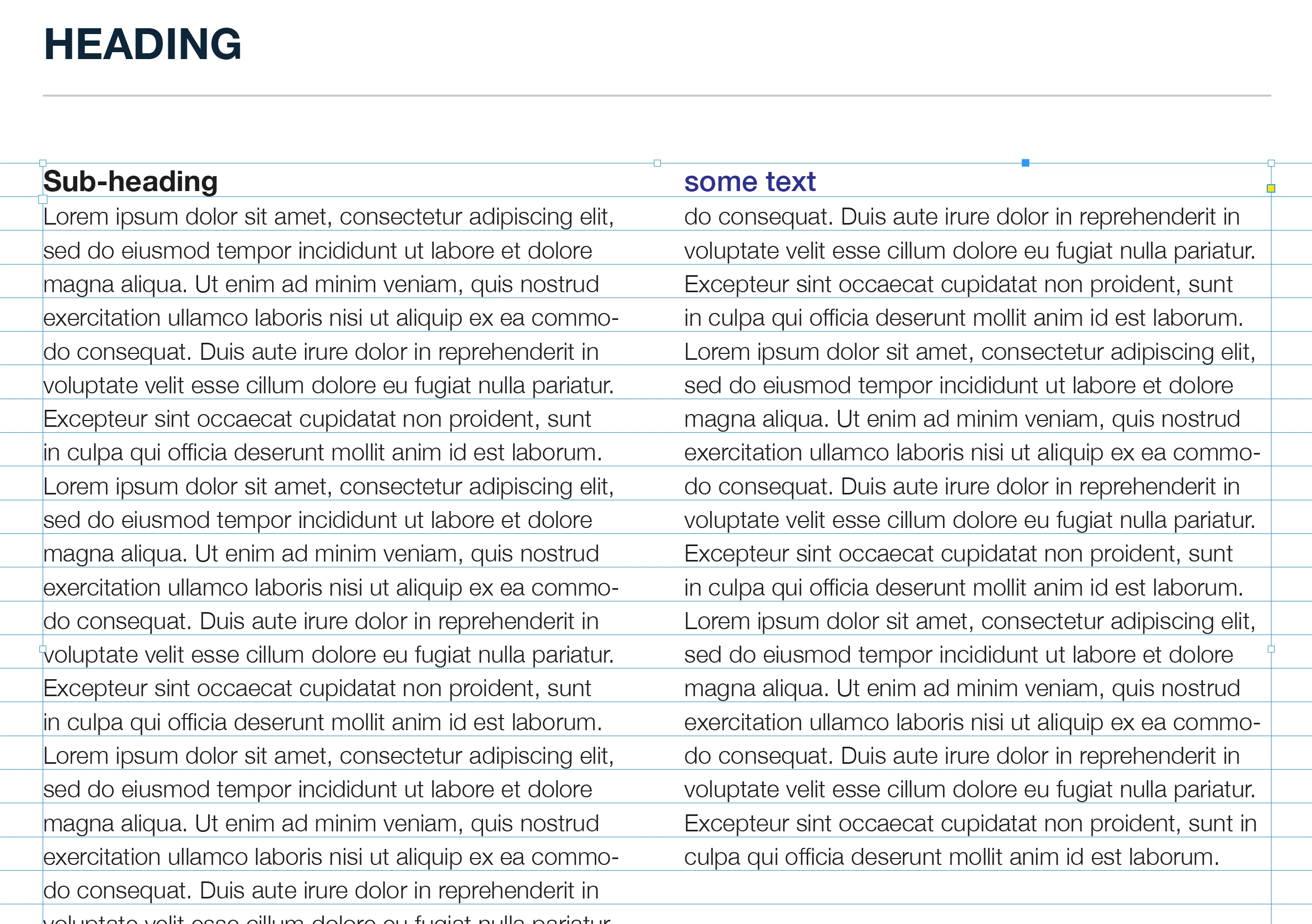
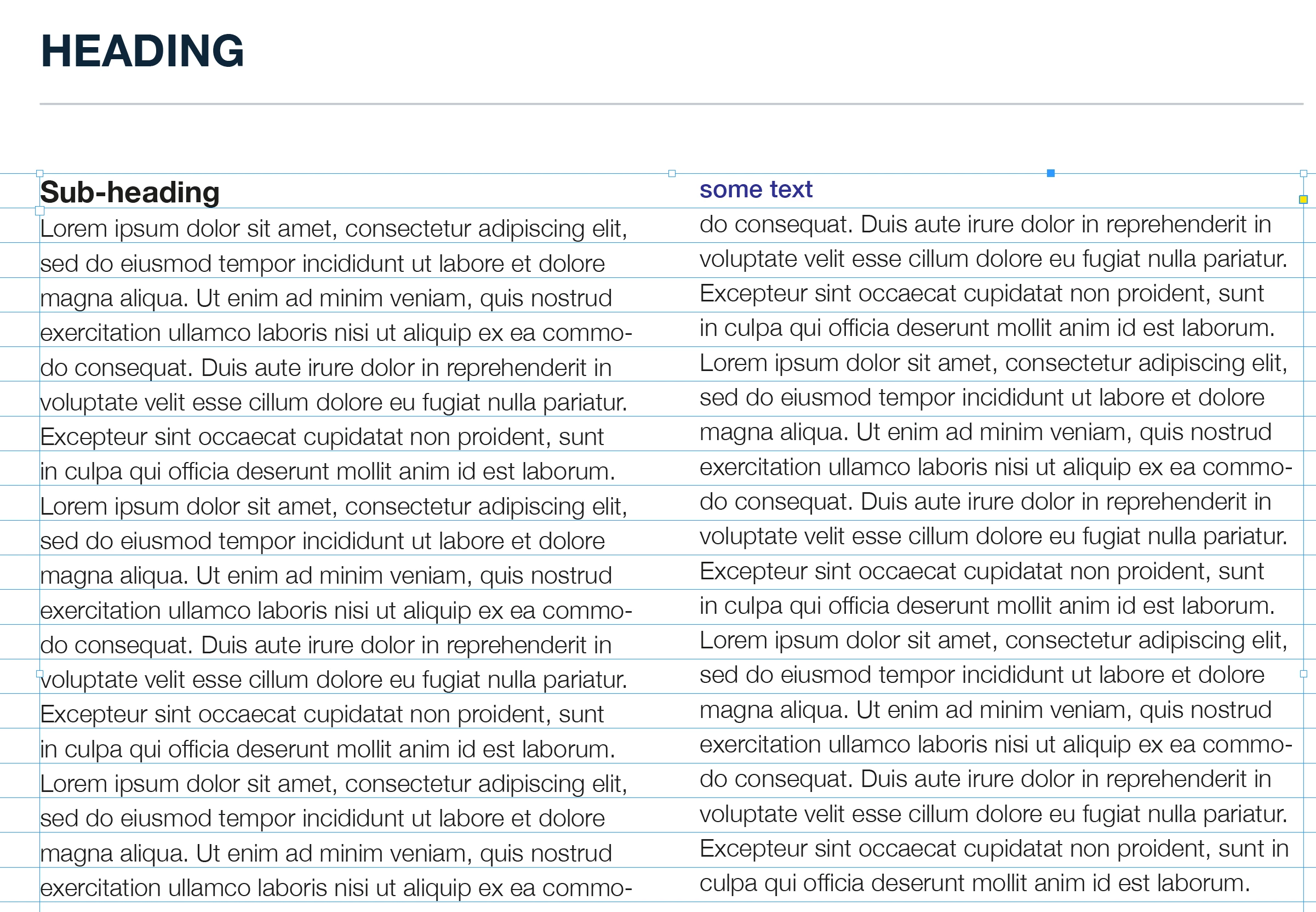
The text in the screenshot below is 10pt and the leading is 14pt.  The subheading is 12pt and leading also 14pt.

My understanding was that the spacing between lines of text was dictated by the leading, not the pt size of the text.  But in the right-had column - in example 1 below - the text does not align with the left-hand column, even thought the leading is the same.

Then, when I change the blue text at the top of the right-hand column to the same size as the subheading on the left (12pt) the text does line up, even though I haven't changed the leading (see example 2 below) - I have obviously misunderstood how this works, can someone help me out?

One additional question:  Why doesn't my text sit on the baseline grid, even though I set the baseline grid to start at the same position as the top left hand corner of the text frame?

Grateful for any advice!

Thanks.
    This topic has been closed for replies.
    Correct answer Laubender

    Hi,

    you could exclude subheadings from the baseline grid. Or you could set subheadings where only the first line will align to the baseline grid. In any case do some testing. Also important: Test cases where your subheadings are one line, two or more lines long.

    Regards,
    Uwe

    3 replies

    cinziamarotta
    Participating Frequently
    May 2, 2018

    Hi,

    if you want the text perfectly aligned between the columns you should align all the text to the baseline grid and use the same leading value or a multiple of it.

    1. set the increment of baseline grid in preferences > grids

    2. use the same leading value of the increment

    3. align the text to the baseline grid (paragraph panel > the last icon bottom right corner)

    marczx2000
    New Participant
    May 3, 2018

    Hi,

    Thank you so much for your reply.

    Just one question: If I align the text to the baseline grid, how would I apply extra spacing between the subheadings and body text?

    I want to have a slight amount of spacing below the subheading, and more above the subheading to separate from previous paragraphs.  Taking the first subheading at the top of the text, this would push the text down slightly and it would not be on the baseline grid, correct?

    LaubenderCorrect answer
    Adobe Expert
    May 3, 2018

    Hi,

    you could exclude subheadings from the baseline grid. Or you could set subheadings where only the first line will align to the baseline grid. In any case do some testing. Also important: Test cases where your subheadings are one line, two or more lines long.

    Regards,
    Uwe

    Doug A Roberts
    Adobe Expert
    May 2, 2018

    Set the text frame options > baseline options > Offset to Leading. It's probably set to Asecnt, which would make text at different sizes start at different offsets.

    Anna Lander
    Inspiring
    May 2, 2018

    It's quite easy

    1. Check if your Baseline Grid increment is 14 pt (Edit -> Preferences -> Grids -> Baseline Grid -> Increment = 14 pt).

    2.In Paragraph styles set All Lines option for Align to Grid (Paragraph Style -> Indents and Spacings -> Align to Grid). Do this for both styles.

    If you, by chance, don't use Paragraph Styles, you should better do this, it will make your work much easier and more effective.