Participating Frequently
February 19, 2017
Answered

Making a PDF Form Fillable

  • February 19, 2017
  • 3 replies
  • 20418 views

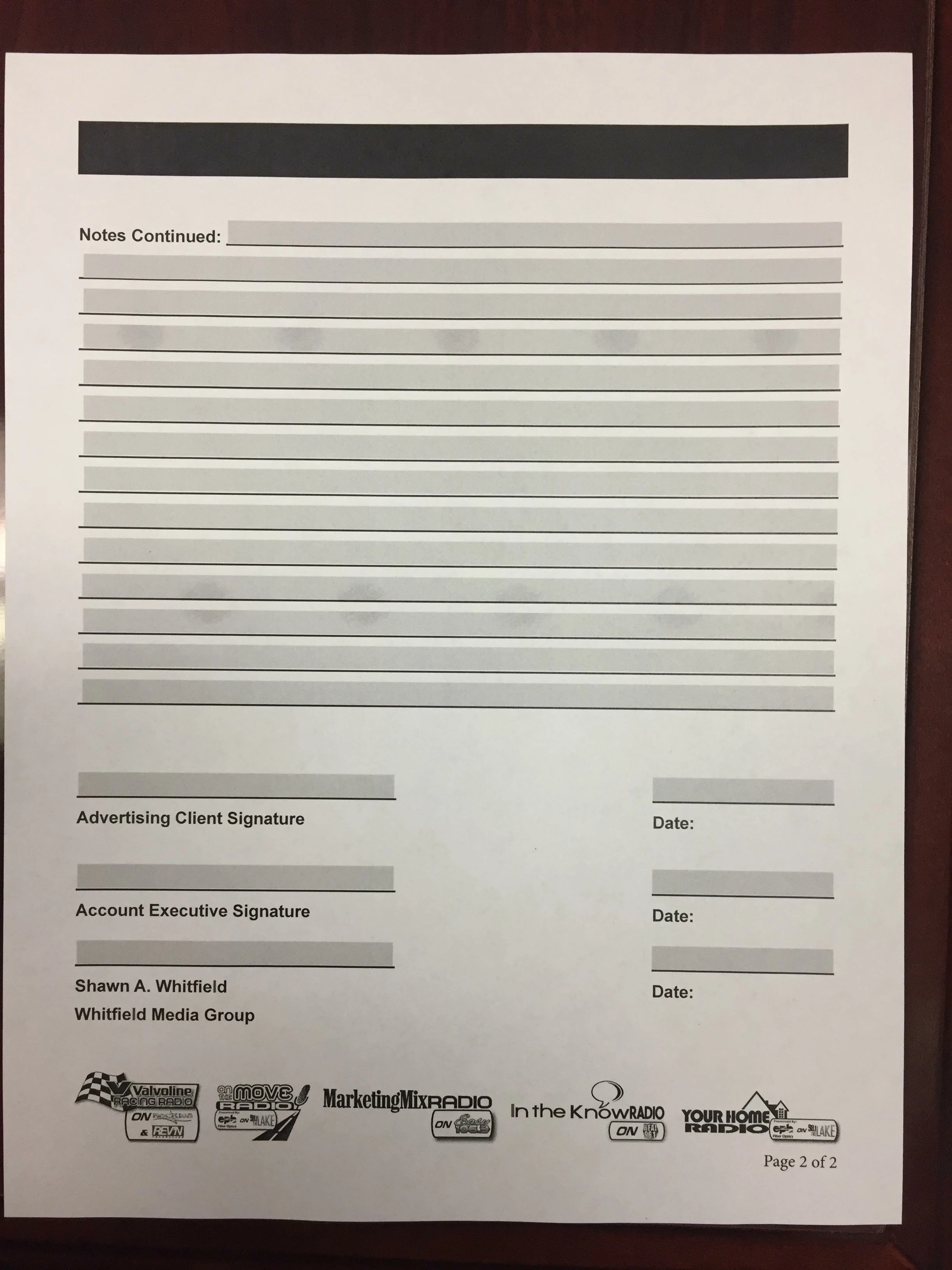
I have created the same form for several years, exporting from indesign as a pdf then in acrobat pro, making fillable. As adobe has updated, the process now is to click prepare form. This is a two page form and ONLY the first page becomes fillable. I have separated the pages into two separate pages and for the page that I am having issues, it says "No new form field annotations were detected." Well this is the same file I have used for several years, it is created with the same lines and text as the first page so I am extremely aggravated that I can't get this done for my client. I made the form fillable in indesign using the "interactive" buttons in indesign and that was great - until my client printed it out and you could see the shaded boxes that I had placed to be fillable....help!!!

This topic has been closed for replies.
Correct answer Jeffrey_Smith

Correct. I didn't make anything in indesign...but BEFORE I just made it in adobe PRO....screenshot from 2016. NOW they are telling me to make it in indesign so I do...creating all the fields...customer loved it BUT when he prints it, it shows all the gray boxes...two different issues going on.

1. Export PDF out of indesign (print) - then in adobe pro, prepare form....this let's the FIRST page go fillable but not the second. That is my issue with this - why won't the second page go fillable such as the last year's example DID. Nothing has changed in how I create it in indesign.

2. Interactive in indesign and add my OWN fillable places. Great....export interactive pdf and send to customer. Loves it as an online fillable. He prints it off and the spaces that I made fillable in indesign print off gray.

Thank you for helping - and maybe I'm not explaining it correctly...


When I run the auto form detection on your PDF, I have the same results as you, form fields are added to first page only. The logos at the bottom of page 2 are the culprit. If those logos are removed, Acrobat can complete form fields on both pages.

The workaround would be to export PDF with no logos, open Acrobat, create form fields in Acrobat automatically, save PDF. Then export page 2 with logos, save as different name, in Acrobat replace page 2. This will replace art, but leave form fields intact.

3 replies

Eternal Warrior
Inspiring
February 20, 2017

Further to the points made above...

Have you tried using the Identify Form Fields feature in Adobe Acrobat?

If this doesn't bring the form fields back on the second page then you need to inspect the InDesign Document...

If SO > It would help if you can share the InDesign document with us so that we can inspect it > using something like Dropbox > we may be able to further analyse this and work out what is not working and why.

https://www.dropbox.com/ - It's free to have a basic account.

However, there are just as many other free file sharing sites as well.

Participating Frequently
February 20, 2017

Participating Frequently
February 20, 2017

I have always exported as print ready pdf and made fillable in adobe acrobat...when I tried to do the interactive in indesign (first time I was learning with youtube videos) that is when my customer printed it off and where you can see the blue boxes on the pdf screen, they were there when he printed it off...


Dropbox Link.

Dropbox - WMG-Sponsorship-Contract-2017-Fillable Folder

Dropbox - WMG-Sponsorship-Contract-2016.indd

Community Expert
February 20, 2017

It sounds like these form fields are highlighted in Acrobat/Reader. The user in Acrobat/Reader can toggle the "Highlight Existing Fields" on or off for the field to appear shaded or not shaded.

BobLevine
Community Expert
February 20, 2017

Is there a question here?

Participating Frequently
February 20, 2017

General help, yes. I am unable to make a fillable pdf as I have before. I have been on the phone with adobe two different times for over an hour and they haven't been able to help so thought someone here on this forum would know what to do.

BobLevine
Community Expert
February 20, 2017

You need to spell out exactly what the problem is. Screenshots would help.