


New Participant
January 30, 2023
Question

Masking a custom text box? Is it possible?

  • January 30, 2023
  • 3 replies
  • 1069 views

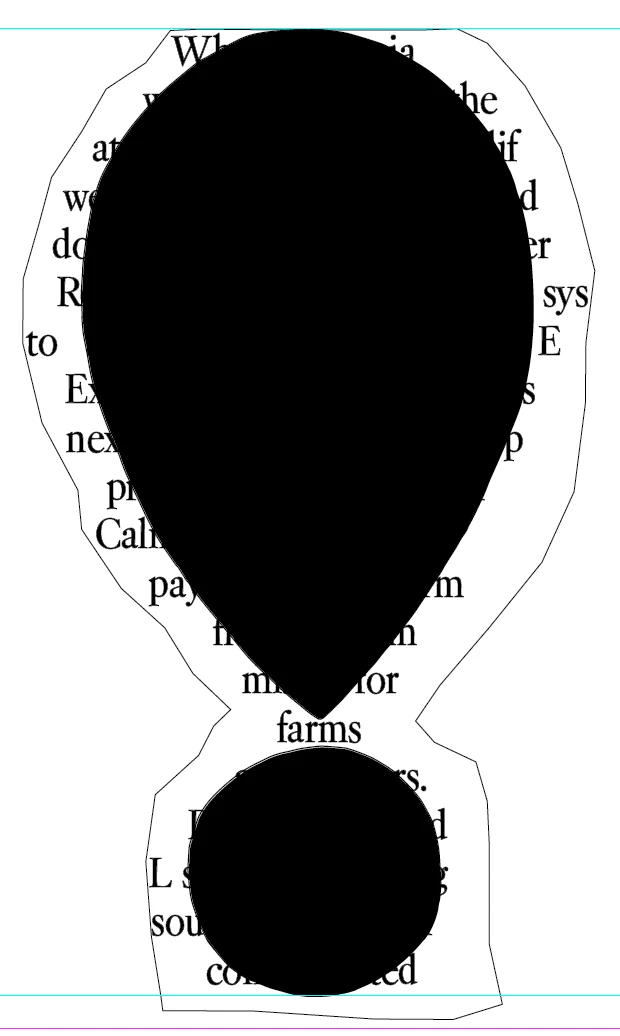
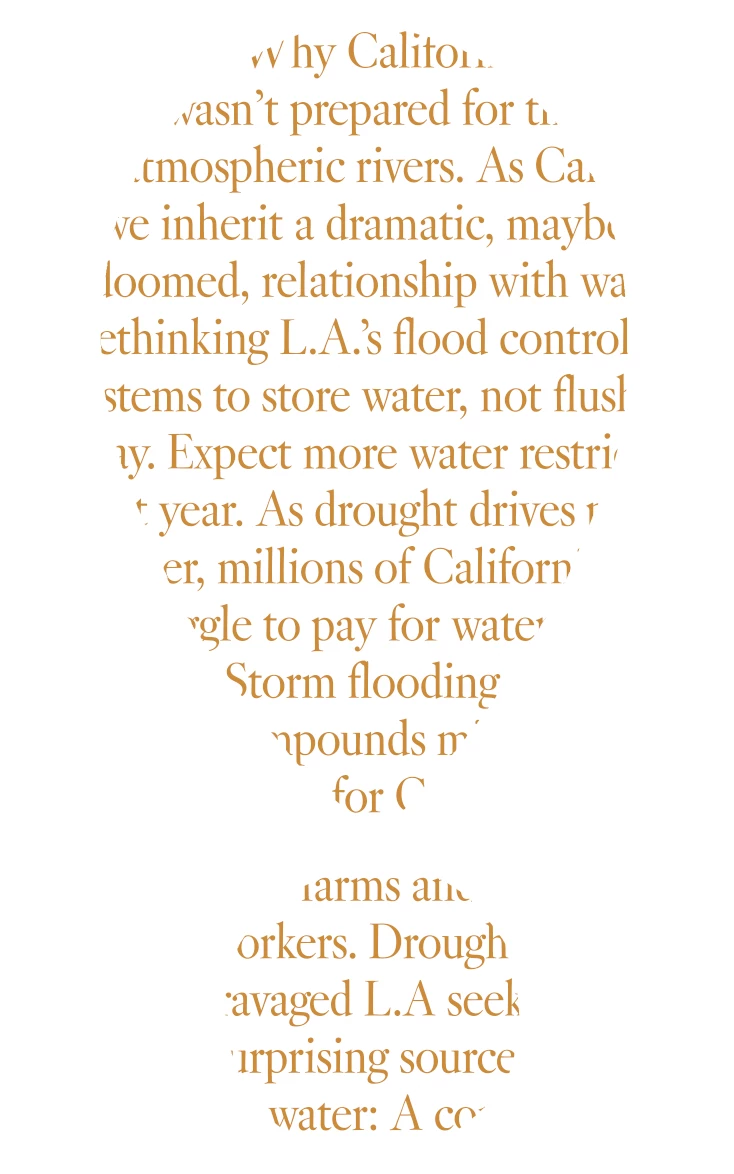
Seeking advice for masking in InDesign. I have a custom text box that I'd like to be masked by a shape (created in Illustrator). I can't seem to figure out how to get this to work in InDesign (setup in Photoshop was fine for me, but I am trying to keep the text crisp when printed, so opting for InDesign instead). Below are screenshots of what I have. The goal is to have the text appear only inside the shape, and not past its edges. The shape will not be black, it will just be paper tone with printed text that fits within its borders. (First image is from InDesign, 2nd image is the PSD mock-up, what it should look like with proper masking/framing).
       

This topic has been closed for replies.

3 replies

New Participant
January 31, 2023

Thamks, all! this discussion was super helpful and it worked! One final thing that tripped me up, was that even after "pasting into" the shape, I needed to change the "fill" of what became the "graphic frame" to be no fill, rather than black. 

Peter Spier
Community Expert
Community Expert
January 31, 2023

You can havwe a colored fill for a frame you paste into, but you would need to think about the contrast between thaat background color and the pasted content. For example, pasting in a colored image would hide the background color, but a grayscale would allow it to show in the the light areas, and type will allow it to show all around the type in transparent areas. If you were using a light color for your text you might actaully want a dark color background fill in the frame to make it stand out.

Willi Adelberger
Community Expert
Community Expert
January 30, 2023

Make the form, selct the text frame, copy or cut it into the clipboard, select the form (maybe it is needed to create a combined path) Edit > Paste into.

Peter Spier
Community Expert
Community Expert
January 30, 2023

You should be able to just copy the path in Illustrator and paste into InDesign, then click inside it with the texrt tool to make it a text frame...

New Participant
January 30, 2023

Yes, that would work, but in this case I want the text box to actually go beyond the shape from Illustrator, so that parts of words/type are cropped by the shape, like in the 2nd image. Is there a way to do that? 

New Participant
January 30, 2023
quote

Thanks, are you saying I would paste the path from Illustrator into the custom text box? I think I'm getting lost on the exact sequence of things and whether things need to be grouped/layered a certain way. 


Peter's suggestion was, in this order:

  1. Paste your exclamation-point path from Illustrator on your InDesign page.
  2. Drag out a new, ordinary, rectangular InDesign text frame and type your text into it (or, use a pre-existing one that already has text in it).
  3. With that text frame selected, choose Edit > Cut
  4. Select the exclamation-point path and choose Edit > Paste Into


Thank you for the sequence, that's helpful to see. I will try, but wouldn't that result in the text only going to the edges of the shape, and not being "cut off" the way I need it to be (as in the 2nd image)? I don't actually want the Illustrator path to be the exact shape of the text box; the path needs to reveal the text underneath and the rest of the text (beyond the path) should not be visible.