lingl87007791
New Participant
June 26, 2018
Answered

Outline text with bullets & numbering

  • June 26, 2018
  • 12 replies
  • 34725 views

I can't seem to outline bullets and numbering along with text in Indesign cc 2018. Once I click "create outlines" bullets and numbering would disappear. Is it just me? Does anyone else experience this issue?

Correct answer Laubender

defaultks8d4yvdbu1n said:

"For example Im working within the signage and wayfinding sector, I outline text daily."

Yes. Perfectly doable within Acrobat Pro with a loaded PDF exported from InDesign.

Here are the steps:


Open the exported PDF in Acrobat Pro DC.

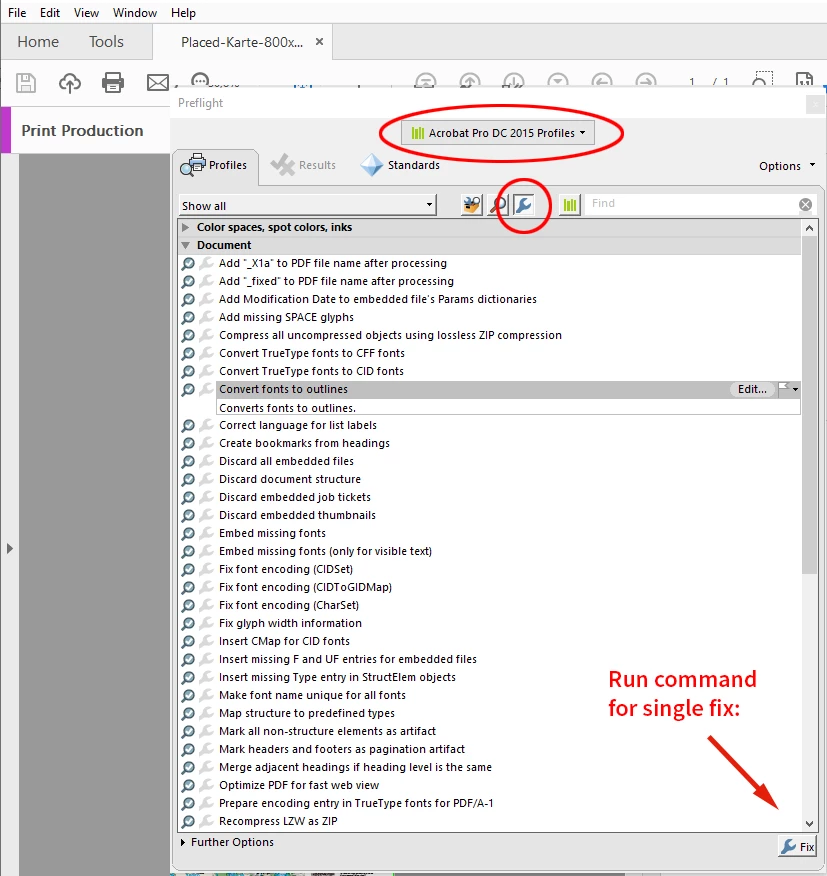
Go to Print Production > Preflight

Select "Acrobat Pro DC 2015 Profiles".
Then list and select Single Fix Ups > Document > Convert fonts to outlines


Now run the single fix up with button Fix.


Forgot to add this screenshot from Acrobat Pro:


Regards,
Uwe Laubender

( ACP )


//EDITED: Added screenshot

12 replies

New Participant
February 23, 2024

Is there any way to stop other components from disappearing when converting a file to outlines in Indesign. I can see the fix for bullets, but what about underlines, tables and text that is on top of anchored filled-in boxes. All my artwork must be changed to outlines to prevent any interference with the files, as my artwork is regulated and approved before sending the printers. Will Adobe ever fix this problem?

BobLevine
Braniac
February 23, 2024

As pointed out over and over and over again, there is nothing to fix. Read the entire discussion for your choices.

This discussion has long since run its course so I'm locking it.

Inspiring
October 6, 2023

I cant believe how moderators in the forum belittle genuine questions. Yes, we need to be able to convert fonts to paths and no, this is not a poor workflow.

There are many good reasons we need to convert, one big one is Adobe's poor font management in general. Very often cloud fonts just get dropped, so to convert to paths is the only way to "lock in" a design, unless you use Google fonts (which in general are much more reliable than Adobes chaotic font licensing). I was even told by one moderator to do just that if I want to make sure my designs don't get altered because of the Adobe font issues. The fact that moderators now say this is bad workflow just shows how these things run around in circles at Adobe. Just fix the thing for crying out loud and stop trying to cover up a bug.

I would really appreciate if moderators would focus on a good answers, rather than spill out bad vibes and do so multiple times in a single thread. I mean seriously, how many moderators have to repeat the concept of a "bad workflow", which in this case doesnt even apply.

The fact of the matter is that Adobe does not allocate enough dev time to apps like InDesign. Development there has been very slow and bugs just get carried over from one version to the next. 

I really hope Adobe fixes this.

Willi Adelberger
Inspiring
October 6, 2023

No, that answers are correct. You can convert fonts correctly into paths, not in InDesign, but in Acrobat Pro. Do it there. This is the only way to do it without destroying the original and also involving objects from the master/parent pages, also involving footnotes and endnotes and cross references. 

aaronadoty01
Known Participant
March 28, 2023

I found this query and the responses to it both startling and disturbing for three reasons:

1. This is a clear bug in InDesign connected with a commonly used workflow that has not been fixed, nearly five years later! Why is it considered acceptable that Acrobat Pro outlines text properly and InDesign continues to have this error?

2. I am mystified by the assumptions behind the claim that outlining text is poor workflow. I find this to be a very common requirement from my corporate clients. Their main reasoning is that they may want to reproduce the artwork in its final form down the track. If the text is not outlined, the assumption is that everyone has access to the same installed fonts and that Adobe CC will always have the same fonts available through Adobe Fonts. This isn't the case, and large corporates sensibly protect their creative assets from arbitrary changes to font licencing arrangements.

3. Finally, this thinking assumes that Adobe is the only game in town for creative workflow and that it is fine to assume that everyone is working within Adobe's walled garden – this isn't true today, and could change significantly over time. It is perfectly reasonable for your clients to ask that you future-proof your final art for them so that they are protected against changes at Adobe or in the wider industry that are not in their control.


rob day
Braniac
March 28, 2023

If the text is not outlined, the assumption is that everyone has access to the same installed fonts


Besides the obvious problem of the text no longer being editable, lost hinting, and the enormous number of vector points being created in a long form document, the reason for the PDF format’s existence is that you don’t need the fonts—they can be embedded with the document. If document preservation is the goal, don’t use the rare font with embedding restrictions.

aaronadoty01
Known Participant
March 29, 2023

The reason for the PDF format’s existence is that you don’t need the fonts—they can be embedded with the document.

Sorry, I wasn't clear – my experience is of large corporates with their own internal design teams that require final artwork to be supplied as native files. Because protected fonts (including Adobe Fonts) aren't included in packaged InDesign or Illustrator files, they run the risk of having to do font substitution if they want to output the artwork for a different intent down the track. Because they deal with hundreds of design projects every year, they tend to want to maximise flexibility.


Participating Frequently
January 16, 2023

Here is the Correct Anser to the Question

You first need to convert the bullets into text – after that, you can outline the text without the bullets/numbers disappearing.

Select the text box -> Type -> Bullet and Numbered lists -> Convert Bullet and Numbers to text

After that, you can use the normal command + shift + O.

Not super smooth, but at least it works!

Willi Adelberger
Inspiring
January 16, 2023

It is a wrong answer as loosing bullets is not the only problem you have to master. You loose with outlining also underlines, strike through, paragraph rules and frames, paragraph shadows, text frame strokes and colors and much more. 
The only method which is correct is to do it in Acrobat Pro DC. 

Participating Frequently
April 20, 2023

There is more than one way to skin a cat. Who are you? The InDesign N-A-Z-I!


Participating Frequently
January 16, 2023

Why isn't there an answer to this question?
I"ve been a design or creative director for 30 years now. Outlining text is a perfectly acceptable solution. Why is InDesign not outlining bullets? Those who say outlining text is bad practice are still living in the early 1990s and 2000s. Many printer request files this way.

Please provide an answer.

BobLevine
Braniac
January 17, 2023

There is an answer. I'm afraid that just because you don't like it doesn't change the fact that it's correct.


I doubt very much Adobe is going to dedicate resources and possibly breaking other features in the process to do something that, contrary to what you think, is not at all a perfectly acceptable solution in the year 2023.


Converting text to outlines as standard practice ended more than two decades ago. Any printer still demanding such things should be avoided at all cost. If you insist on it, then follow the directions posted earlier in this discussion to do so using Acrobat.

LaubenderCorrect answer
Braniac
June 25, 2021

defaultks8d4yvdbu1n said:

"For example Im working within the signage and wayfinding sector, I outline text daily."

Yes. Perfectly doable within Acrobat Pro with a loaded PDF exported from InDesign.

Here are the steps:


Open the exported PDF in Acrobat Pro DC.

Go to Print Production > Preflight

Select "Acrobat Pro DC 2015 Profiles".
Then list and select Single Fix Ups > Document > Convert fonts to outlines


Now run the single fix up with button Fix.


Forgot to add this screenshot from Acrobat Pro:


Regards,
Uwe Laubender

( ACP )


//EDITED: Added screenshot

Inspiring
July 11, 2021

OK great, thanks for the info. This should be marked as the correct answer.

TrapTurkey
New Participant
July 15, 2020

Hello ling87007791,

I too encountered an issue with outlining bullets in InDesign. Similar to you, I am working with a vendor that may or may not have access to the typefaces that I am using. Though 2 years after this initial post, in InDesign 2020 version 15.1.1, a solution a co-worker helped me find was to highlight all of the text, go into the text tab > bullets and numbering > convert bullets into text. This should now allow the bullets to be outlined.

Inspiring
March 5, 2021

Now THIS is the reply I have been looking for! This SOLVED the problem for me. Thank you so much!

And yes as other people have stated in an ideal world this would not be needed but when you're contracted by a Government department to create artwork you have no control over who the printer, and trust me in regional areas most printers can't be trusted with live fonts!

Braniac
June 25, 2021

This is not the best answer; Bullets and Numbering are not the only text features that get lost when you outline text inside InDesign. You will also lose underlines and text frame colors, to name a few.

The best answer for when you have no choice but to outline text -- use the tools in Acrobat PreFlight to do the outlining.

That way, you will be assured of not lossing any text attributes along the way.

It's under Print Production > Preflight


lingl87007791
New Participant
July 5, 2018

Thank you Dov and Jeff!

I had to outline the text since my file contains a system font (which is not available on Windows) that can't be packaged. The last time I sent my PDF file to the printshop they somehow managed to change all the font, so I decided to outline everything.

Anyhow, it'd be very helpful if Indesign could outline bullets and numbering as part of the paragraph within one click.

Steve Werner
Braniac
July 5, 2018

I don't want InDesign engineers wasting their time outlining bullets and numbering when there's a perfectly good way to do it in Acrobat. There are much more important real bugs to fix.

99% of InDesign users have no practical use for outlining.

Dov Isaacs
Braniac
June 27, 2018

Like the others who have responded to you, I will note that “outlining text” is an exceptionally poor workflow practice. The exceptions are:

(1)     You need to achieve some artistic effect with some limited text that cannot otherwise be achieved with other InDesign effects that work with text.

(2)     You need vectors for purposes of sending artwork to sign cutting or similar systems that cannot handle text as realized via fonts.

The fact that you are concerned about full paragraphs with bullets an numbering is indicative that neither of these situations are the case here.

Note that when you “outline text” you end up with a terribly bloated PDF file that (1) takes longer to display or print, (2) may yield blotchy overly-bold looking text, (3) is not searchable, and (4) cannot be edited in Acrobat (for text touchup). Other than that, it is real dandy!

However, if you really need to outline text (possibly because some dumb, Luddite print service provider “requires” this practice), the best way to do it is to not do it within InDesign - keep text “live” there - but to use Acrobat Pro Preflight's fixup to convert text to outlines. That will convert all text to outlines, including paragraph bullets and numbers.

          - Dov

- Dov Isaacs, former Adobe Principal Scientist (April 30, 1990 - May 30, 2021)
Inspiring
March 5, 2021

Please unmark this as the correct Answer. This is not the correct answer. The Correct answer wsa submitted by TrapTurkey on Jul 15, 2020

Jeff Witchel, ACI
Braniac
June 26, 2018

Why you would like to outline any text is beyond me.

But if you must, try the following:

  1. Select the Numbered or Bulleted paragraphs.
  2. Under the Options menu of the Paragraph panel, choose either "Convert Numbering to Text" OR "Convert Bullets to Text."
  3. Outline your text and the numbers or bullet will not disappear, they will be outlined.
erinagraves
New Participant
April 15, 2022

Thank you! I had no idea that I needed to choose that option as to not lose my bullets upon text outline. I always convert all text to outlines when sending files to the printer.
