


Adnan7
Known Participant
December 3, 2020
Answered

Page numbering with vertical line

  • December 3, 2020
  • 5 replies
  • 1589 views

Hello,

I am totally new to InDesign and have a question. How can I add the page number right next to a vertical line on all pages? This is an example:
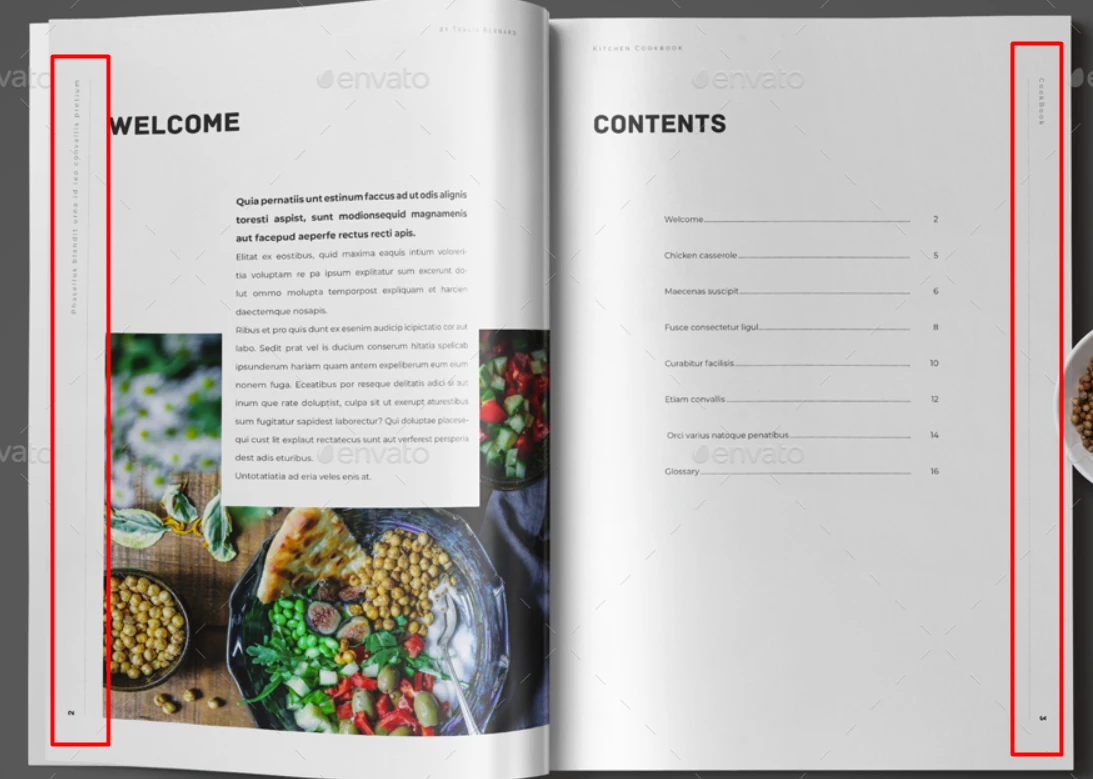

If you would be as detailed as possible it would be really great!

Thank you and have a nice day!

This topic has been closed for replies.
Correct answer Barb Binder

Hi Adnan:


Repeating elements are added to the master pages in InDesign.

  1. Create a document with facing pages.
  2. Open the Pages panel and double click on the name A-Master.
  3. Draw the vertical lines with the Line tool.
  4. Add the text frames for the page numbers with the Type tool.
  5. Click inside each text frame and insert the page number code using Type > Insert Special Characters > Markers > Current Page Number. The letter A will appear because you are on the A-Master. Arabic numbers will appear when you return to the body pages.
  6. Navigate back to the body pages to see the result.


~Barb 


https://helpx.adobe.com/indesign/how-to/work-with-multi-page-documents.html

https://helpx.adobe.com/indesign/how-to/work-with-multi-page-documents.html 

5 replies

Barb Binder
Community Expert
December 17, 2020

Hi @Adnan7:


It looks like overrides to me:

  1. Start by reassigning the master page to those erroneous body pages so that all pages are consistent.
  2. Remove any duplicate objects from the body pages that may appear.
  3. Then remove just the page numbers with the shortcut I gave you earlier.


Effective use of master pages is essential for long document layout. When you have some downtime, make a plan to figure how they work. You will find free videos, tutorials and of course the Adobe Helpx page—all of which will get you up to speed if you don't want to invest in training (which, as a career trainer, I always encourage!). 😊


~Barb


~Barb at Rocky Mountain Training
Barb Binder
Community Expert
December 16, 2020

Hi Adnan:


There are two options.

  1. The first as per @pixxxelschubser, is to create a new set of master page without the page numbers and assign them to the first and last page.
  2. The alternative is to override the first and last page by selecting the page numbers on those two pages – use control shift click or command shift click with the Selection tool – and then press Delete. Knowing that you are still pretty new to InDesign, that might be the easier choice.


~Barb 

~Barb at Rocky Mountain Training
Adnan7
Adnan7Author
Known Participant
December 17, 2020

Hello,
thanks for replying.
I'm running into another problem. Here is what the master page looks like in my case: (note how the right page line and page number are a bit shifted to the left)

How this looks on pages from 2 to 13 (from 15 total):

So far so good, but only on the last pages it looks like this: 

Now when I edit the master page so it's not shifted to the right, page 15 will be displayed correctly but all other ones will not show the line and page number. 
All pages are A4 size, so I'm a bit confused. Could you please help me with this?

Thank you!


pixxxelschubser
Community Expert
December 16, 2020

That is easy.

Just apply another master page (without line and page number) to your document first and last page.

Barb Binder
Community Expert
December 3, 2020

You are welcome. We are always happy to help.


~Barb 

~Barb at Rocky Mountain Training
Adnan7
Adnan7Author
Known Participant
December 16, 2020

Hello,

I have a follow up question for this subject: How do I remove the line and the page number only from the first and last page of the book?

Thank you!

Barb Binder
Barb BinderCorrect answer
Community Expert
December 3, 2020

Hi Adnan:


Repeating elements are added to the master pages in InDesign.

  1. Create a document with facing pages.
  2. Open the Pages panel and double click on the name A-Master.
  3. Draw the vertical lines with the Line tool.
  4. Add the text frames for the page numbers with the Type tool.
  5. Click inside each text frame and insert the page number code using Type > Insert Special Characters > Markers > Current Page Number. The letter A will appear because you are on the A-Master. Arabic numbers will appear when you return to the body pages.
  6. Navigate back to the body pages to see the result.


~Barb 


https://helpx.adobe.com/indesign/how-to/work-with-multi-page-documents.html

https://helpx.adobe.com/indesign/how-to/work-with-multi-page-documents.html 

~Barb at Rocky Mountain Training
Adnan7
Adnan7Author
Known Participant
December 3, 2020

Worked great!

Thank you so much!