


New Participant
July 20, 2024
Question

Pantone issues in PDF file while convert the Indesign to PDF

  • July 20, 2024
  • 3 replies
  • 427 views

Hi,

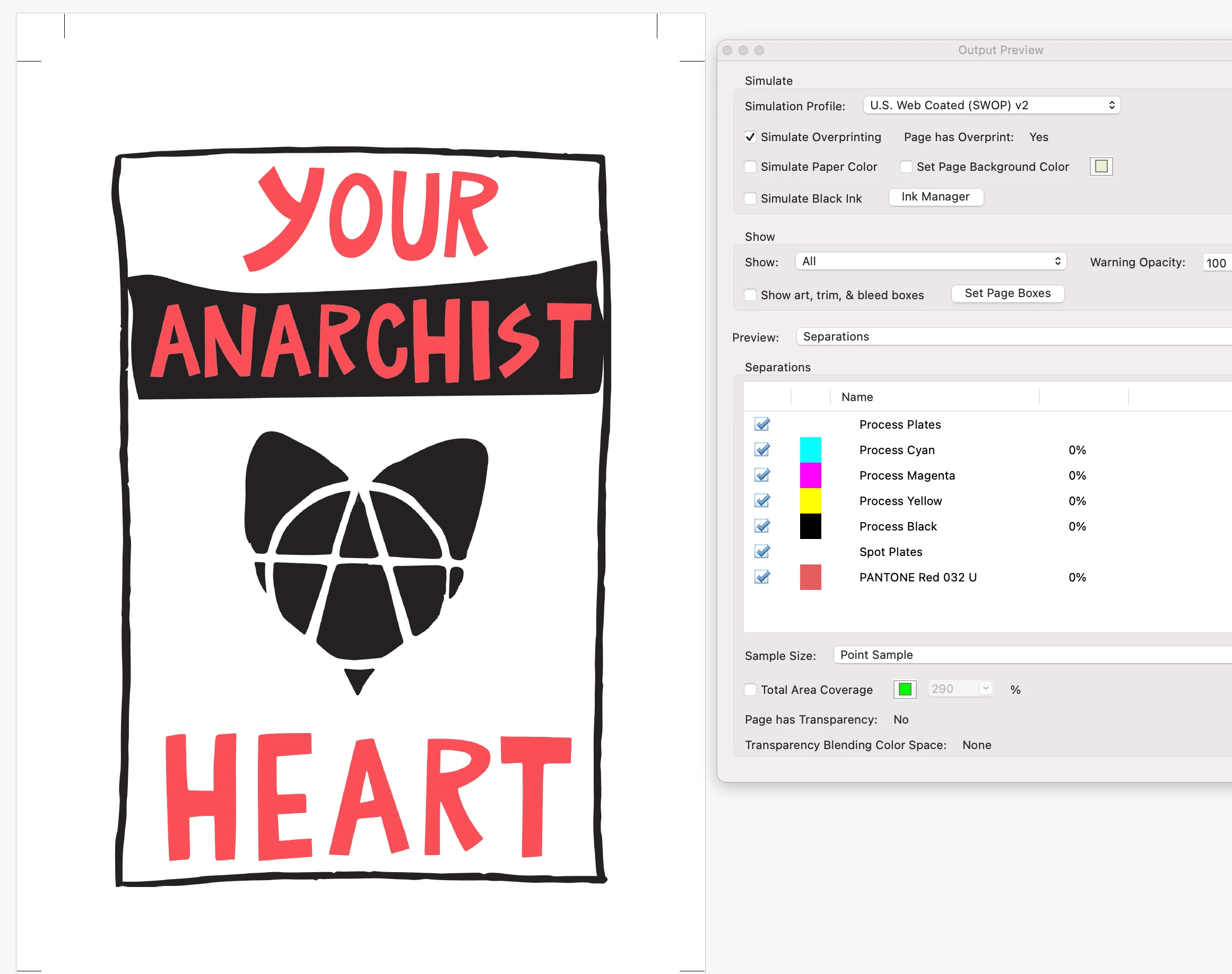
This is a 2c colour book; open the PDF file because black does not appear on PDF files. Only pantone colours are presented. However, simulate overprinting in the separation preview to PDF files and visible black colour. How to fix the issues. Please check and advise. I have attached screenshot for your reference.



This topic has been closed for replies.

3 replies

Brad @ Roaring Mouse
Community Expert
July 29, 2024

What version of Acrobat are you at/platform?

Can you upload the PDF. I literally had this same issue with a file last night where my Black disappeared in Output Preview. The file was otherwise fine and processed properly, so I'm wondering if a bug has crept into the latest Acrobat.

reproo2773183
Inspiring
July 30, 2024

The screengrab showing only the Red; is that from Acrobat? it would be more typical of Apple's Preview which would struggle with Spot Colour on Overprint. The One from Acrobat looks ok?

rob day
Community Expert
July 29, 2024

Hi @James3243759165ee , When you Export a document containing Spot colors the Spot plates and the CMYK plates alway export even if you are not using the process CMYK plates. So here in InDesign I am using PANTONE Red 32 + Process Black (I’ve hidden the CMY plates in Separation Preview):


AcrobatPro’s Separation view shows the same—you printer will have to emit the process Black and PANTONE Red 32 plates for the 2-color job:


Participating Frequently
July 29, 2024
quote

Hi,

This is a 2c colour book; open the PDF file because black does not appear on PDF files. Only pantone colours are presented. However, simulate overprinting in the separation preview to PDF files and visible black colour. How to fix the issues. Please check and advise. I have attached screenshot for your reference.


By @James3243759165eemcdvoice

Hello, @James3243759165eemcdvoice 


You’re dealing with an issue where black does not appear in your PDF files, and only Pantone colors are presented. Here are some steps to help you resolve this issue:

Steps to Fix the Issue
Check Overprint Settings:
Ensure that the black color is set to overprint in your design software (e.g., Adobe InDesign). You can do this by selecting the black elements and enabling the overprint option in the attributes panel.
Verify Layer Settings:
Make sure that the black elements are not placed on a non-printable layer. All layers containing black elements should be set to print.
Adjust Appearance of Black:
In Adobe InDesign, go to Preferences > Appearance of Black and set it to Output All Blacks Accurately. This ensures that black is output correctly in the PDF.
Check Color Space:
Ensure that your document’s color space is set to CMYK, not RGB. You can change this in InDesign by going to Edit > Transparency Blend Space and selecting Document CMYK.
Simulate Overprinting in Acrobat:
In Adobe Acrobat, you can simulate overprinting by going to Print Production > Output Preview and enabling the Simulate Overprinting option. This will help you see how the black will appear when printed.
Export Settings:
When exporting your PDF, ensure that the export settings are configured to preserve overprint settings. In InDesign, you can do this by selecting File > Export > Adobe PDF (Print) and then adjusting the settings under the Output tab.
Example of Overprint Settings in InDesign
Select the black element.
Go to Window > Output > Attributes.
Check the Overprint Fill option.


I hope this info is helpful to you.


Best Regard,
Gregory Chavez