New Participant
February 2, 2020
Answered

Place: Master page text box not working as imagined

  • February 2, 2020
  • 2 replies
  • 2062 views

Hi all,

I've created a text box with two (2) columns on both pages of the Master pages. Then, when I try to place a Word document into my InDesign document (by pressing the SHIFT-key and double clicking left), it creates a new text box on the current and recurring pages with no columns. How do I fix this issue?

Sometimes it only places it on the odd or even numbers, depending on which page I initially placed the Word document, leave the all the other pages blank.

What am I doing wrong?
This topic has been closed for replies.
Correct answer Steve Werner

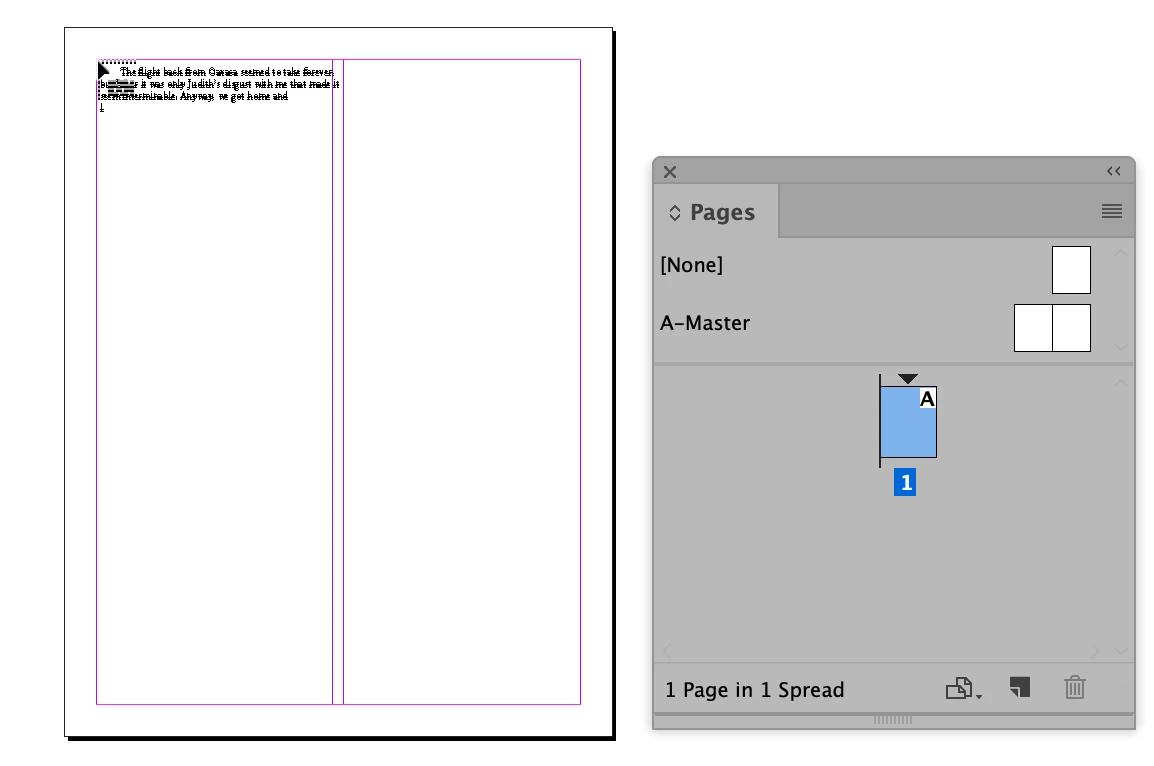
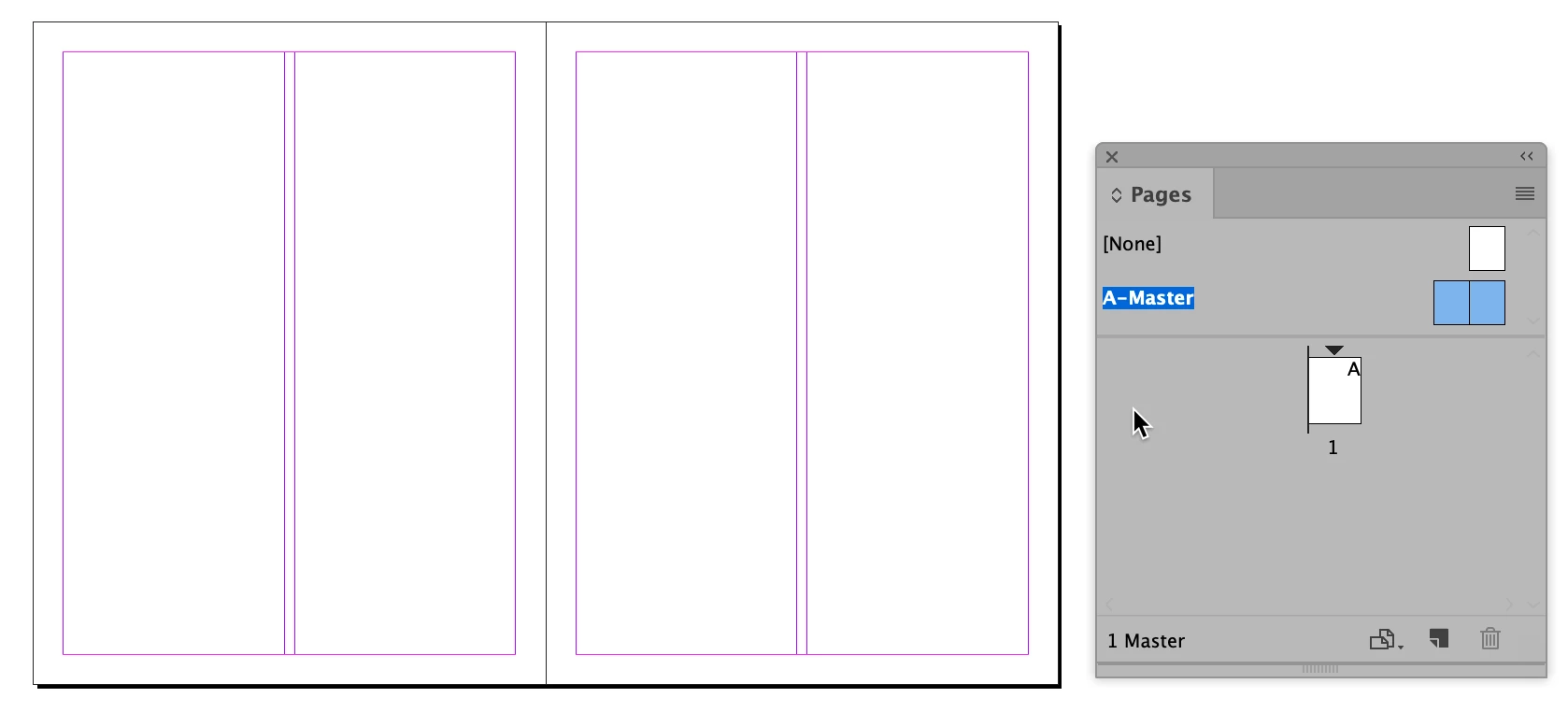
Here's how I'm starting. I've set up two-column frames in Layout > Margins and Columns on the master page. There is only one blank page 1.


I go to page 1. I choose File > Place and select the Word document. I move my cursor over the upper left corner at the top of the left column, hold down the Shift key, and click (double-click not necessary).


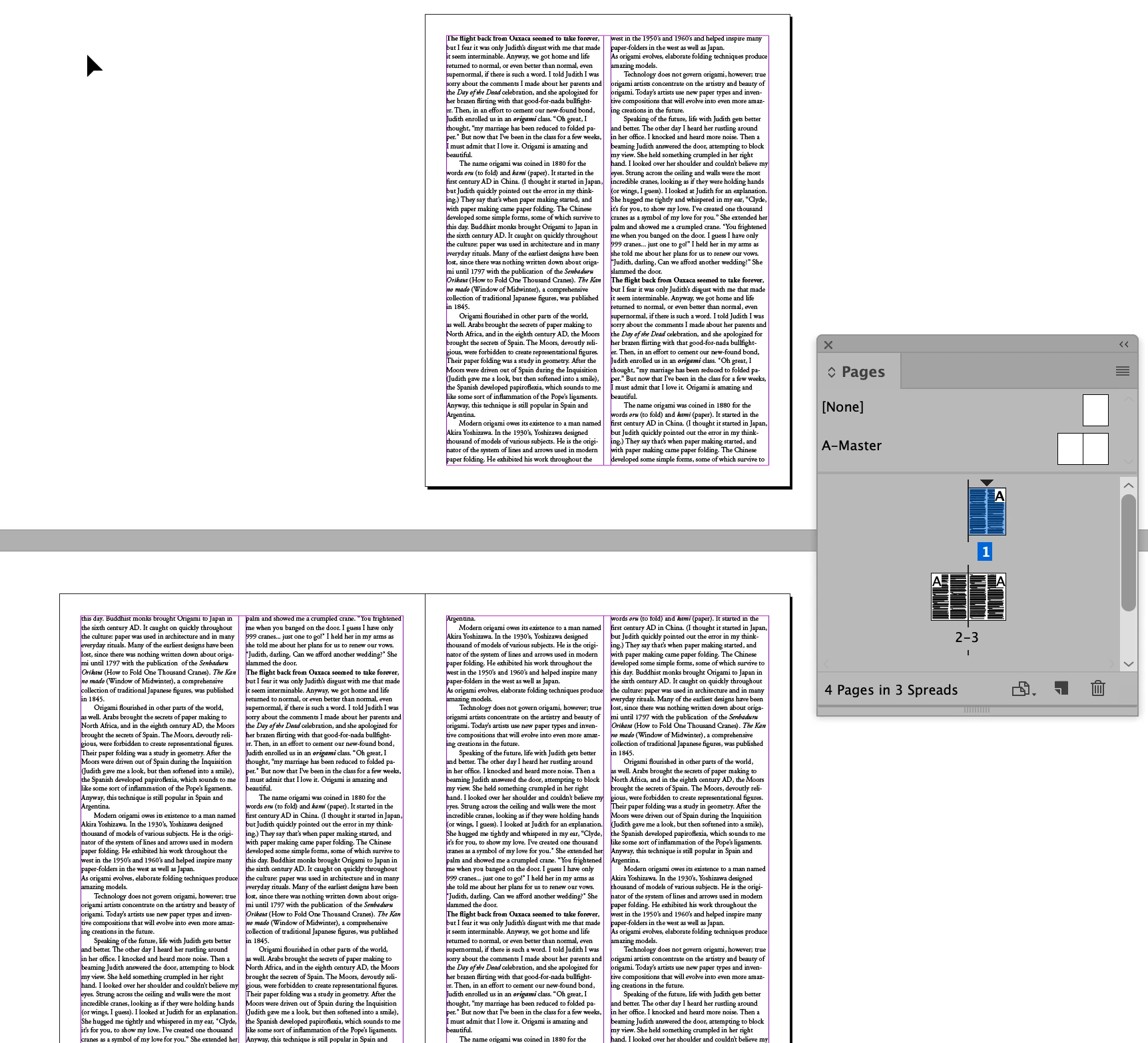
The result:


NOTE: As Scott said, you can set up Primary Text Frames but it's not necessary if you're a beginner so I didn't do it that way for you. You shouldn't have to link the two frames left and right on the master page however.


2 replies

Steve Werner
Steve WernerCorrect answer
Community Expert
February 2, 2020

Here's how I'm starting. I've set up two-column frames in Layout > Margins and Columns on the master page. There is only one blank page 1.


I go to page 1. I choose File > Place and select the Word document. I move my cursor over the upper left corner at the top of the left column, hold down the Shift key, and click (double-click not necessary).


The result:


NOTE: As Scott said, you can set up Primary Text Frames but it's not necessary if you're a beginner so I didn't do it that way for you. You shouldn't have to link the two frames left and right on the master page however.


Scott Citron
Brainiac
February 2, 2020

Thanks, Steve, for the screen shots. This is how I do it, too. As I said, primary text frames really aren't necessary and only complicate an otherwise simple solution.

Scott Citron
Brainiac
February 2, 2020

First you need to link your two master text frames. Otherwise your text won't flow across spreads. Second, you might want to enable the Primary Text Frame feature, when setting up your new document. Set both primary text frame to two columns, if that's what you want. Doing so will automatically populate new documents pages with unlocked text frames to accept your placed Word doc. Note that using primary text frames isn't necessary, and sometimes creates more problems than it's worth. Try using them and see what happens.