juleens95082705
Participating Frequently
July 3, 2019
Answered

Problem: scale text as part of a group

  • July 3, 2019
  • 7 replies
  • 8577 views

Hi everyone,

this problem has been driving me nuts for ages now and I've decided I've finally had enough, so desperately hoping to find some help here.

I don't think it has anything to do with my ID version or system as I said I've had this problem for years over different devices, but just in case I'm using CC2019 on MacOS High Sierra.

Initial problem: I want to scale a group that contains one or more text boxes. If I enlarge the group by pressing shift + cmd and dragging the corners OR entering a percentage, it seems to work just fine. However if I want to scale the group down with the same method my text doesn't fit the bounding box anymore.
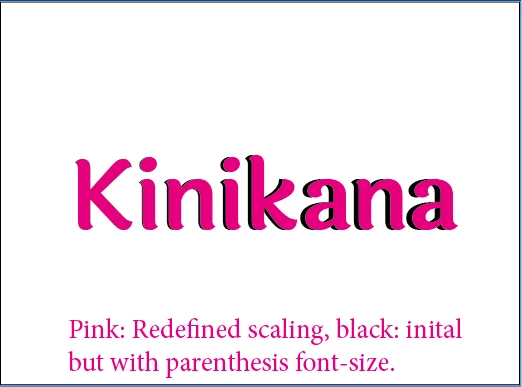
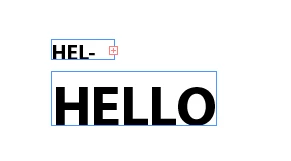
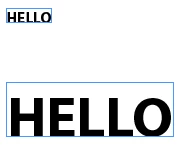
I then tried to change my preferences to "When Scaling -> Adjust scaling percentage" before scaling, but it gives me the dreaded "font-size in parenthesis problem". I googled again and saw that a lot of people suggested to select the option "redefine scaling to 100%" to fix the parenthesis and it seemed to work for everyone except me - when doing this, again my text doesn't fit the bounding box anymore. The text size seems correct but when selecting this option something seems to be off with the tracking? (see screenshots) Again I googled, but couldn't find anything about it.
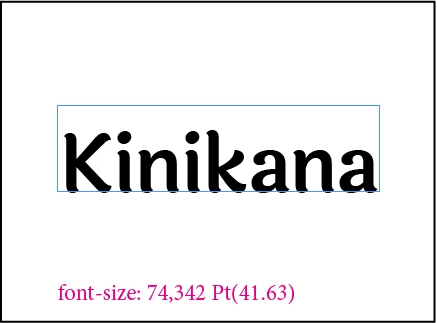
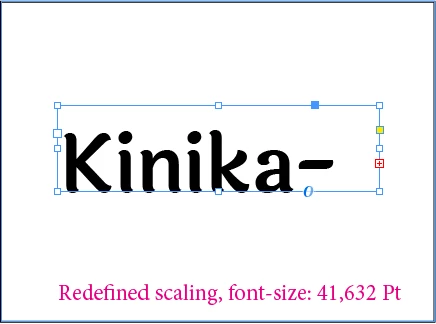
I don't know if I'm missing something super obvious there but I'm sure it can't be such a pain to simply scale things?
This topic has been closed for replies.
Correct answer DBLjan

Hey,

I wanted to chime in and backup juleens95082705​ and yet discovered the actual setting to avoid this.
First I wanted to suggest, what I do if the textbox is oversetting upon scaling: use auto-adjust-size-textboxoption.

But then I tried a bit, and found that kerning on <optical> behaves like this:

Then i switched kerning to <metrical>, and voilá:

7 replies

juleens95082705
Participating Frequently
July 18, 2019

Ah sorry, Laubender​ and DBLjan​ , it's working now - I just forgot to change the ending of the file that I created in TextEdit to .js ....

juleens95082705
Participating Frequently
July 12, 2019

DBLjan​ I tried to install it as described here (I also looked at the related article with how to get the code in a proper format) but ID doesn't let me run it (it has an exclamation mark beside it)... :/

Anyway thanks everyone for making me a bit smarter and providing all of these solutions and ideas.

I will still try to run Laubender​ 's script but looking at what I want to achieve and what optical kerning is designed to do I think DBLJan's suggestion to use auto-adjust-textbox or simply try to stick to metric instead of optical kerning will be my go-to solution for now

Brainiac
July 12, 2019

Never heard of that :-)

I assume it doesnt run because of some filetype/format error.

Are you on MacOS or Windows?

There a serveral apps to help edit scripts, but a simple texteditor like OSs 'TextEdit' or Notepad.exe should do, key is to set the file/default to palin text, not .rtf or .doc.

Just save it as 'MyScript.jsx' because its a javascript. If you get an apple-script (different coding language) you need to save as .script or .applescript.

Have to go now, into the weekend.

juleens95082705
Participating Frequently
July 9, 2019

rob day​ I'm getting the same thing as DBLjan .
I'm wondering if it's a thing with German ID as I'm also using that

juleens95082705
Participating Frequently
July 8, 2019

rob day​ I tried to reset my preferences but it also doesn't help :// however as I said, I've had this problem almost as long as I can remember on different versions of ID and on pc as well so i don't think it's a problem of preferences?

DBLjan​ thanks, I've tried it and it seems like the best solution so far together with your suggestion to change optical to metrical kerning. However I'm very confused about the scaling in general now. If I scale things proportionally (with selection tool + shift + cmd OR transform tool + shift) shouldn't everything stay exactly in place where it was originally except that it gets bigger/smaller?

If I scale and apply the auto-adjust-size-textbox-option I would have expected the pink boxes to still only touch the font like so:

However if I scale things down the boxes overlap with the font (only very slightly but still):

Or am I having an error in my reasoning there? I still applied optical kerning in this example so I really think that is the problem here. Using metrical kerning everything behaves as expected...

Brainiac
July 8, 2019

I cant pinpoint to the exactly thing InDesign tries to do here, because im no expert on typography. But, as you I too remember living with these slight adjustments since years now. It always bugged me too, that I have to solve overset which wasnt there before scaling. But I grew with it, giving textboxes, which I know will approx. grow the auto-adjust option.

Another thing you could do, and it will definitly scale right with your pink lines, is converting the text into paths, if you want to maintain the exact look.

juleens95082705
Participating Frequently
July 5, 2019

DBLjan Thanks for your suggestion, I tried it and you're right about the optical vs metrical kerning. I did in fact apply optical kerning in my example. However what if for some reason you want/"need" optical kerning?
I would have liked to try your other suggestion with the "auto-adjust-size-textboxoption" but tbh I don't know where to find this option...?

rob day​ I tried all of your suggestions but I always get the same result :/ but thanks anyway!

rob day
Community Expert
July 5, 2019

That’s not normal behavior—shift only with the Transform tool should work, have you tried trashing your preferences?

JeffArdoise
Known Participant
July 5, 2019

hmm, that's weird rob day​ I have to hold cmd+shift, THEN drag the group handle to scale and keep all the text. If I use the shift only the text gets overset. If I click on the handle before holding down the cmd and Shift key, it doesn't work either. So the order you do things does matter.

rob day
Community Expert
July 4, 2019

I think Jeff is right, if you use the Text tool with Shift+Command on a text frame inside of a group you are scaling the text’s parent frame and not the text or entire group. Try using the Free Transform or Selection tool with just the Shift key, which will scale the entire group proportionally. If you have your General>Object Editing preference set to Apply to Content the Font Size field will also scale to a single value.

juleens95082705
Participating Frequently
July 5, 2019

Thank you Rob, it still doesn't work though unfortunately (see my reply to Jeff). I've always been using the selection tool, using the Free Transform tool gets me the same result.

DBLjanCorrect answer
Brainiac
July 5, 2019

Hey,

I wanted to chime in and backup juleens95082705​ and yet discovered the actual setting to avoid this.
First I wanted to suggest, what I do if the textbox is oversetting upon scaling: use auto-adjust-size-textboxoption.

But then I tried a bit, and found that kerning on <optical> behaves like this:

Then i switched kerning to <metrical>, and voilá:

JeffArdoise
Known Participant
July 4, 2019

I've tried a couple of things and can consistantly get what I want IF, I use the black arrow to modify the group of text frame, and use cmd+shift drag to resize. If you have the text tool and try to do that, it won't work. If you use the black arrow tool and use only shift, it will do exactly like your example. I've tried with one text frame and two text frame grouped together with cmd+g. In my preferences I have the option to When Scaling: apply to content, include stroke weight and include Effects or checked.

HTH

juleens95082705
Participating Frequently
July 5, 2019

Thanks for your answer Jeff.
However I still couldn't get it to work unfortunately. I have always used the black arrow and shift+cmd and my preferences are the same.
One other thing that I noticed though, and maybe that is why it worked for you(?): the text not fitting in the bounding box anymore only occurs when I scale down further than about 70%. If I only scale down to about 80% everything still looks normal...

rob day
Community Expert
July 5, 2019

I have always used the black arrow and shift+cmd

With the Transform tool Shift -Command doesn't work for me—try Shift only.