
Jon Hidden-Coley
Known Participant
March 5, 2020
Answered

Relink multiple images in one go

  • March 5, 2020
  • 6 replies
  • 41305 views

Hi,


Is there a way I can relink a select number of images on a document in one go rather than having to relink one by one?


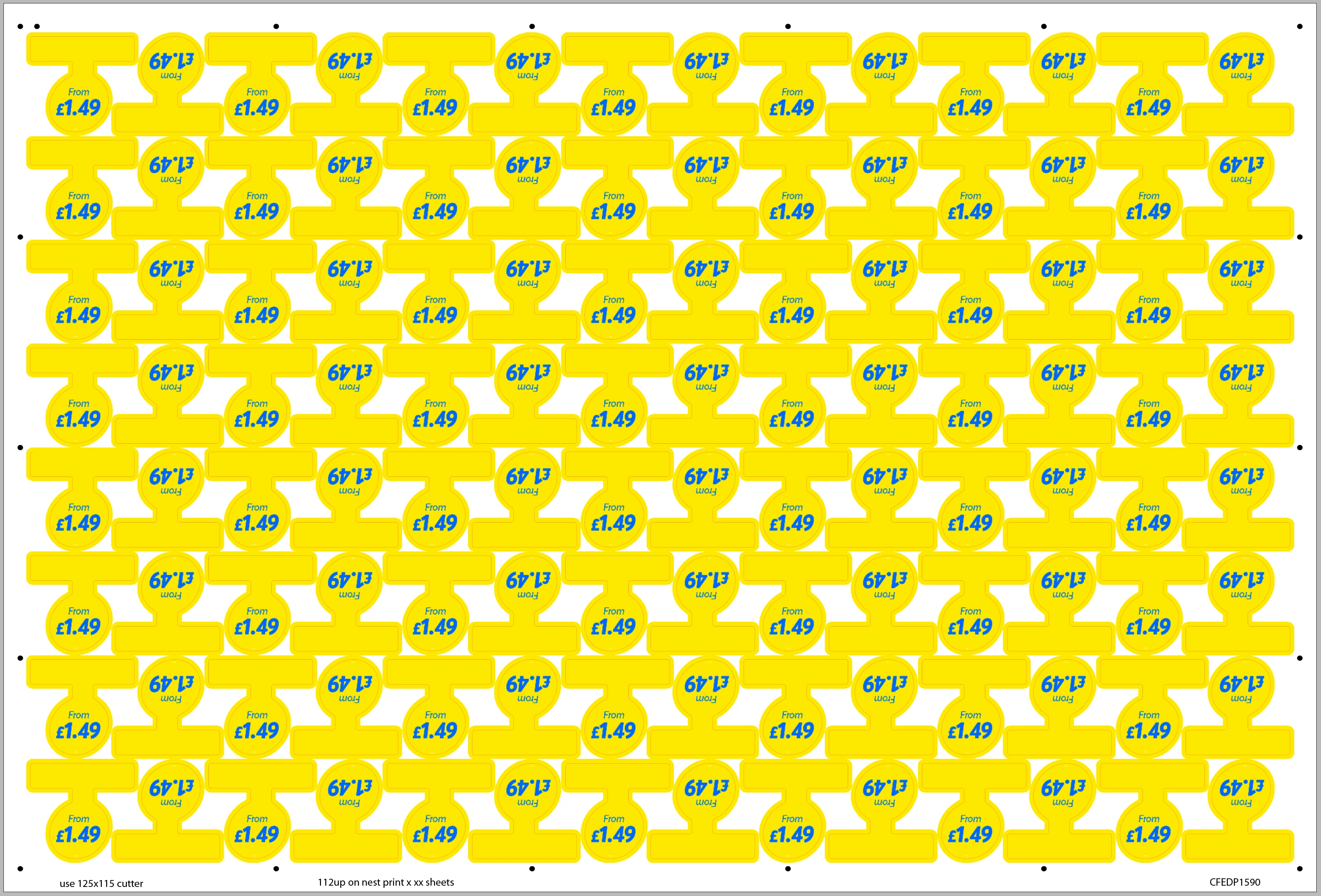
For example, in the image below, the graphic is duplicated 112 times. Let's say I want to replace 50 of the links with a graphic that has a different price on it. At the moment, I have to select the graphics I want to change and then go through the relink procedure 50 times, which is very time-consuming (and incredibly frustrating!)


Is there a way to do this within InDesign? Is there a script available? I'm also happy to use Illustrator if there's a way it can be done there, although I haven't found a solution for that either.


Thanks for any help you guys can give.
 

Correct answer brian_p_dts

This assumes that you have the frames selected with the regular black arrow tool, and that there is only one linked image within that frame:


var fileToRelink = File.openDialog("Choose the file to relink to");
var selects = app.selection;

for (var i = 0; i < selects.length; i++) {
    selects[i].graphics[0].itemLink.relink(fileToRelink);
}


6 replies

New Participant
August 7, 2025

Even better when you get AI to help you choose the input option when linking to a multiple page document.  Script below.

// Check if there is an active document and a selection
if (app.documents.length > 0 && app.selection.length > 0) {

// Prompt the user to select a file to place
var myFile = File.openDialog("Choose a file to place");

// Proceed only if the user selected a file
if (myFile) {
var mySelection = app.selection;

// --- Step 1: Process the FIRST frame to set the options ---
// By calling place() with 'true', you show the dialog for the first item.
// InDesign will remember the settings you choose for this session.
try {
mySelection[0].place(myFile, true);
} catch(e) {
alert("Could not place the file in the first selected frame. Aborting script.");
// We exit here because without the first placement, we have no settings to apply to the others.
exit();
}

// --- Step 2: Process the REST of the frames ---
// Now, loop through the remaining items, starting from the second one (index 1).
for (var i = 1; i < mySelection.length; i++) {
try {
// Call place() with 'false' (or no second argument) to use the
// previously set import options without showing the dialog again.
mySelection[i].place(myFile, false);
} catch(e) {
// Skip any item that can't contain a file.
}
}
}

} else {
alert("Please select one or more frames before running this script.");
}

silvercreekrealestate
New Participant
June 19, 2024

First, you must have all the links you want to relink in a single folder with the same name. Then, highlight all of the links in the links panel. Select the hamburger menu and choose "Relink to Folder..." to open the folder. You will receive a notice if any links are unsuccessfully relinked. You can sort by the path name in the column to see which files need to be relinked.

Community Expert
April 1, 2021

Hi Brian,

don't know if it will be relevant, but also see into the following issue if you like to change the visibility of graphic layers of placed AI, PSD, PDF files and InDesign pages:


Scripting | graphicLayerOptions : Changing visibility of graphicLayer will change ID number of placed graphic
Uwe Laubender, Jul 24, 2019

https://indesign.uservoice.com/forums/913162-adobe-indesign-sdk-scripting-bugs-and-features/suggestions/38218423-scripting-graphiclayeroptions-changing-visibil


See also this post by Marc Autret:

https://community.adobe.com/t5/indesign/activating-object-layers-basing-on-document-layers/m-p/4653917#M156308


Regards,
Uwe Laubender

( ACP )

brian_p_dts
Community Expert
April 1, 2021

I just encountered this bug in another, unrelated project I'm working on. It was driving me crazy. Upvoted! 

Community Expert
June 20, 2024

@brian_p_dts said: "… I just encountered this bug in another, unrelated project I'm working on. It was driving me crazy. Upvoted! "


Hi Brian,

as you can read from Marc Autret's post from 2012 there is a way to circumvent this problem:

https://community.adobe.com/t5/indesign-discussions/activating-object-layers-basing-on-document-layers/m-p/4653917#M156308


Also see this article by Marc Autret on indiscripts.com from the year 2013:


2/ Graphics, Geometry and Coordinate Spaces
Syncing InDesign and Illustrator Layers

https://indiscripts.com/post/2013/05/indesign-scripting-forum-roundup-4#hd2sb1


Regards,
Uwe Laubender
( Adobe Community Expert )

Participating Frequently
December 3, 2020

You just gave us a show. Thanks

brian_p_dts
brian_p_dtsCorrect answer
Community Expert
March 6, 2020

This assumes that you have the frames selected with the regular black arrow tool, and that there is only one linked image within that frame:


var fileToRelink = File.openDialog("Choose the file to relink to");
var selects = app.selection;

for (var i = 0; i < selects.length; i++) {
    selects[i].graphics[0].itemLink.relink(fileToRelink);
}


Jon Hidden-Coley
Known Participant
March 6, 2020

How do I use this within the InDesign document?

brian_p_dts
Community Expert
March 6, 2020

I thought I had saved it as text only but obviously not! I just tried saving the script again and it worked! I must have done something different as the original file that didn't work has 'TXT' in the icon and the new one doesn't.


Thanks, everyone for you help. It works a treat and will save me a lot of time in the future!


Sometimes by default, TextEdit can be set to do the text in RTF format, which would mess up the .jsx coding. To ensure you have it correct in the future, in TextEdit you'd select the text and go to Format > Make Plain Text just to be sure. 

Eric Dumas
Community Expert
March 5, 2020

Hi,

can you confirm the version of the software and operating system you are using?


Here what I would do:

  • duplicate your file
  • in one version of the indd file,
    • I would delete half the images
    • in the Link panel, update the link to the new image
  • In the other version of the indd file, copy the other half of the image
  • paste the second batch into the first version
  • you should get the mix of images on the same page


Jon Hidden-Coley
Known Participant
March 5, 2020

Ah, yes sorry, I should have mentioned. Mac OS Catalina, InDesign 15.0.2.


That sounds like a viable workaround. I'll use that method if a quicker way doesn't show up!


Thanks Eric, much appreciated.

Eric Dumas
Community Expert
March 5, 2020

Please update this thread if you find a better solution