


Inspiring
March 30, 2022
Answered

SDKSamples: Includes are not found

  • March 30, 2022
  • 2 replies
  • 618 views

Hello,


I need some help as a newcomer to the SDK.
I have opened the sample solution (\build\win\prj\SDKSamples.sln) in VisualStudio 2019 in the current SDK (plugin_sdk_050).
I can compile the solution (probably because of the PreCompiled headers) - but in the IDE all "#Includes" are shown as not loadable. They cannot be found.
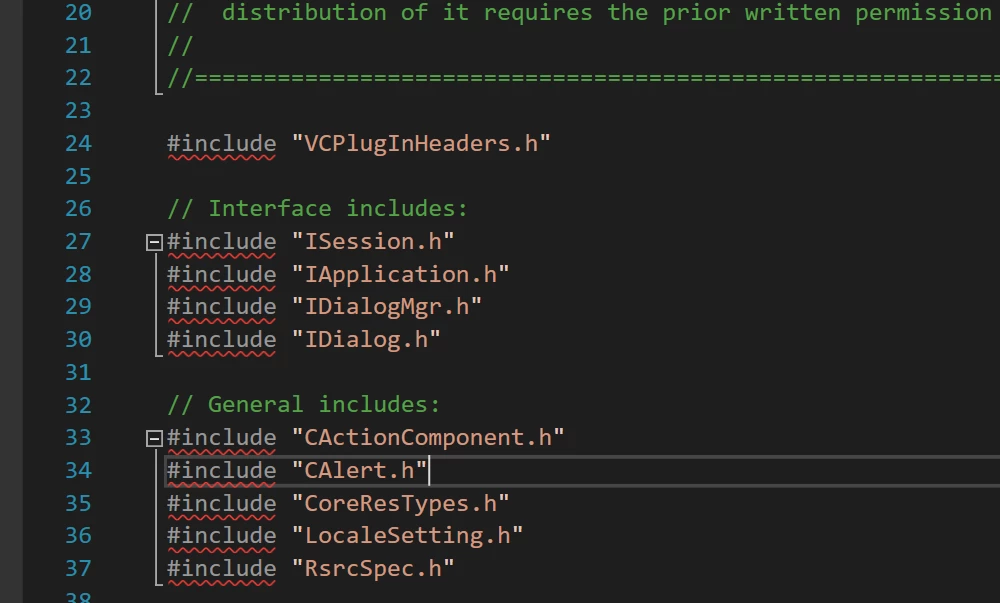
Did I miss any hint in the docs? Do I have to set some environment variable?


Thanks a lot in advance,
Anreas
This topic has been closed for replies.
Correct answer Olivier Beltrami

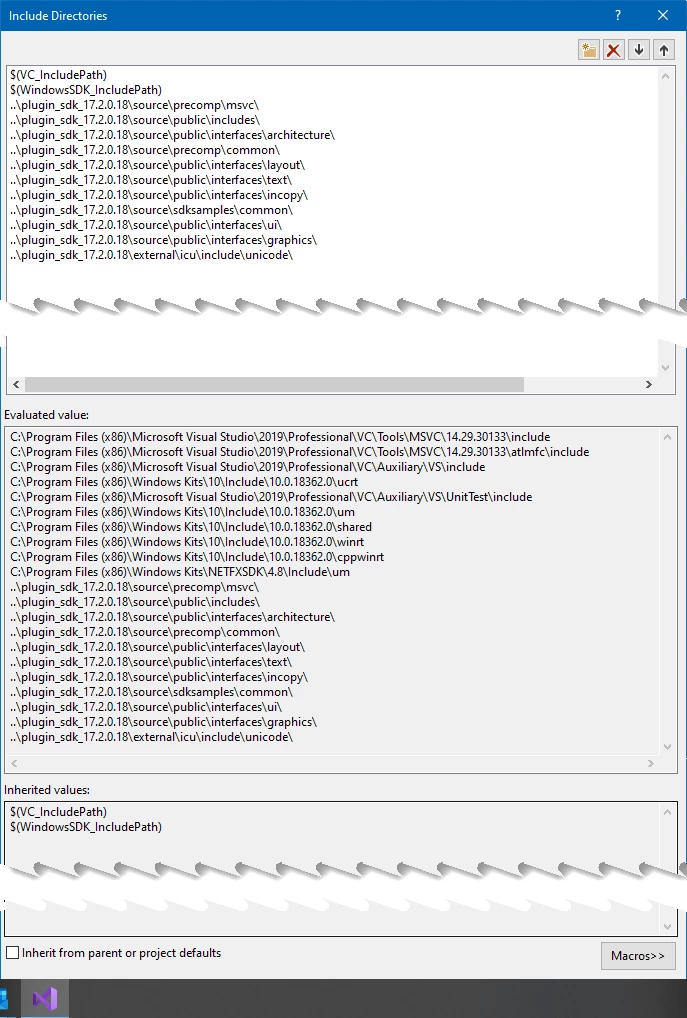
Below is a screenshot of my "VC++ Directories", where you'll need to replace "..\plugin_sdk_17.2.0.18\" with the path where your SDK is installed.

Very best regards,

Olivier


2 replies

Braniac
March 30, 2022

You did not miss anything, if the plugin compiles fine then ignore the red wavy lines the IDE shows, the intellisense of VS does not work properly with InDesign plugin projects. I quote the following from the SDK guides

IntelliSense

IntelliSense has never worked very well for InDesign code, and you may find that IntelliSense red squiggles appear under nearly every InDesign type or API, despite your project compiling successfully.

To disable the squiggles:

  1. Go to Tools > Options.
  2. In the options dialog, in the left pane, expand "Text Editor" and then expand "C/C++".
  3. Click on "Advanced" under "C/C++".
  4. In the right pane, scroll down until you see the "IntelliSense" section.
  5. Select "Disable Squiggles" and change its value to True.
  6. Click OK.

-Manan

AIckAuthor
Inspiring
March 30, 2022

Hi Manan,

Thanks for this hint.

But in my case it seems that it's not only a issue with the "Squiggles". If I try to open the include file via the context menu Visual Studio is unable to find the header file. And yes - I'm able to build the projekt 😉


best regards
Andreas

Braniac
March 30, 2022

In such a case did you try what Oliver mentioned? That should probably fix it. However, I would like to ask if you did move around the project file shipped with the SDK? The project is set mostly with relative paths so moving around the projects causes lots of headaches to fix.

-Manan

Olivier Beltrami
Olivier BeltramiCorrect answer
Braniac
March 30, 2022

Below is a screenshot of my "VC++ Directories", where you'll need to replace "..\plugin_sdk_17.2.0.18\" with the path where your SDK is installed.

Very best regards,

Olivier


AIckAuthor
Inspiring
March 30, 2022

Hi Olivier,


I was hoping there was a more elegant "special" way than adding each directory individually.... 😉


Thanks

Andreas