Participating Frequently
July 14, 2022
Answered

Set Specific Image Inch, Pixel and File Size

  • July 14, 2022
  • 2 replies
  • 895 views

I need to adjust the export settings for a clients ad to specific file size, inches, and pixel dimensions.

I have had this issue multiple times so learning the correct process would be useful to me. 


I have the full Adobe Suite. 


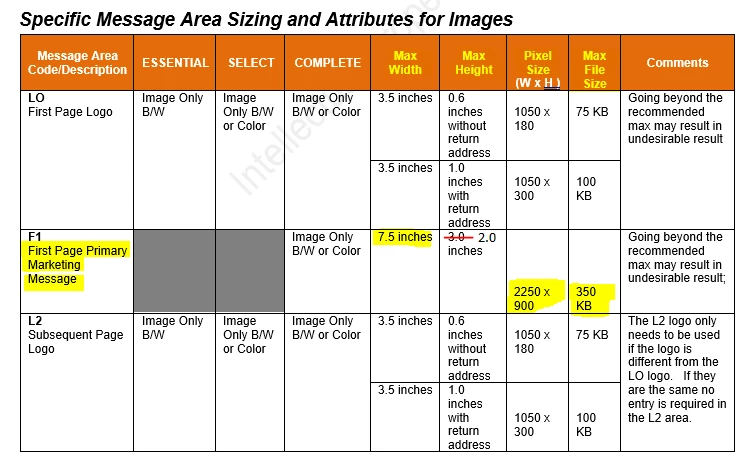
Attached is the ad and the export requirements.
This topic has been closed for replies.
Correct answer rob day

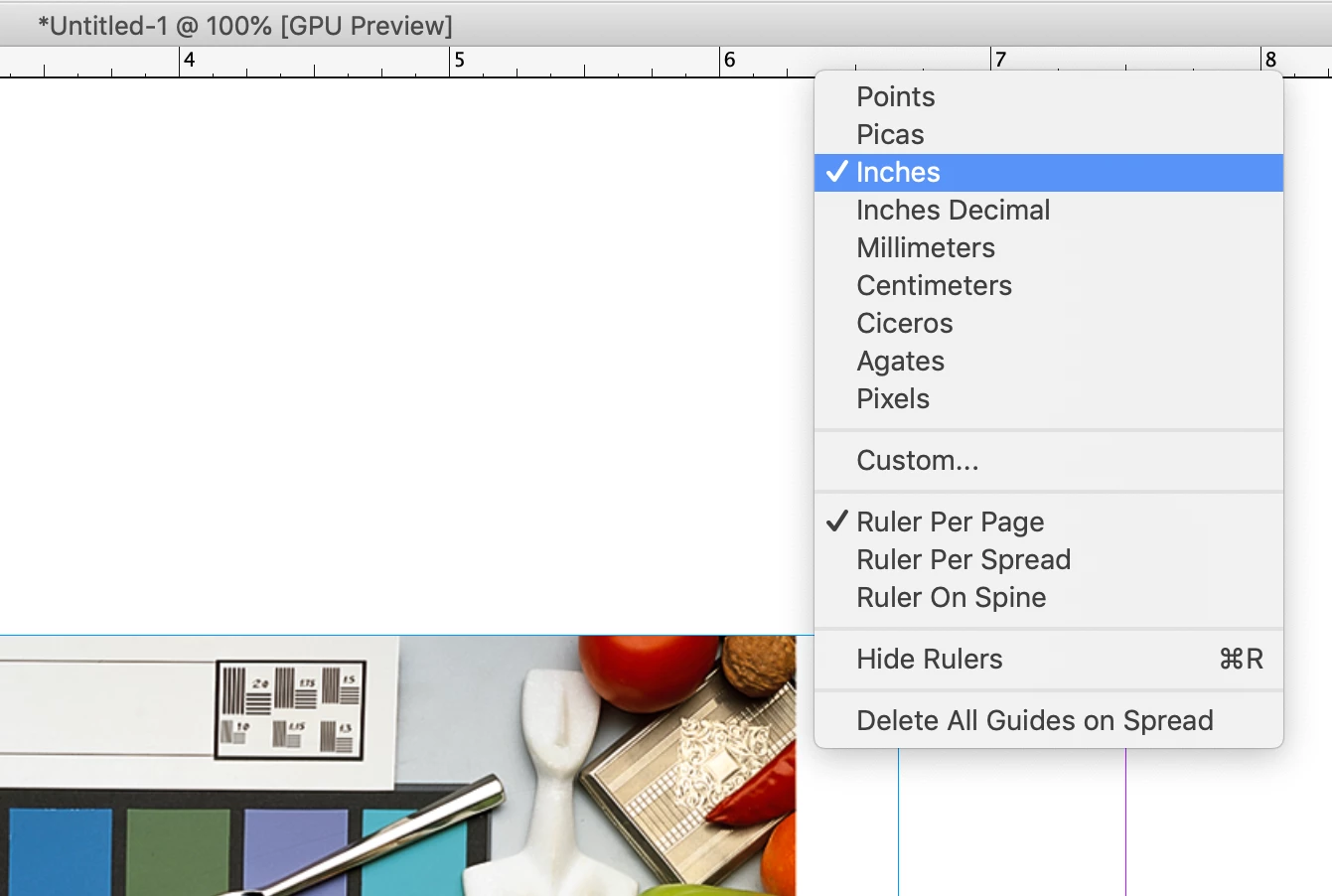
Set your Ruler Units to Inches before changing the document dimensions. You can do that via Preferences, or by Control clicking your Horizontal and Vertical Rulers (vertical and horizontal can be set to different units):


You can also set the dimensions to Pixels. In that case if you want an exported image to have matching pixel dimensions, set the Export Resolution to 72ppi. The InDesign Pixel Ruler Unit equals 1/72"

2 replies

James Gifford—NitroPress
Brainiac
July 14, 2022

Lay out  your work in InDesign in inches. Other than for web ads and banners (which aren't really in ID's wheelhouse anyway), using pixels for layout is... a poor approach.


Make sure the effective PPI of any images you place is at least the requested output resolution (most often 300ppi for print). Higher is okay and exact or precise multiples (600 ppi, for example) is best, but lower should be avoided.


Export to the requested PPI (again, usually 300). That's the only place layout size and "resolution" should intersect.


PjMcCabeAuthor
Participating Frequently
July 14, 2022

I just adjusted my InDesign display to inches and set the document to 7.5 x 2 inches and exported. I believe the dimensions are correct but haven't gotten confirmation yet. 

How od you recomemed I decrease the file size? Right now its sitting at 513 KB 

James Gifford—NitroPress
Brainiac
July 14, 2022

As with any JPEG export. Reduce the image quality on export, or in Photoshop. An image of XxY pixel size is going to have a certain 'floor' file size, the moreso if it is complex and the compression algorithm can't do much to reduce redundant data. There are other image characteristics you can adjust as well, but most will reduce image quality, especially edges.


But note there's often a HUGE file size difference between High and Maximum, and often a large one between Medium and High. Medium quality is often good enough for web images.


rob day
Community Expert
July 14, 2022

Hi @PjMcCabe , If your document dimensions in inches are 7.5" x 2", exporting a JPEG with the Resolution set to 300ppi will give you an image file with a pixel dimension of 2250 x 600.


You can also Export a PDF of the 7.5" x 2" page and open the PDF in Photoshop at 300ppi and get the same pixel dimensions.

PjMcCabeAuthor
Participating Frequently
July 14, 2022

Thanks for responding Rob,

It looks like I need the export to be 7.5" x 2" and 2250x900 not 600 based on the chart. Can the file size be restricted? 


When I go to change my document dimmensions on InDesign it only gives "px" options also. 

rob day
rob dayCorrect answer
Community Expert
July 14, 2022

Set your Ruler Units to Inches before changing the document dimensions. You can do that via Preferences, or by Control clicking your Horizontal and Vertical Rulers (vertical and horizontal can be set to different units):


You can also set the dimensions to Pixels. In that case if you want an exported image to have matching pixel dimensions, set the Export Resolution to 72ppi. The InDesign Pixel Ruler Unit equals 1/72"