
Known Participant
March 12, 2025
Question

Single Page Instead of Spread issue

  • March 12, 2025
  • 5 replies
  • 1828 views

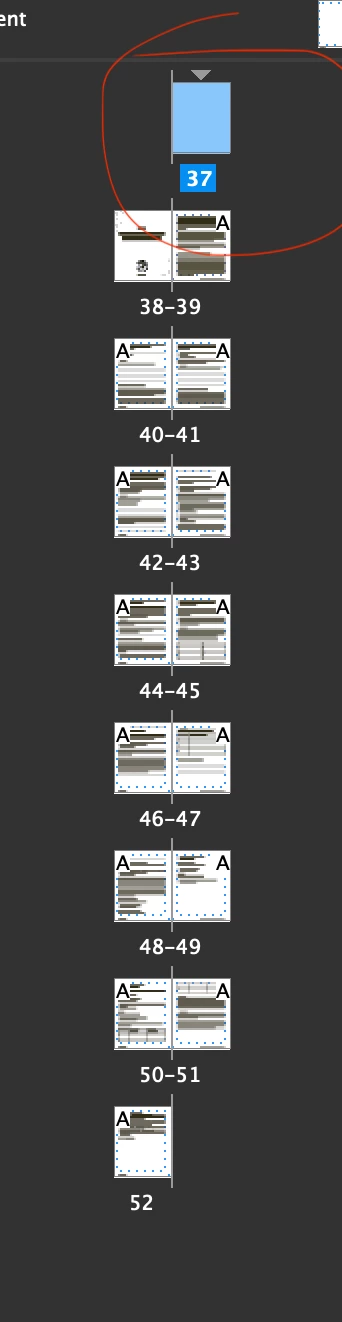
Hi! I am working on a book layout using the book file setup. For some of my chapter files, it only lets me have one page instead of two next to each other, even though the previous chapter ends with two facing pages. Why is this happening, and how can I resolve it?
 

5 replies

Peter Spier
Community Expert
March 13, 2025

As you've said you are combining these files using a Book, I'm going to suggest a little different strategy (I think) though it uses some of the same suggestions.

First, turning off shuffling is, to my mind something that should only be done in special circustances such as where a standard two-page spread needs pages added for a fold-out.

Instead of doing that, if your chapter is supposed to start on the left, go into the Section and Numbering options and assign the first page an even number. Using the Book option to continue numbering will adjust this page number later. You must understand that for a chapter to start on the left, the previous chapter must end on the right. You may need to add the occasional blank page to make that happen.

Dave Creamer of IDEAS
Community Expert
March 13, 2025

@Peter Spier I agree 100% with shuffling.

I would suggest not sectioning the documents manually, even from the book file. Add the blank page (this page left intentionally blank) to the previous document if needed, then let InDesign handle the left/right start of the following document. That way, if the previous document's number of pages changes, removing the need for the blank page, the book's page numbering will correct itself. 

Also, I would turn off automatically update page and section numbers to save time. Just remember to do it manually when the number of pages change in a document. 


David Creamer: Community Expert (ACI and ACE 1995-2023)
Peter Spier
Community Expert
March 13, 2025

@Dave Creamer of IDEAS I'm not sure if I understand what you are suggesting re not using sectioning. My understanding of the post is that the OP wants to have his file start with a full spread, and the only way I know to do that with a separate file is to either disallow shuffling (bad) or set the first page to an even number.

I definitely agree that blank pages should be added wherever necessary to force a following left or right page when synching the numbers. Wheter this page is at the end of the previous chapter, or is added to the beginning of the new one doesn't really matter, and I suppose adding it as the first page to a new doc is another way to force a full spread.

Mike Witherell
Community Expert
March 13, 2025

As Barb said, don't do this manually in each document. Go into the Book panel and its panel menu button to setup rules for page numbering in the Book (as in the specific sense of the word as InDesign terms it).

Mike Witherell
MateomonoAuthor
Known Participant
March 13, 2025

@Mike Witherell Thank you for your response, but I already have the settings she mentioned . 

Barb Binder
Community Expert
March 12, 2025

Yes, that works as a manual approach. InDesign can do it for us in the book panel menu. Do keep in mind that the norm in published documents is that right pages have odd numbers and left pages have even numbers. This can become an issue when you manually adjust the pages. That said, it sounds like you are back on track, so happy publishing! 🙂


~Barb

~Barb at Rocky Mountain Training
MateomonoAuthor
Known Participant
March 13, 2025

Hi @Barb Binder I realized that this issue is persisting. Basically, I have a book file with a couple of files before the first chapter starts (Imprint and table of content). Does section dont need to  have page numbers, but I want my page numbering to start from the real first chapter. The issue is that when I adjust this, my pages are no longer facing properly.


Now I found a way to fix this issue by toggling off these options, but then in the next chapter, the first page isn’t facing the other properly again. Why is this happening, and how can I resolve this issue?


Dave Creamer of IDEAS
Community Expert
March 13, 2025

Assuming a document starts on a right-hand page, the document must have an even number of pages for the next document to start on the right. For a left-hand document has to have an even number of pages for the next document to start on the left. If a document starts on a left-hand page, but the next one needs to start on the right, it must have an odd number of pages. And so on...

Sometimes one must paginate each document separately depending on the number of page and how the next document should start.


A document HAS to have page number--however, it is up to you if you display it or not. 

If you want to start page 1 later in the book, set your earlier pages to roman numerals or alpha. Technically, you can have multiple page 1s, but its not good practice.

This is numbered straight through with arabic numbers, but shows that documents can be any page length:

David Creamer: Community Expert (ACI and ACE 1995-2023)
Barb Binder
Community Expert
March 12, 2025

Hi @Mateomono:


It looks like your are setting up individual chapters (.indd files) to pull together into a book (.indb) file? If yes, don't worry about it yet.


When you put the chapters into the book file, you can use the book panel menu to designate the first page of each chapter to continue from the previous page in the document (so if the last chapter ends of a left page, this one would begin on a right page), or continue on the next odd page (typical for books) or on an even page. If you choose the latter two, InDesign can add a blank page for you to make it work. 


~Barb

~Barb at Rocky Mountain Training
MateomonoAuthor
Known Participant
March 12, 2025

Hi @Barb Binder I never had this problem before, but I think I fixed it. In one file, I turned off Allow Document Pages to Shuffle (or Allow Selected Spreads to Shuffle—I can't remember which one). Now everything seems to be okay again. Could this have been the problem?

Willi Adelberger
Community Expert
March 12, 2025

In File > Document Set up … is the document defined as document with facing pages?

MateomonoAuthor
Known Participant
March 12, 2025

Yes it is.