

SPK JAARS
New Participant
October 6, 2017
Answered

Slash Zero

  • October 6, 2017
  • 5 replies
  • 28907 views

Whats the command to type a slash zero (number)?

    Correct answer Barb Binder

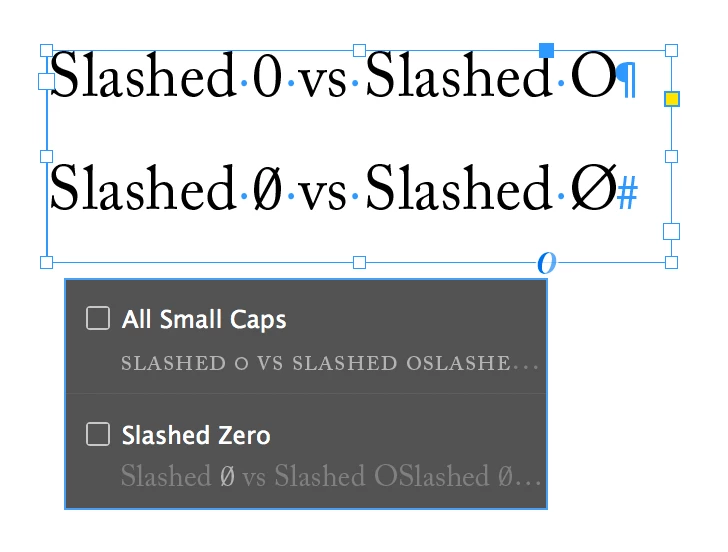
    I do want to point out the request is for a slashed zero and not a slashed letter O. Opt Sh O is the letter.
    If you prep your files in Word:

    • Click the cursor where you want the slashed zero to appear.
    • Press Ctrl+F9. You'll see brackets appear.
    • Type the following (or copy and paste it from this post): eq o (0,/)
    • Press Shift+F9. The code should resolve itself into a slashed zero.

    In InDesign, follow Aman's advice and use the OpenType slashed font feature. You can select a zero and click the  blue line underneath or click the little O under the frame. Not all fonts support slashed zeros. I'm using Adobe Caslon above.

    5 replies

    Barb Binder
    Barb BinderCorrect answer
    Community Expert
    October 6, 2017

    I do want to point out the request is for a slashed zero and not a slashed letter O. Opt Sh O is the letter.

    If you prep your files in Word:

    • Click the cursor where you want the slashed zero to appear.
    • Press Ctrl+F9. You'll see brackets appear.
    • Type the following (or copy and paste it from this post): eq o (0,/)
    • Press Shift+F9. The code should resolve itself into a slashed zero.

    In InDesign, follow Aman's advice and use the OpenType slashed font feature. You can select a zero and click the  blue line underneath or click the little O under the frame. Not all fonts support slashed zeros. I'm using Adobe Caslon above.

    ~Barb at Rocky Mountain Training
    Dan Rodney
    Community Expert
    October 6, 2017

    Man what a brain fart of me (number vs letter). Sorry . Barb is right!

    — Adobe Certified Expert & Instructor at Noble Desktop | Web Developer, Designer, InDesign Scriptor
    Participating Frequently
    August 2, 2023

    Hi Sue:


    I'm getting the exact same results as you are — shift F9 is not resolving the field quotes. I see that those steps are still listed online today in 2023 so I'm not sure what is going on. You might want to ask on the Microsoft forum since we really specialize on using Adobe InDesign here.


    ~Barb


    Thank you both @James Gifford—NitroPress  and @Barb Binder . 

     apprciate your ime offering the information since, as you said, this is an Adobe community.


    I did try the other method, (Use Insert | Symbol . . . .), and ot looks out of place, not like a zero but the letter "O" and I was seeking a better solution that actually looks like a zero.


    I will research within Microsoft as suggested when I can and report back if I find a solution that looks like an actual zero.

    Many thaanks.


    Sue

    Derek Cross
    Community Expert
    October 6, 2017

    A glyph is an individual character. It might be a letter, an accented letter, a ligature, a punctuation mark, a dingbat, etc. A font is a digital file which is used to display a typeface, which contains the entire upper- and lowercase alphabet as well as punctuation, numbers, and other special characters.

    In InDesign: Type > Glyphs

    amaarora
    Community Manager
    Community Manager
    October 6, 2017

    Hi,

    Do you mean the OpenType property slashed zero?

    If yes, then:

    1. If you are on version CC 2017.0 or higher

    a. type the normal 0 select it and click on the "O"

    b. If the font supports this open type property it will appear on the menu and you can apply it by simply clicking on it

    2. If you are on a lower version

    a. Type the normal 0 select it and open the character panel

    b. Click on the panel menu and from open type property select slashed 0

    -Aman

    SPK JAARS
    SPK JAARSAuthor
    New Participant
    October 6, 2017

    G'day Dan,

    Is Glyphs a font, if so I will need to download.

    Dan Rodney
    Community Expert
    October 6, 2017

    InDesign's Glyphs panel shows all the characters in a font. No need to download anything!

    Just go into the Type menu and choose Glyphs to open the Glyphs panel.

    As Derek said, a glyph is a charter within a font.

    — Adobe Certified Expert & Instructor at Noble Desktop | Web Developer, Designer, InDesign Scriptor
    Dan Rodney
    Community Expert
    October 6, 2017

    If you don't know the keystroke for a character (and not all have keystrokes) you can:

    1. Put the cursor into a text frame.
    2. Go into Type > Glyphs.
    3. Double-click on the desired character.

    You type Ø by hitting Option-Shift-O (that's the letter O not a zero) on the Mac. On Windows I believe you hold Alt, type 157 and release Alt (but haven't tested it).

    You type ø by hitting Option-O (that's the letter O not a zero) on the Mac. On Windows I believe you hold Alt, type 155 and release Alt (but haven't tested it).

    — Adobe Certified Expert & Instructor at Noble Desktop | Web Developer, Designer, InDesign Scriptor
    New Participant
    October 18, 2024

    If you don't know the shortcut for a character  (and not all characters have shortcuts), you can:

    Place the cursor in a text frame.
    Go to Type > Glyphs.
    Double-click the desired character.
    You type Ø by pressing Option-Shift-O (the letter O, not a zero) on a Mac. On Windows, I believe you hold Alt, type 157, and release Alt (but I haven't tested this).

    You type ø by pressing Option-O (the letter O, not a zero) on a Mac. On Windows, I believe you hold Alt, type 155, then release Alt (but I haven't tested this).

    New Participant
    October 19, 2024

    If you don't know the shortcut for a character  (and not all characters have shortcuts), you can:

    Place the cursor in a text frame.
    Go to Type > Glyphs.
    Double-click the desired character.
    You type Ø by pressing Option-Shift-O (the letter O, not a zero) on a Mac. On Windows, I believe you hold Alt, type 157, and release Alt (but I haven't tested this).

    You type ø by pressing Option-O (the letter O, not a zero) on a Mac. On Windows, I believe you hold Alt, type 155, then release Alt (but I haven't tested this)