
William_Mauricio
Participant
May 16, 2017
Answered

Spot/Pantone Colours in Indesign - CMYK or LAB values?

  • May 16, 2017
  • 3 replies
  • 17604 views

Hi everyone,

So in Indesign on the right side of each swatch it shows two boxes, one indicating the color type and one the color mode if I am right. So for pantone swatches it usually indicates SPOT and LAB. But when I paste a logo from illustrator the same pantone swatch will show SPOT and CMYK.

Why is this and will it affect my work when printed? What is the difference?

Thanks in advance!

William
This topic has been closed for replies.
Correct answer rob day

I do want it as a spot colour so I changed it to Lab.

If you care about display accuracy don't paste the CMYK version and then open the swatch and change its mode to Lab.

If you do, the conversion will be from CMYK to Lab and you will no longer have the correct measured Pantone Lab values—you have to create the swatch in ID's Swatches panel before you start pasting. You can also set your Clipboard Preference to Prefer PDF When Pasting, which will bring in the correct Lab values, but you wont be pasting vectors.

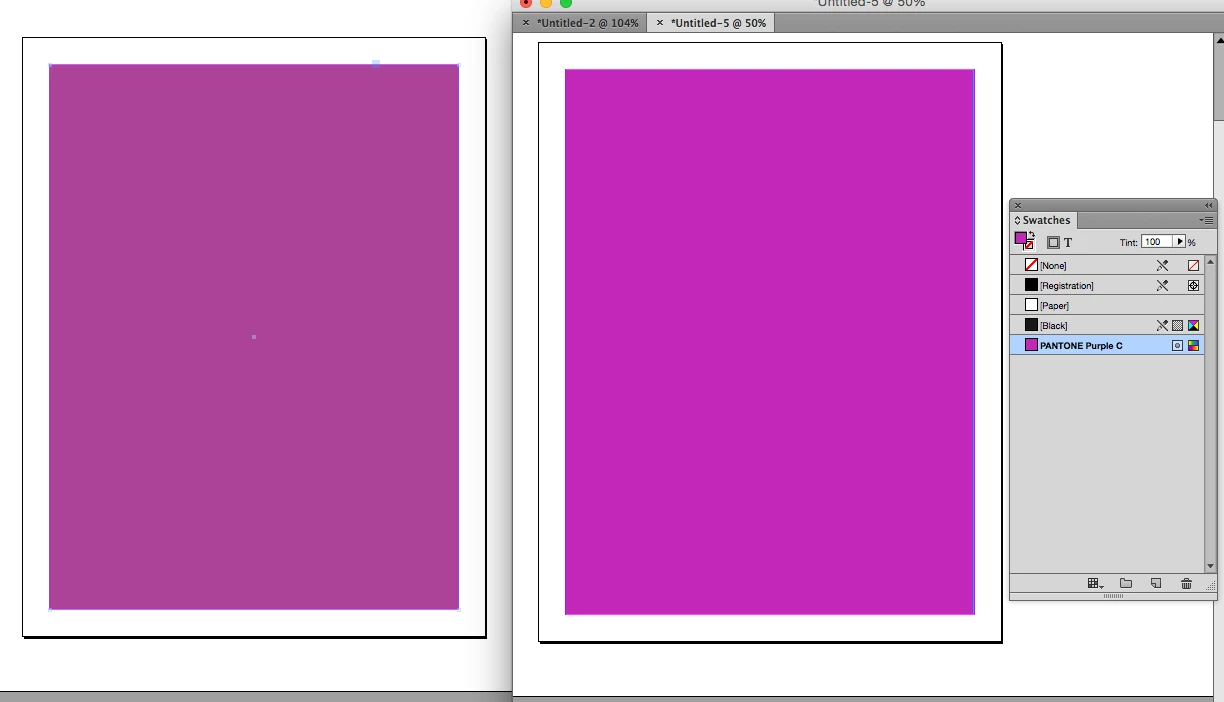
For example Pantone Purple which is not in the CMYK gamut. Pantone's Lab specification on the right, a pasted CMYK version converted to Lab on the left

3 replies

Community Expert
May 17, 2017

Hi William.

As to your question about why PANTONE spot color process builds are defined in Lab-color terms, both Grace and Rob have given you some insight about why that might be.

But as far as whether it might affect your work when it's printed, let me answer that it may -- but not for reasons you might at first suspect.

1) If you leave the color as a spot color build, it really doesn't matter which color model InDesign uses to break down that spot color build. Spot colors are defined as solid builds. And they are defined within InDesign as only spot colors; the option to change the color build to a process build is grayed out.  They either lay down that color or they don't. Which is good if you are designing a spot color job. But is absolute death if you are printing a CMYK process color job to separations.

Because by default it creates a fifth separation plate. It does that whether you print the job yourself or you send it out for commercial printing. And it won't change that into separated color until you do so within InDesign. That's been the case since time immemorial, though. And it's been the case whether the color build was made in InDesign, or QuarkXPress, or arrived with a placed graphic with either application. Which leads us to ...

2) Converting a spot color build within InDesign. It really doesn't matter how that color build is defined in spot color terms, so much as how it's broken down as you convert it into a process color build.

a) For safety's sake, InDesign first makes you change the color model to re-define the color before you can create a process build.

As long as you pick the right color model out of the process options, as shown above, you shouldn't be disappointed with the end result. Just don't forget to change the Color Type: options box from Spot to Process before you exit the Swatch Options dialog.

b) You change color definitions when you print it. After defining you want to print to separations, InDesign activates the separation plate definitions in the job, which shows your 5th plate will be output.

To optionally preclude that, clicking on the Ink Manager... button opens a second dialog which allows you to select the All Spots to Process check box. This doesn't give you the control you'd have converting the color in CMYK terms, but it would at least turn a five-color (or more) job into four CMYK-separated plates.

Both the a) and b) fixes have also been available since page layout programs started handling process color separations in the late 1980s. And still work the same way today.

rob day
Community Expert
Community Expert
May 17, 2017

And they are defined within InDesign as only spot colors; the option to change the color build to a process build is grayed out.  They either lay down that color or they don't. Which is good if you are designing a spot color job. But is absolute death if you are printing a CMYK process color job to separations.

I'm not seeing that. Spot color swatches either imported or created in InDesign can be converted to process:

Both the a) and b) fixes have also been available since page layout programs started handling process color separations in the late 1980s. And still work the same way today.

The changes made to the Pantone libraries with CS6 and later are a significant departure from earlier versions and has changed the workflow.

The separation of the libraries for different uses — Pantone+ Solid for Spot color output, and Pantone + Color Bridge for process CMYK simulations of the inks did not exist before.

The legacy libraries defined spot colors with CMYK definitions which made it impossible to get accurate screen previews for much of the library and additionally the previews would change depending on the document's CMYK profile—even though a press's profile would have no affect on the appearance of a solid ink spot color

With the Pantone+ Solid Lab values it is possible to make a color managed conversion from the more accurate Lab color to the CMYK destination profile, either by setting the Color Type to process or using Ink Manager.

Ink Manager does not correctly convert Lab spot tints so I prefer setting the type to process if there are tints:

Re: Ink Manager Bug/Problem?

Community Expert
May 17, 2017

I think the difference comes when you switch the color readings from "book color" in the swatch settings.

Mine reported the same when I selected the "book swatches" set, but when I clicked the color I wanted from the swatch set I got the following:

I couldn't switch the Color Type: options box from Spot until I transited to another color space. If I changed the Color Mode: options box to Lab, it reported Lab values; if I changed it to CMYK, I got a four-color process build. I got the same results when I imported my business' spot color logo into the sample file. I had to first transit the colorspace in the Color Mode: options box before I could turn it into a process color build.

The only way I could get the option to choose a process color build from scratch was if I created it from scratch, which may be indicated in your screen capture as the Swatch Name: edit box was activated. But that was the only way I could turn a spot color into any process color model without first changing the Color Mode: options box to one of the process color models at the top.

rob day
Community Expert
Community Expert
May 16, 2017

Why is this and will it affect my work when printed? What is the difference?

Starting with CS6 Pantone introduced the Pantone+ libraries where there is a distinct separation between spot color libraries (i.e. PANTONE + Solid Coated) and CMYK process simulations of the Pantone solid inks (i.e. PANTONE + Color Bridge Coated). If your output really is a spot color you want the Lab definition because spot colors are always solid inks and there's no relationship to process CMYK values.

I am also seeing the odd behavior of the solid ink colors coming in as CMYK when I cut and paste Pantone solid colored vectors from Illustrator. The work around would be to add the Pantone spot color(s) you will be using before you start cutting and pasting vectors from Illustrator. If you place the AI file the Pantone Solid colors will come in as Lab.

William_Mauricio
Participant
May 18, 2017

Exactly, that was what was happening to me. So I had to do what you mentioned. I simply just don't get it why it changes the Lab to CMYK when I paste it from illustrator. Oh well, but thanks for letting me know that it does make a difference, I do want it as a spot colour so I changed it to Lab.

Thanks!

rob day
Community Expert
rob dayCommunity ExpertCorrect answer
Community Expert
May 18, 2017

I do want it as a spot colour so I changed it to Lab.

If you care about display accuracy don't paste the CMYK version and then open the swatch and change its mode to Lab.

If you do, the conversion will be from CMYK to Lab and you will no longer have the correct measured Pantone Lab values—you have to create the swatch in ID's Swatches panel before you start pasting. You can also set your Clipboard Preference to Prefer PDF When Pasting, which will bring in the correct Lab values, but you wont be pasting vectors.

For example Pantone Purple which is not in the CMYK gamut. Pantone's Lab specification on the right, a pasted CMYK version converted to Lab on the left

Bill Silbert
Community Expert
Community Expert
May 16, 2017

I'm not sure how long PANTONE colors have been defaulting to LAB like this when chosen from the Solid Coated swatch library but, as it happens, the CMYK values for that library are many years out of date anyway. If you need your colors to separate as process the most up-to-date library is the PANTONE Color Bridge Coated one (or at least it was the last I heard—PANTONE never seems to announce when they change their CMYK values). If you choose a color from here in Illustrator you will be able to toggle from Spot to accurate CMYK Process at will. If choosing colors from this library in InDesign you will have to change the Color Mode to CMYK (after choosing the color you want) before the Color Type option will be available for Spot vs Process.

By the way the part of your question about the difference in the color when you paste the logo in doesn't happen if you import the Illustrator art as a graphic instead of pasting it.

atelier-ma
Inspiring
January 19, 2023

Hi Bill,

I have a similar question and maybe you could help me: I import an Illustrator-EPS into InDesign (version 2023), the file comes with a Pantone Solid Colour, it is in LAB, not CMYK (sorry, writing you from Germany). The same Pantone colour already exists in InDesign, also as LAB. When I import it, the presentation colour mode of the Pantone colur jumps from LAB to CMYK. I already use the Pantone Connect-plug in, no difference.

In the earlier versions of Illustrator there existed another colour presentation mode, book colour, but that does not exits anymore in the newest Illustrator version (probably due to the fact that Pantone Solid+ is longer available directly in Illustrator).


What can I do?

I don’t want to change all my EPS-files to AI, as these seem to work.

Best, Markus