Participant
April 1, 2023
Answered

Table of Contents: Trying to combine two separate line entries into one with one page number

  • April 1, 2023
  • 3 replies
  • 766 views

Hello.

I am working on a legnthy book, over 1200 pages, and have run into one challenge in terms of the Table of Contents. Basically, the setup of the ToC is as follows with X below represeting the page number:


Chapter Number......X

Name of Chapter......X

Second Name of the Chapter......X

Section 1......X

Section 2......X

Section 3......X


What I need to do is combine two entries it so it looks like this:


Chapter Number......X

Name of Chapter: Second Name of the Chapter......X

Section 1......X

Section 2......X

Section 3......X


Is it possible to combine the "Name of Chapter" followed by a hyphen and then the "Second Name of the Chapter" with the page number.


In the original Adobe Indesign file, they these two chapters are defined with two different Paragraph Styles (Heading Two and Heading Three).


I have tried searching online but could not find a solution to this.


Thanks,

Saleem
This topic has been closed for replies.
Correct answer FRIdNGE

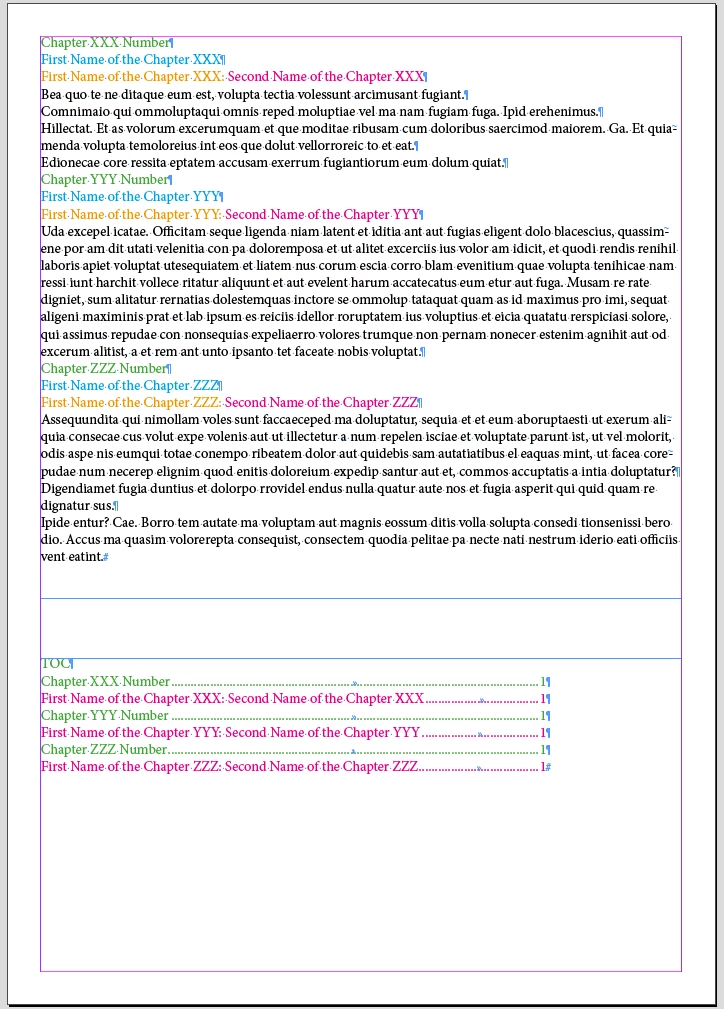
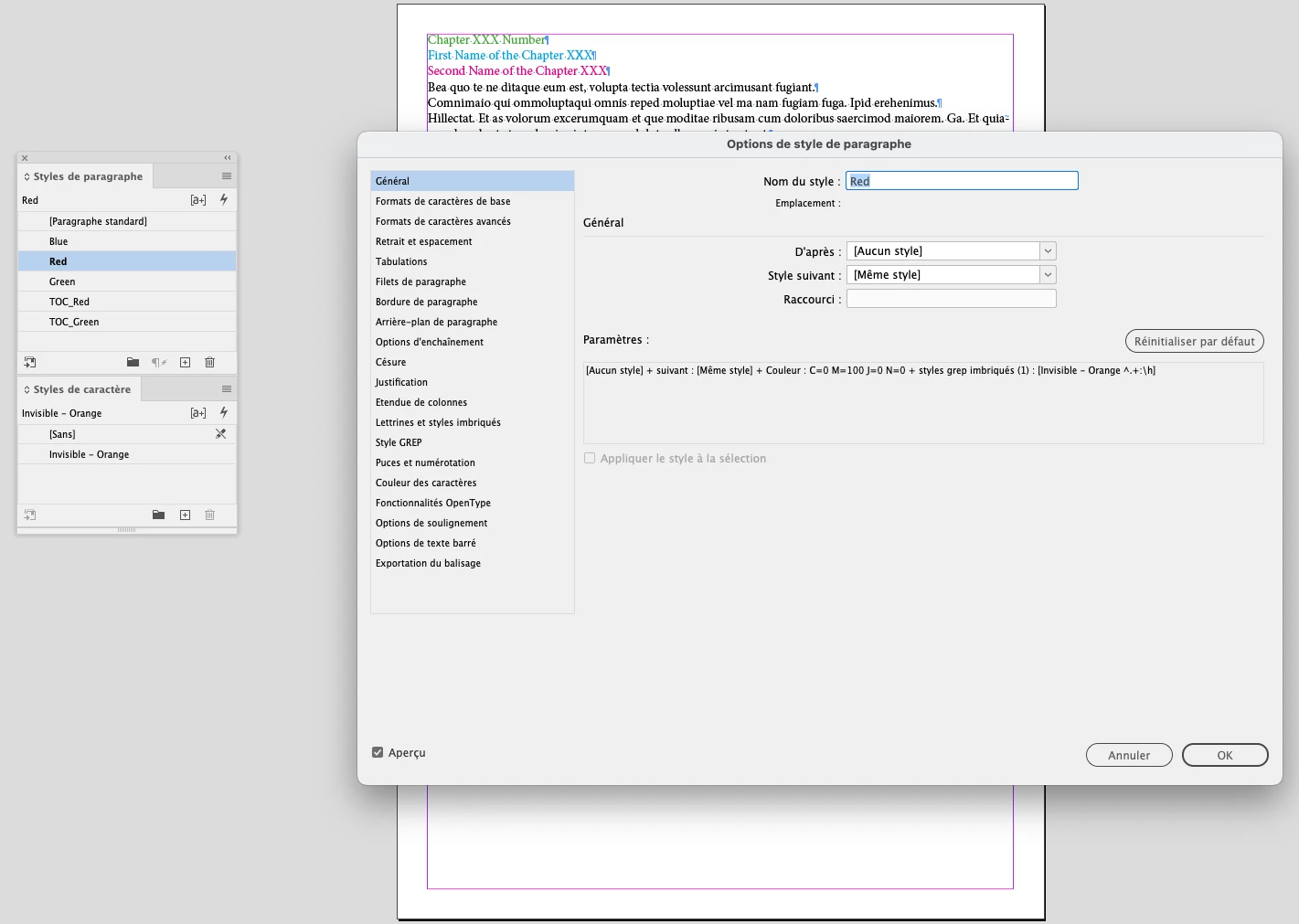
• Previously include a Grep Style in the "Red" Para Style:


… that will make invisible the beginning of text following by the double-point and its space.

[Here, I let the "Orange" text visible to be clearer!]


• Run this simplistic Grep F/R:


… to copy the contents of the "Blue" para at the beginning of the "Red" para including the double-point and its pace.

[Of course, depending on the "Invisible - Orange" char style settings, the "Orange" text would be normally invisible!]


• Now you can generate as you want the TOC without taking in account in it the "Blue" para style.


(^/)

3 replies

Community Expert
April 2, 2023

Another approach:


1. On the chapter opener pages, place a text frame on a separate, non-printing, layer.

2. In that text frame place the text for the TOC, your 'Name of Chapter: Second Name of the Chapter'

3. Apply a paragraph style, say, 'TOC dummy' to that paragraph.

4. In the TOC style use the TOC dummy style rather than the styles used for the chapter's name and second name


This is easy to set up and doesn't need any find/replacement when you re-generate the TOC.

FRIdNGE
FRIdNGECorrect answer
Inspiring
April 2, 2023

• Previously include a Grep Style in the "Red" Para Style:


… that will make invisible the beginning of text following by the double-point and its space.

[Here, I let the "Orange" text visible to be clearer!]


• Run this simplistic Grep F/R:


… to copy the contents of the "Blue" para at the beginning of the "Red" para including the double-point and its pace.

[Of course, depending on the "Invisible - Orange" char style settings, the "Orange" text would be normally invisible!]


• Now you can generate as you want the TOC without taking in account in it the "Blue" para style.


(^/)

FRIdNGE
Inspiring
April 2, 2023

A simplistic Grep F/R will do the game!


(^/)  The Jedi

Community Expert
April 2, 2023

Yep - I've typeset books up to 3,200 pages and had complex TOCs - find change works too.

FRIdNGE
Inspiring
April 2, 2023

What I mean is surely not exactly what you thought:


What the op wants is an automatic and direct way to get the result he indicates us when he generates the TOC.


... So yes, it can be done ... with a Grep F/R “before generating the TOC”.  😉


(^/)

Community Expert
April 2, 2023

No you cannot do that with the TOC options. 


However, if you create the TOC manually using Cross references you can do it.


As it's a long book - you could leave the TOC til the very very end - and manually update the TOC to reflect your necessary changes. However, it would mean manually updating the TOC each time.


Creating a TOC using cross references would be time consuming but I think overall rewarding. 


It's six of one, half a dozen of another.