Participating Frequently
October 11, 2023
Answered

text and image content don't display

  • October 11, 2023
  • 3 replies
  • 934 views

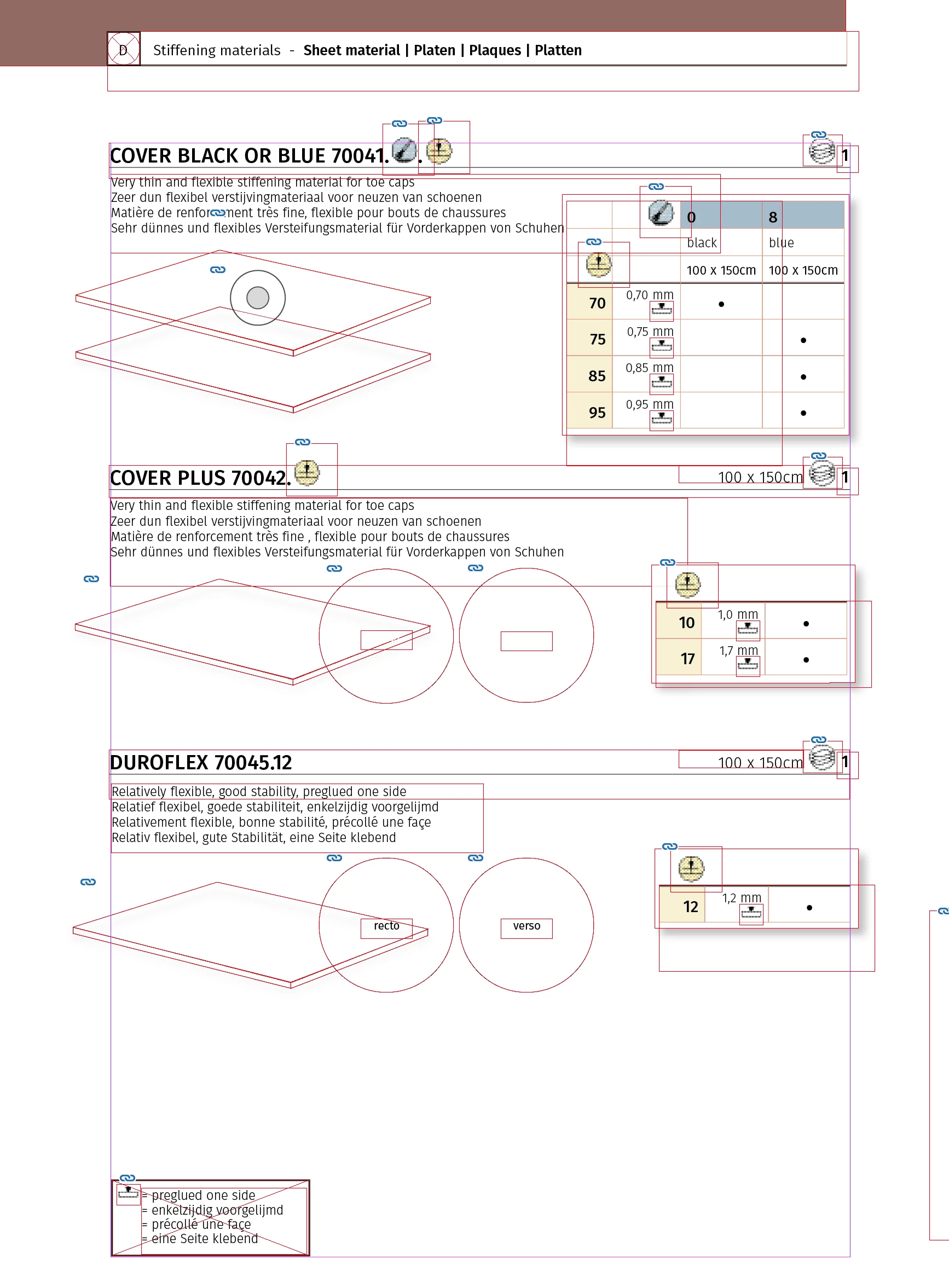
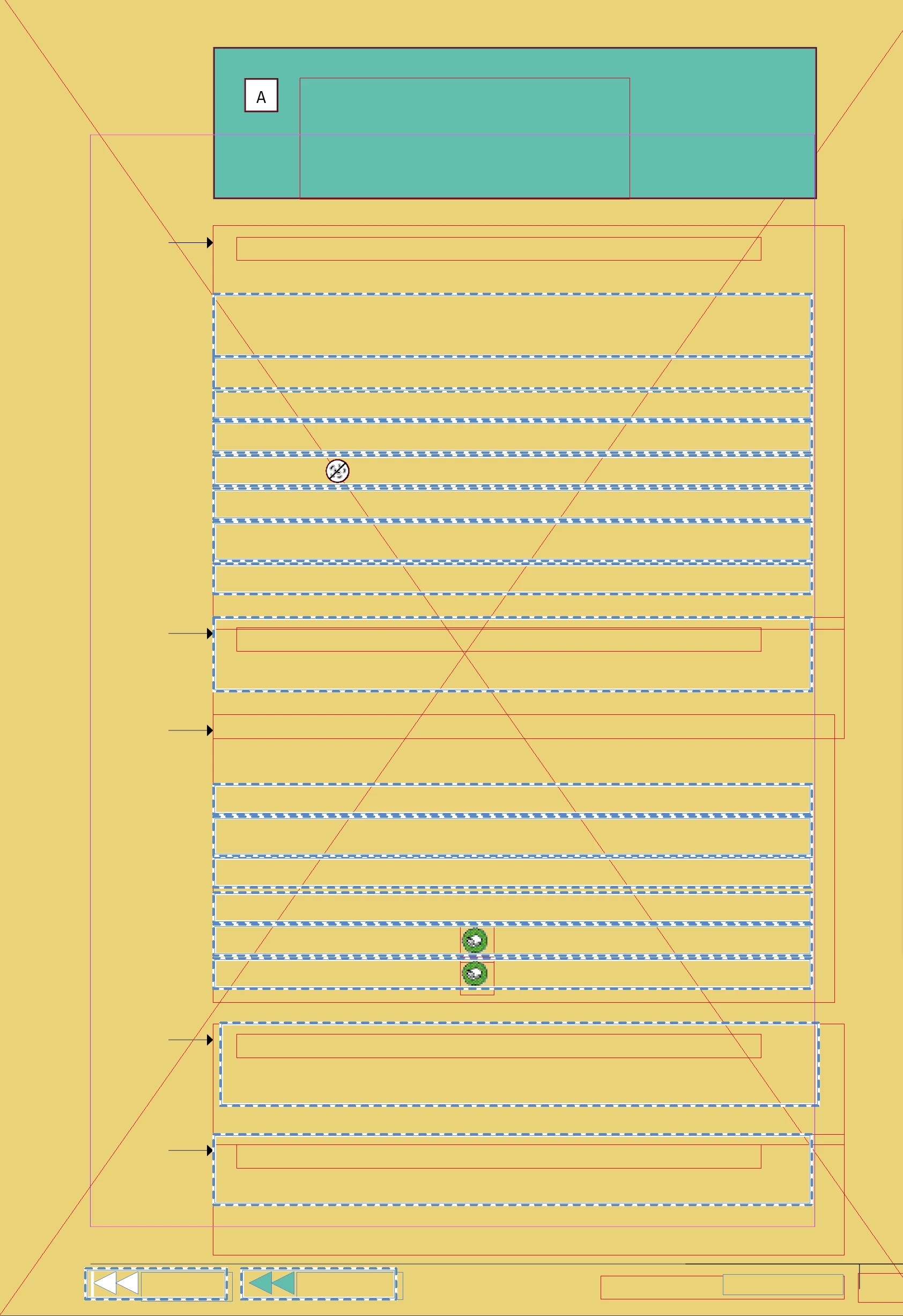
Hi, i made a 312 page catalogue which has been printed. When i open the document now in indesign (2023/18.4), on half of the pages text and/or image content  is not visible (check images). It is not a matter of preview. All image links still exist.

This is a disaster if i can't fix this. Anyone to the rescue?!  

This topic has been closed for replies.
Correct answer Randy Hagan

Is your catalog a 312-page InDesign file? Or is it built from multiple smaller InDesign document files and compiled using InDesign's Book functions to output your end catalog?


Big InDesign files are perilous to work with, in that one big file with problems locks you out of your whole job.


All is not lost, however. If the suggested fixes from Peter Spier don't get you back up and running, it might be worth it to chop the big book down into little pieces and work from there. You may well find that your issue may be isolated to a small part of your catalog if you sub-divide it and work with the smaller document files.


Here's how you do that:


  • Open the catalog. Use the File>Save As... menu command to create a copy of the original catalog, name it [catalog name] Copy.indd and place it in a separate folder for breaking the file down into chunks. Do not use the original file. You want to keep it in reserve in case anything goes wrong. Close the original file. Since I don't know anything about your catalog, I'm going to use arbitrary page numbering to define the subdivisions using the sub-points below:
  • Navigate your way to the separate folder you'll be using to contain your subdivided InDesign files. Open the [catalog name] Copy.indd file. Immediately use the File>Save As... menu command and name the file [catalog name] Pages 1-20.indd. Click the Save button
  • Confirm the file name in the tab is [catalog name] Pages 1-20.indd. If it's not, You need to do sub-step 1 again.
    Open the Pages panel. Double-click on the Page 21 icon, making sure that it is the only page selected. Now go to the end of the list of pages, hold down the Shift key and click on the last page. This should higlight every page between page 21 and the end of the document.
  • Now click on the trashcan on the bottom-right of the Pages panel to delete the extra pages. You'll get a redundant command asking if you're sure you want to delete the pages anyway. You do. Click the OK button.
  • Again, confirm that the file name in the tab is [catalog name] Pages 1-20.indd. If it's not, start at the top and do it over again. If it is, Use File>Save to save your first fragment, then File>Close to park it.


That's one subdivided file. This is how you create the second:


  • Open the [catalog name] Copy.indd file again. Immediately use the File>Save As... menu command and name the file [catalog name] Pages 21-40.indd. Click the Save button.
  • Confirm the file name in the tab is [catalog name] Pages 21-40.indd. If it's not, You need to do sub-step 1 again.
  • Open the Pages panel. Double-click on the Page 1 icon, making sure that it is the only page selected. Now go to the Page 20 icon, hold down the Shift key and click on the last page. This should higlight every page between page 1 and 20.
  • Click on the trashcan on the bottom-right of the Pages panel to delete the extra pages. You'll get a redundant command asking if you're sure you want to delete the pages anyway. Again, you do. Click the OK button.
  • Now double-click on the Page 41 icon, making sure that it is the only page selected. Now go to the end of the list of pages, hold down the Shift key and click on the last page. This should higlight every page between page 41 and the end of the document.
  • Click on the trashcan again to delete the rest of the pages. You'll get a redundant command, and since that's what you want to do, you can click the OK button to dispatch the rest of the extra pages.
  • Again, confirm that the file name in the tab is [catalog name] Pages 21-40.indd. If it's not, start at the top and do it over again. If it is, Use File>Save to save your first fragment, then File>Close to park it.


Lather-Rinse-Repeat as necessary to create all your various subdivided files for your catalog. If you can break your catalog into logical sections/chapters based on product lines/categories, that'd be better than the arbitrary page numbering I outlined above. But if you can't readily break down your catalog that way, doing it by arbitrary page count can work for you too. Then create an InDesign Book file with your subdivisions arranged in sequence to output/manage the entire catalog as needed. You can learn more about creating and working with InDesign book files through your Help>InDesign Help... menu command.


This will greatly streamline your team's InDesign production and update/revision of your catalog.


If you've made it through to this point of my response, you've got a lot of things to consider. But I'd contend if you follow this program step-by-step, you'll have a course of action which will make your life a heck of a lot easier in the immediate future and for a long time to come.


Hope this helps you,


Randy

3 replies

Randy HaganCorrect answer
Inspiring
October 11, 2023

Is your catalog a 312-page InDesign file? Or is it built from multiple smaller InDesign document files and compiled using InDesign's Book functions to output your end catalog?


Big InDesign files are perilous to work with, in that one big file with problems locks you out of your whole job.


All is not lost, however. If the suggested fixes from Peter Spier don't get you back up and running, it might be worth it to chop the big book down into little pieces and work from there. You may well find that your issue may be isolated to a small part of your catalog if you sub-divide it and work with the smaller document files.


Here's how you do that:


  • Open the catalog. Use the File>Save As... menu command to create a copy of the original catalog, name it [catalog name] Copy.indd and place it in a separate folder for breaking the file down into chunks. Do not use the original file. You want to keep it in reserve in case anything goes wrong. Close the original file. Since I don't know anything about your catalog, I'm going to use arbitrary page numbering to define the subdivisions using the sub-points below:
  • Navigate your way to the separate folder you'll be using to contain your subdivided InDesign files. Open the [catalog name] Copy.indd file. Immediately use the File>Save As... menu command and name the file [catalog name] Pages 1-20.indd. Click the Save button
  • Confirm the file name in the tab is [catalog name] Pages 1-20.indd. If it's not, You need to do sub-step 1 again.
    Open the Pages panel. Double-click on the Page 21 icon, making sure that it is the only page selected. Now go to the end of the list of pages, hold down the Shift key and click on the last page. This should higlight every page between page 21 and the end of the document.
  • Now click on the trashcan on the bottom-right of the Pages panel to delete the extra pages. You'll get a redundant command asking if you're sure you want to delete the pages anyway. You do. Click the OK button.
  • Again, confirm that the file name in the tab is [catalog name] Pages 1-20.indd. If it's not, start at the top and do it over again. If it is, Use File>Save to save your first fragment, then File>Close to park it.


That's one subdivided file. This is how you create the second:


  • Open the [catalog name] Copy.indd file again. Immediately use the File>Save As... menu command and name the file [catalog name] Pages 21-40.indd. Click the Save button.
  • Confirm the file name in the tab is [catalog name] Pages 21-40.indd. If it's not, You need to do sub-step 1 again.
  • Open the Pages panel. Double-click on the Page 1 icon, making sure that it is the only page selected. Now go to the Page 20 icon, hold down the Shift key and click on the last page. This should higlight every page between page 1 and 20.
  • Click on the trashcan on the bottom-right of the Pages panel to delete the extra pages. You'll get a redundant command asking if you're sure you want to delete the pages anyway. Again, you do. Click the OK button.
  • Now double-click on the Page 41 icon, making sure that it is the only page selected. Now go to the end of the list of pages, hold down the Shift key and click on the last page. This should higlight every page between page 41 and the end of the document.
  • Click on the trashcan again to delete the rest of the pages. You'll get a redundant command, and since that's what you want to do, you can click the OK button to dispatch the rest of the extra pages.
  • Again, confirm that the file name in the tab is [catalog name] Pages 21-40.indd. If it's not, start at the top and do it over again. If it is, Use File>Save to save your first fragment, then File>Close to park it.


Lather-Rinse-Repeat as necessary to create all your various subdivided files for your catalog. If you can break your catalog into logical sections/chapters based on product lines/categories, that'd be better than the arbitrary page numbering I outlined above. But if you can't readily break down your catalog that way, doing it by arbitrary page count can work for you too. Then create an InDesign Book file with your subdivisions arranged in sequence to output/manage the entire catalog as needed. You can learn more about creating and working with InDesign book files through your Help>InDesign Help... menu command.


This will greatly streamline your team's InDesign production and update/revision of your catalog.


If you've made it through to this point of my response, you've got a lot of things to consider. But I'd contend if you follow this program step-by-step, you'll have a course of action which will make your life a heck of a lot easier in the immediate future and for a long time to come.


Hope this helps you,


Randy

FabbyAuthor
Participating Frequently
October 11, 2023

Thank you Randy,

i will definitely do that, after i fixed the remaining moved images in some images boxes, as i mentioned in my reply to Peter. Probably weekend work ;-). So when i have the document back like it was printed, i will start chopping  😉

Inspiring
October 11, 2023

My heart's with you.


There is little that's more horrifying than opening your successful long-document project to start on the next version and see your painstakingly created InDesign file show nothing but blank boxes. No treat there: just all cruel tricks until you figure out how to fix the situation.


Glad you got past your issues and are up and running smoothly again.


Randy

Peter Spier
Braniac
October 11, 2023

Check your Display Performance setting and the link status.

If that's all in order, try an export to .idml, open that and save as a new .indd file.

FabbyAuthor
Participating Frequently
October 11, 2023

Thank you Peter! this helped for 90%. It took some time for a 750MB document to export to idml and open that again, importing/linking all images again.

All text and most images are visible again. Some images have been moved within the image box. I hope no more than 2 hours work to fix that.

FabbyAuthor
Participating Frequently
October 11, 2023

no solution so far...  (not in the related conversations)  😞