


November 3, 2011
Answered

Text jumping around in text box. NOT related to text wrap.

  • November 3, 2011
  • 14 replies
  • 90984 views

We are having an issue with some of the text jumping around in the text block while we are making edits to the text. It is not related to text wrap.

We hadn't seen this problem until we converted from CS4 to CS5.5.

The background:

We use a proprietary page generation system. This generates IDML, which we open in InDesign. We then pull this information into our CS5 templates. This system has always worked fine in the past. Now, however, we are having this odd problem. The only thing that has changed is the version of InDesign.

What happens:

In some cases we are editing a word, changing punctuation, moving something within a table, or even just changing the color of a letter. When it is triggered, the text from the body of the text block jumps around in the box (many times ABOVE the headline information). Normally the movement is upward, but it makes longer edits very tricky as the lines are moving around within the text block.

What we do when it happens:

Usually, if we find a safe place within the text to type a return we do that, then delete that return. This solves the problem, but only temporarily. If the file is opened and closed, it goes back to jumping.

Why this is a big issue for us:

We are working on catalogs, some with more than 400 pages. There are large amounts of items. Much of the time we have to make global changes with find/replace and GREP replace. This often causes situations where the text jumps and we don't notice. It can even happen when we are checklisting our files (right before it goes to the printer). This makes us very nervous.

Does anyone have any knowledge that might be able to help us?

Thanks!
Correct answer Markuslabuschagne

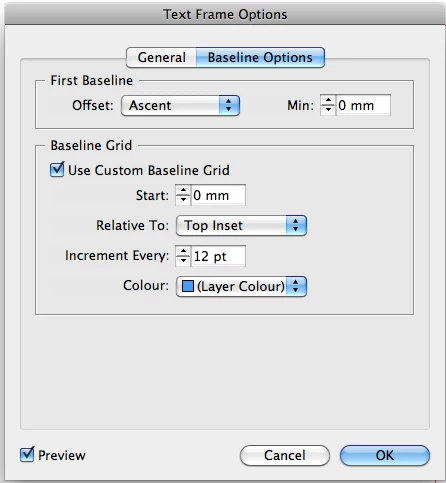
I just had the exact same problem. I experimented with Text Frame Options and found a possible sollution: Under "Baseline Options" tick "Use Custom Baseline Grid" (see screen shot attached). In my case the text stopped jumping and hopefully it will help someone out there too.

14 replies

Participant
January 24, 2013

I have been having the same problem and it was making me NUTS!  Finally I found a work around...I copied/pasted my text from ID into Word (or really any program) and then copied/pasted again and back into ID and no more crazy text wrap.  I know it does not make sense but at least it works now.

MarkuslabuschagneCorrect answer
Participant
October 17, 2012

I just had the exact same problem. I experimented with Text Frame Options and found a possible sollution: Under "Baseline Options" tick "Use Custom Baseline Grid" (see screen shot attached). In my case the text stopped jumping and hopefully it will help someone out there too.

October 17, 2012

Hi Markuslabuschangne,

I was so excited when I got your idea. Sadly, it did not fix the problem we have been having. But thanks so much for you thoughts, and I'm glad it worked for you!

We have learned to deal with the problem on a daily basis, but it would be awfully nice if we could find an actual solution instead of a work-around.

Thanks!

Peter Spier
Community Expert
Community Expert
October 17, 2012

In order to use the custom grid you would have to set the paragraph to align to grid -- not sure if you had actually done that.

November 12, 2011

I don't know if this will help or not, but I had a very similar problem and the problem was my…Magic Mouse!

No kidding.  I have been using Adobe software for years and purchase the new versions shortly after they come out, so I have been using InDesign CS5 for quite some time.  Most of my work involves display ads for sporting goods stores, so there is a 'ton' of mouse work with images and text.

About 6 weeks ago I started having all kinds of problems with the text and graphics jumping all around.  On multi-page documents the document even flipped to other pages.  After posting here about the problems and going through all the hoops and everyone's suggestions, I finally found a website that 'nailed' the problem.  It cost me almost $100 but it was worth it.

I purchased a Magic Mouse the end of September and that's when my problems started, but I didn't attribute them to the mouse.  I mean, who would?

So, if you recently changed to a Magic Mouse, switch it out to the original wired or wireless mouse and see if that helps.  It solved my problem.

November 14, 2011

Thanks Diane for your input. It was an interesting idea.

I wish it was that, but we don't have magic mice.

May 1, 2012

For me, this is solved by deleting the style associated with the text that's shifting and creating a completely new style to apply to everything. Not sure that is a permanent solution.

Community Expert
November 4, 2011

This sometimes happens with text frames that contain tables and the Text Frame Options are set to Vertical Justification.

I have this problem a lot actually.

The easiest way to fix the issue is to press CTRL ALT C (or CMD ALT C on mac)

That's if it's the same issue you're having. If it's not can you post screen shots?

November 4, 2011

Hi Eugene,

Thanks for responding. The problem is somewhat sporadic, and I am having trouble getting it to happen this morning on some of the files. However, another file is having the problem reliably this morning. I have attached screen shots. The offending text is centered vertically within the text blocks. The first shot shows before. The second shot shows the same text block after I typed a "W" in the table. There are other circumstances that prevent us from fitting the box to content. That would cause other serious trouble. CMD ALT C does not solve it.

In many of the files with this problem the text is bottom-aligned in the text block, so I know it is not just related to the vertical centering.

Thanks, in advance for any help you can give us.

November 4, 2011

Peter,

Thanks for trying!


If this is a bug, how do I go about reporting it?