


fh37852989
Participating Frequently
October 29, 2021
Question

Text justification question

  • October 29, 2021
  • 7 replies
  • 2429 views

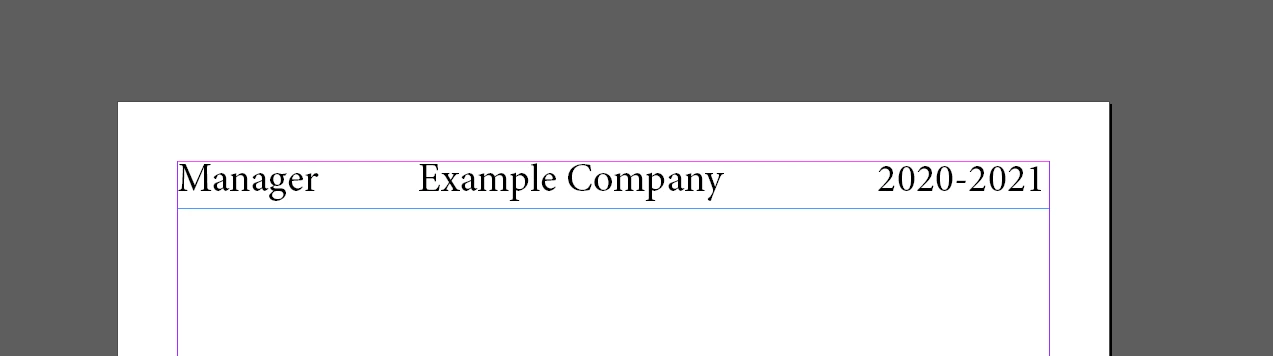
Hello, I have a question regarding text justification. I am in the process of making a draft CV and would like to align these three pieces of text. I want the text 'Manager' aligned to the left, 'Example Company' aligned to the centre and '2020 - 2021' aligned to the right. In the screenshot below I have achieved this by simply adding spaces, although this seems inaccurate and would also require manual readjustment if I were to change the text.


My question is whether there is a way to align individual pieces of text in a single text frame?
 

This topic has been closed for replies.

7 replies

Derek Cross
Community Expert
November 2, 2021

The easiest way to do this is to select Full Justify.


Brainiac
November 2, 2021

Actually this could be a catastrophic choice for the particular case of a CV. Why? Well it's easy to assume that someone gets a crisp paper copy of your CV for their careful attention. But often, the text is scraped out, and out in a database. Then AI looks for some good candidates. In some companies the original CV is not available to the interview panel, especially if there is a photo; this is to avoid unconscious bias.  
By setting text as outline, you have deleted that text from the CV, which could cost you the job. 
Unless the CV is specifically for a job in graphic design, worrying about the layout may be counter productive. Opinions differ, of course. 

BobLevine
Community Expert
November 2, 2021
I agree 100%. With very rare exceptions, a CV/Resume should be prepared in Word.
Community Expert
November 2, 2021

Alternatives:

[1] Use different white space characters. A fixed width white space character between "Example" and "Company" and normal blanks otherwise; together with a fully justified paragraph:


[2] If you plan to have multi-line entries in any of the three columns, better use an InDesign table:


Regards,
Uwe Laubender

( ACP )

fh37852989
Participating Frequently
November 3, 2021

Thanks for the suggestions. For suggestion 1, how do I adjust white space characters?

Community Expert
November 3, 2021

The one between "Example" and "Company"?

It's a special character you can apply with a context menu command.

Fixed width white space.


In my German version of InDesign it's named:

"Geschütztes Leerzeichen (feste Breite)"


Regards,
Uwe Laubender

( ACP )


Dave Creamer of IDEAS
Community Expert
November 1, 2021

Here are a couple of pages from my Topography Typography Basics PDF you might find useful.


David Creamer: Community Expert (ACI and ACE 1995-2023)
James Gifford—NitroPress
Brainiac
November 2, 2021

You teach map design, too?

(Sorry... couldn't resist. 😄 )

Dave Creamer of IDEAS
Community Expert
November 2, 2021

No--just demonstrating my uncanny ability to make typos from any text!

David Creamer: Community Expert (ACI and ACE 1995-2023)
fh37852989
Participating Frequently
November 1, 2021

Thanks for all the replies. I tried using tabs which worked, but instead opted to convert the text to outlines and then position the text using InDesign's smart guides as I found I could achieve more accurate positioning that way.

Brainiac
November 1, 2021

If you have a backup, I recommend you revert and not convert text to outlines for something like this. If you search the forum for "convert to outline" you will find that there are way more downsides to this, and that while there are some advantages, there's nothing you can do with outlines that you couldn't do with live type in this situation.

Barb Binder
Community Expert
October 29, 2021

Visually:


~Barb

~Barb at Rocky Mountain Training
Brainiac
October 29, 2021

If you use a tab character between Manager and Example, you can set a center or left tab (depending on how you want your column to align), and use Type>Tabs to set the position of the center tab stop. To make the 2020-2021 column aligned to the right, you can use Type>Insert Special Character>Other>Right Indent Tab, which you can make quickly by holding the shift key while you hit the tab key.

BobLevine
Community Expert
October 29, 2021

That's what tabs are for.