Known Participant
February 20, 2024
Answered

Text Styling - Nested?

  • February 20, 2024
  • 2 replies
  • 1209 views

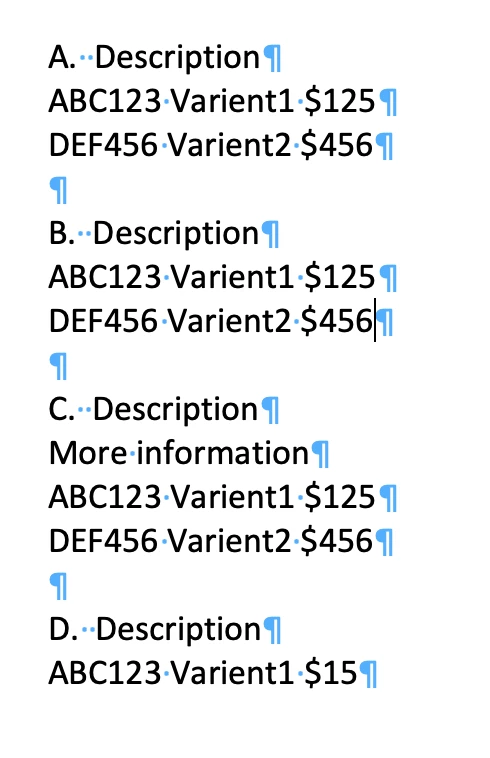
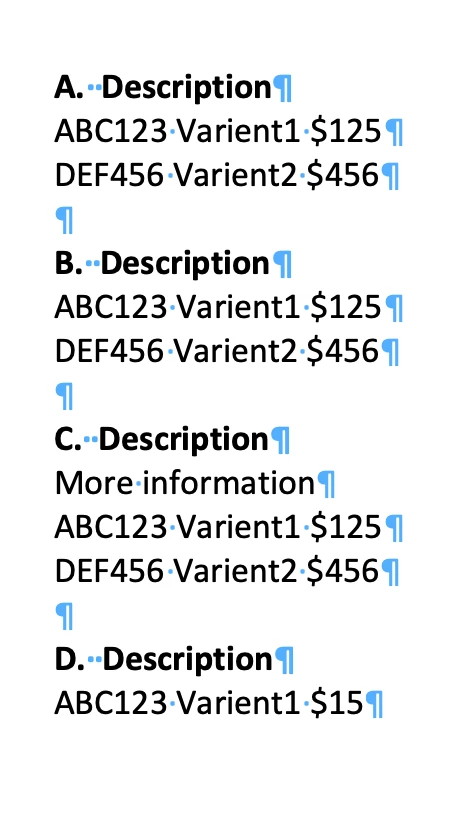
I am looking to take MANY pages of client provided text in Word (first image) and easily get the second image (Bold First Paragraph)?


I know I can accomplish this if I edit the formatting - so each line isnt a paragraph (ie hard return or end of nested style) but wondering is there is a even easier way I may be missing?


This topic has been closed for replies.
Correct answer danaken3

If your header always has two hard returns before it (and no other paragraphs do), you could do a GREP search that looks for a single capital letter + period + two one or more spaces + any string of characters, preceded by two hard returns (using the "positive lookbehind" GREP).

Find what: 


(?<=\r\r)(\u\.)(\s+)(.+)


Change to: 

$1 $3

[Insert whatever number of spaces you want between $1 (the letter and period) and $3 (the rest of the text).]

Change Format: [Select the paragraph style where you've defined the bold font.]


However, the best practice would be to adjust the "space before" attribute in the paragraph style, rather than using double hard returns. To remove the double hard returns in the same search, edit the search to the following:

Find what: 


(?<=\r)\r(\u\.)(\s+)(.+)


Change to: 


$1 $3


[Insert whatever number of spaces you want between $1 (the letter and period) and $3 (the rest of the text).]

Change Format: [Select the paragraph style where you've defined the bold font and the space before.]

2 replies

danaken3
danaken3Correct answer
Participating Frequently
February 20, 2024

If your header always has two hard returns before it (and no other paragraphs do), you could do a GREP search that looks for a single capital letter + period + two one or more spaces + any string of characters, preceded by two hard returns (using the "positive lookbehind" GREP).

Find what: 


(?<=\r\r)(\u\.)(\s+)(.+)


Change to: 

$1 $3

[Insert whatever number of spaces you want between $1 (the letter and period) and $3 (the rest of the text).]

Change Format: [Select the paragraph style where you've defined the bold font.]


However, the best practice would be to adjust the "space before" attribute in the paragraph style, rather than using double hard returns. To remove the double hard returns in the same search, edit the search to the following:

Find what: 


(?<=\r)\r(\u\.)(\s+)(.+)


Change to: 


$1 $3


[Insert whatever number of spaces you want between $1 (the letter and period) and $3 (the rest of the text).]

Change Format: [Select the paragraph style where you've defined the bold font and the space before.]

GiGiTexasAuthor
Known Participant
February 20, 2024

I agree with the space before.  The Word document is pages of text just like the example - except "Description" is actually a description. With notations for the Page, nothing else. 


Plan was to make the notations page breaks, and place the word document into my threaded frames, and fix the bold somehow, and the bulk of the work would be done. 


Principle behind your example seems like it could work but when I tried, it didnt find a match.

GiGiTexasAuthor
Known Participant
February 20, 2024

Also just realized the spaces after the A. is not always 2. Need to check with client to see if it is intentional or error. 


Joel Cherney
Adobe Expert
February 20, 2024

Well, if the "Description" paragraph always starts with a single letter, followed by a period, followed by two spaces, followed by the word "Description", then in your shoes I'd use a GREP Find/Change query:

Find:

\u\.\s\sDescription

Change to: 

$0

If there are other possible permutations of that paragraph (maybe once you get to Z it starts again with AA? Maybe Greek letters?  Some of 'em don't have two spaces after the period?) then I'm sure we can adjust the Find query to find it. 

Willi Adelberger
Adobe Expert
February 20, 2024

Work with 2 Paragraph Styles 

Use next style to get frm the headlines to the other lines. 
Don't use 2 paragraphs to get space between lines. In your headline use space before instead. 

To keep text together make paragraph styles keep with previous, only the headlines make keep with next instead. 

My recommendation is, select all incomming text and apply the paragraph style. In the second step find 2 returns, replace with 1 return and the headline paragraph style. Use the find & replace command. You can save that as a preset to apply it faster. 

GiGiTexasAuthor
Known Participant
February 20, 2024

Thank you. Will try this in my test file and see how it goes.