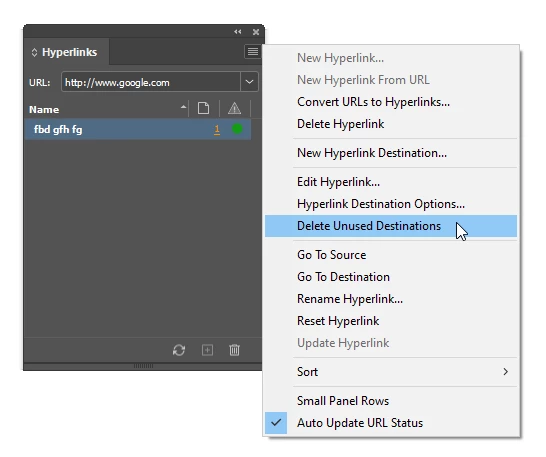
You are aware that unused hyperlinks may be deleted by opening the Hyperlinks panel, and selecting the Delete Unused Destinations menu entry in the panel menu? That should fix that problem. InDesign keeps the previously created URLs just in case those are referenced by other links later. So you need to clear these unused destinations.
Secondly, regarding your image resolution issues. I checked your books previews, and the resolution of those score page images is far too high: 4959 by 7017 px! Equivalent to an A4 sized sheet at 600ppi. WAY too much for digital devices. And the file format used (jpg) is also excacerbating matters: jpg is unsuitable for this type of black and white images. It unnecessarily adds to much heavier book file sizes. And may actually cause performance issues for ereaders.
The most effective approach is to check the what the max resolution is that you require for a given device. Let's say you'd like to support up to a max resolution of the ipad Pro 12.9": 2732 by 2048 px.
Export your sheet music images as PNG file format. Then use an image editor to scale down the images to a max 2732 px height. I scaled one of your sheets down to 1931x2732. I then used Color Quantizer to optimize to 16 grey scale values (more is not required - still looks sharp). Alternatively use Photoshop to generate an optimized PNG image, but Photoshop isn't that great for this particular job. http://x128.ho.ua/color-quantizer.html
Result: a 108kb version, optimized for resolution and file size. Compare to your unoptimized version that clocks in at 1.59mb!
Alternatively, Sibelius exports directly to PNG, btw. Change the PPI export setting to one that results in the required resolution. Do not use monochrome, but anti-aliased when you do this.
(An even better approach is to rely on SVG images in this case. See bottom for more info)
Next, do not rely on InDesign for image conversions. I created a new InDesign document using the iPad Pro 12.9 inch document template. I dragged in the image, and it fit the page snugly.
To prevent InDesign from messing up your optimized image and reprocessing it, perform the next step:
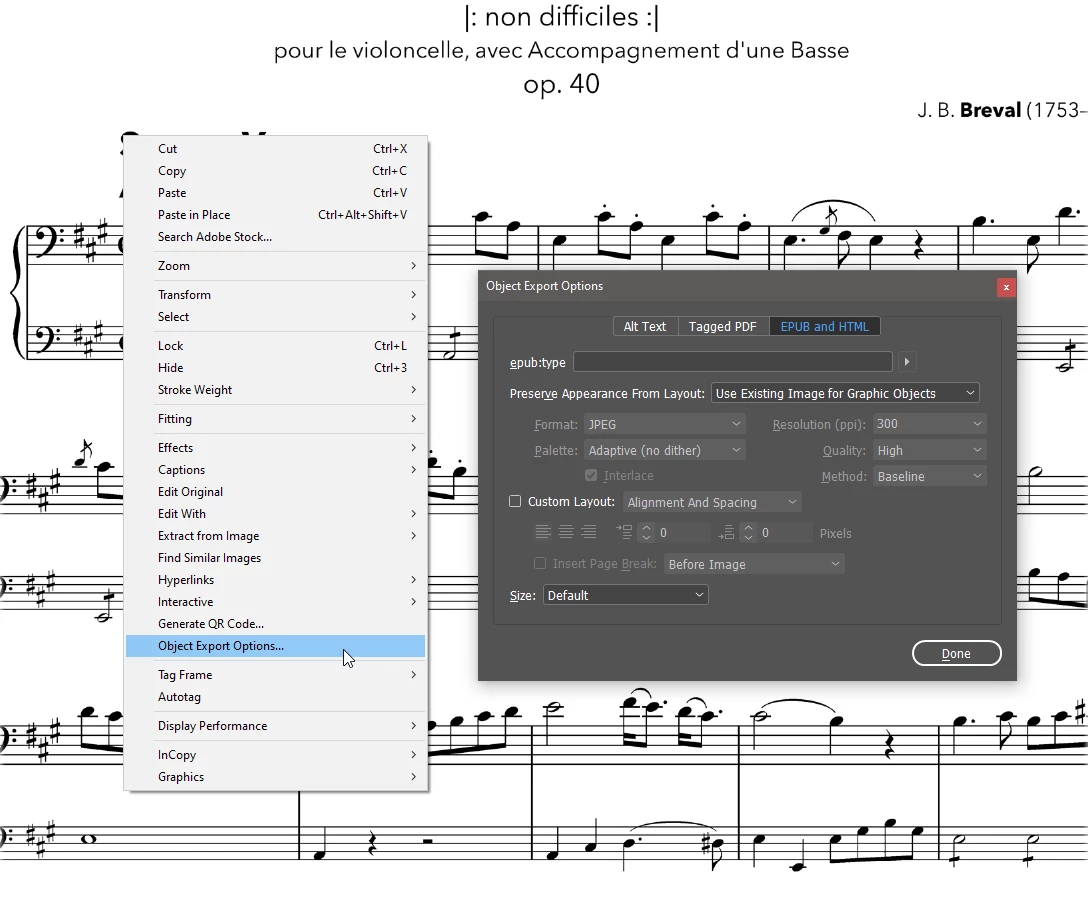
Select the image, and open the Object Export Options. Change the Preserve Appearance From Layout to Use Existing Image for Graphic Objects.
This tells InDesign to use your optimized asset when the epub is generated, rather than reprocess it and turning it into a trainwreck of a file.
Congrats, your book size just got reduced by a factor of 10 to 14, and performance is optimized greatly as well. It will work nicely on all iPad versions now.
And PNG retains the quality of such graphics like these far better than jpeg (jpeg is lossy and suitable for photos. PNG is lossless which means sharp-edged artwork and music notation is kept crisp looking).
Far smaller book sizes, much improved viewing performance experience, and a sharp looking result! What's not to like?
But we can do better. 🙂
epubs and InDesign also support SVG (Scalable Vector Graphic). This would be preferable over a PNG, because a SVG is a vector image, and even when the user zooms in, the notation remains absolutely crisp looking.
In my example I converted a PDF page exported from Sibelius to SVG using PhotoLine (Illustrator will also work for this step), which results in a ~533kb SVG. Still THREE TIMES smaller than your original jpg version, and with the added benefit of a supreme quality, even when the reader zooms in.
Make sure to tell InDesign to use YOUR SVG file via the same step as described above.
Please check out the attached epub. The first page is the PNG version. The second page contains the SVG version. Compare by zooming in. Even zoomed out the SVG renders much nicer. And still a factor 3 smaller book file size compared to your original.

 AdChoices