


Known Participant
April 27, 2020
Question

trouble with Minion 3 font characters

  • April 27, 2020
  • 2 replies
  • 2145 views

I'm working on a book with some pretty unusual transliteration characters, trying to represent ancient Near Eastern characters in English letters. My colleague and I were delighted last week to find that Minion 3 has all of the characters we could want, except a couple of them don't present correctly in InDesign. If I go to the Minion 3 page on fonts.adobe.com and paste in the sample that I'm attaching (v & a & u with macron and breve), all three look fine. But if I paste them into InDesign, only the v looks right; the other two put the macron over the letter and the breve out to the side. Unfortunately, there are several dozen of the u and the a combination in the book we are working on. I see this behavior in both regular and italic


Any ideas out there?
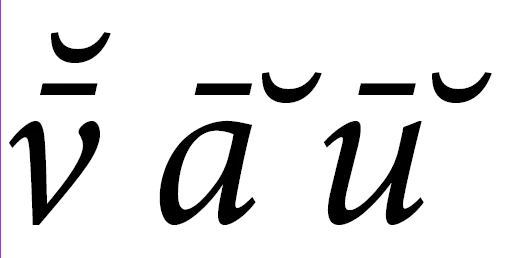
Thanks very much.

Phil

This topic has been closed for replies.

2 replies

Jongware
Community Expert
April 28, 2020

What version of InDesign are you using? Your text indeed fails in my old, old CS4 (even with the World-Ready Paragraph Composer enabled), but it works flawless in CC 2020:


Known Participant
April 28, 2020

Hi Barb and Jongware,


Thanks much for your comments. They both make a lot of sense. However . . .


I've been looking in the glyph panel, Barb, and while I can find a/u with macron, and a/u with breve, I don't see either with both macron and breve. And adding a continuing macron to a/u with breve, or adding a continuing breve to a/u with macron, both give me the result I showed above. Further, I don't see a v with either in the glyph panel.


And Jongware, I am running ID CC 15.0.2, with the world-ready paragraph composer turned on. What did you type to get the results you got? Or, how did you enter those characters?


Phil

Jongware
Community Expert
April 28, 2020

I typed them in CS4 to check if they would fail. I already knew Minion Pro does not support this accent stacking but tested with Minion 3 to be sure. It didn't work, so I copied the glyphs (picked from the Glyphs panel) and pasted them into CC2020. No other action needed – I even checked if anything would change with enabling the World-Ready Composer, but that did not change anything for the worse.

(Make sure you pick the correct combining accents: the ones with Unicode values starting from U+300. There is another set that is spacing, by design.)


[...] Just tested again with Times New Roman, Arial, Minion 3, and Minion Pro. It only fails for the latter – and then only because that font doesn't contain the combining accents.


Placing accents upon any base character requires the font to have an OpenType feature called "mark"; furthermore, to stack any accent upon any other accent, it requires another feature called "mkmk". InDesign CS4 claims to support these two, even with the regular Paragraph Composer (as tested with Adam Twardoch's font Nadyezhda SL One), but it visibly does not work – not even with the World-Ready Composer.

It is not due to a fault in the font data but bad OpenType handling inside InDesign (quite ironic, since InDesign was to be the flagship application in 1999, to show off the brand new, Adobe-led, OpenType font format). It also fails for your five-year old version but it seems they finally got it right with the latest version.


So I dare say it works out of the box in CC2020.

Barb Binder
Community Expert
April 28, 2020

Hi Phil:


 But if I paste them into InDesign, only the v looks right

Try adding them through Window > Type > Glyphs.


~Barb

~Barb at Rocky Mountain Training