


inderjodhs96299968
New Participant
September 25, 2017
Answered

two columns but only inserting on one side of the column

  • September 25, 2017
  • 3 replies
  • 5401 views

So I have a project for my class in which i need to insert two word files side by side, my question is is there anyway to only insert a file to the left columns of the pages rather than both the left and right side, because I would like one file to only be in the left column while the other file to be in the right column, whenever I try to place the file, it places it in both column, this is in indesign cc.
    This topic has been closed for replies.
    Correct answer Barb Binder

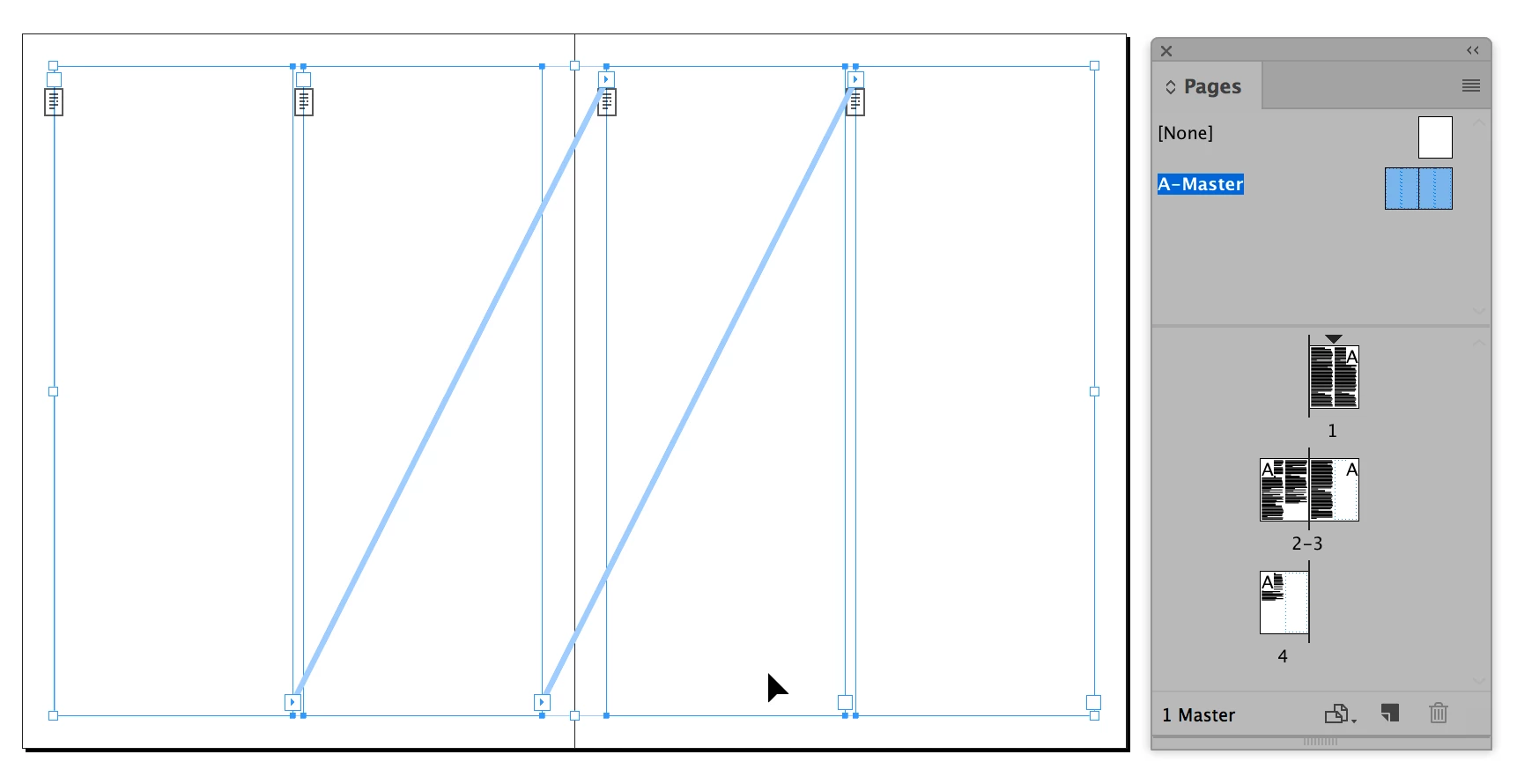
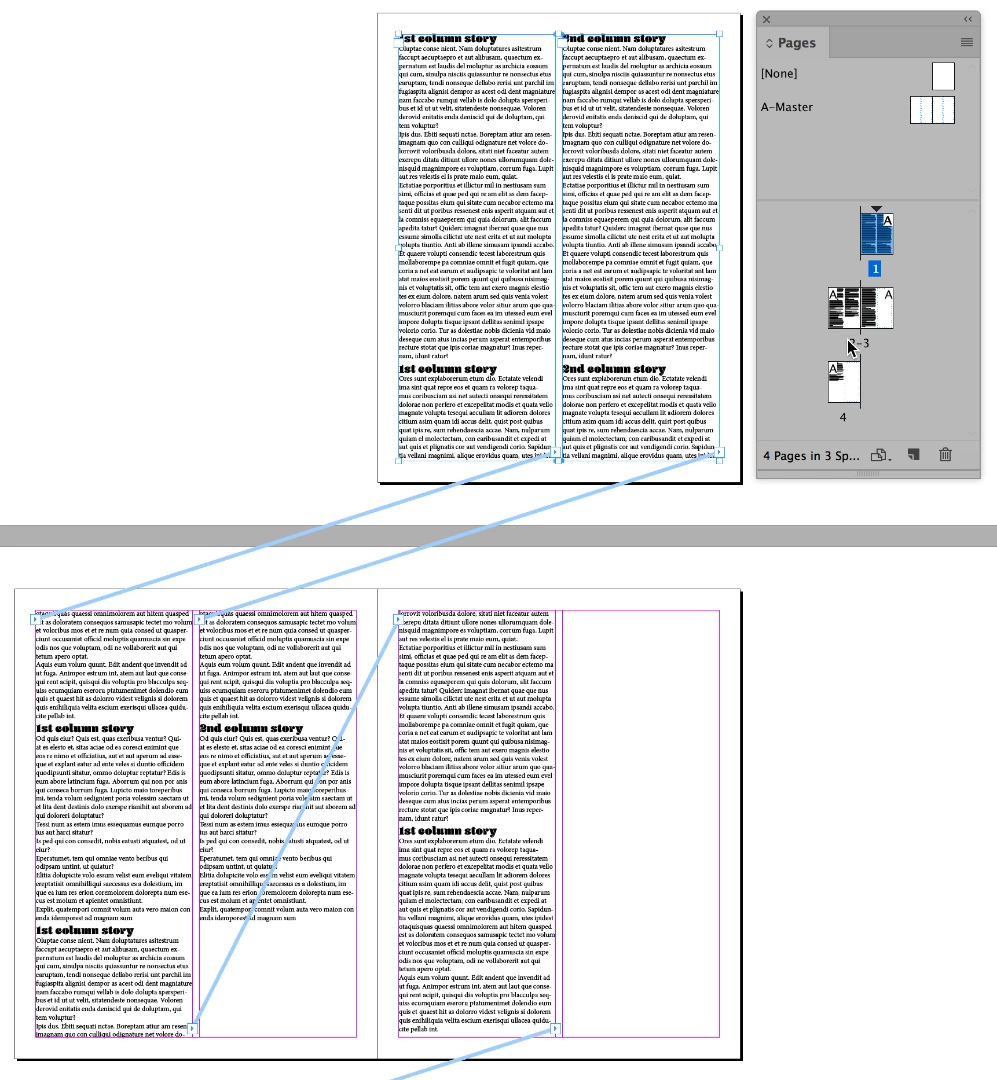
    I am missing something here? I am using a variation of Winterm's approach. Set up a 2-column document and add the two frames to the left hand master. Thread them to the appropriate frames on the right hand master.

    On the body pages, auto-flow the 1st story in the column 1 frame and then the 2nd story I the column two frame.

    If I add more text they flow correctly, If I edit the master page frames the text reflows.

    3 replies

    Barb Binder
    Community Expert
    Community Expert
    September 26, 2017

    Gotta run. Checking out of hotel and off to teach. I had the file open from last night so undo'd back to the beginning. Remember threaded frames from the L to R master pages.

    In the screen shot, I'm on body page 1, hovering over the primary frame on the left page. so I see the ( ) cursor and yes, auto-flow so holding the Shift key (which I forgot in the Mac loaded cursor is crazy screen shot above). SORRY!

    \

    Shift click over threaded primary frames to auto-flow in only the left column.

    ~Barb at Rocky Mountain Training
    Barb Binder
    Community Expert
    Barb BinderCommunity ExpertCorrect answer
    Community Expert
    September 26, 2017

    I am missing something here? I am using a variation of Winterm's approach. Set up a 2-column document and add the two frames to the left hand master. Thread them to the appropriate frames on the right hand master.

    On the body pages, auto-flow the 1st story in the column 1 frame and then the 2nd story I the column two frame.

    If I add more text they flow correctly, If I edit the master page frames the text reflows.

    ~Barb at Rocky Mountain Training
    Bill Silbert
    Community Expert
    Community Expert
    September 26, 2017

    Maybe I'm missing something, Barb, but when I try doing it the way that you suggest the Smart Text Reflow adds different extra pages for the left column than the right one. That was what led me to the way that I suggested.

    Barb Binder
    Community Expert
    Community Expert
    September 26, 2017

    https://forums.adobe.com/people/BarbBinder  wrote

    I did auto-flow the text into the primary frames with the ( ) on the loaded text cursor

    Bill, I think that Barb meant you need to hold down Shift while clicking, in order to "Autoflow" the text.

    Icon must be (autoflow.png)


    Yes, Vinny, I can't capture that as a screen shot a Mac these days so in a complete break from tradition, I just went for words.

    I don't know why it overprints like this on Macs most days. (Every once in a while it straightens out, though, so I still hope it will be fixed someday.)

    ~Barb at Rocky Mountain Training
    winterm
    Legend
    September 25, 2017

    You need two not threaded primary text frames on a Master page. On the first document page with that Master applied, manually override those text frames (Ctrl/Cmd+Shift+click), place your text inside the overriden frame holding Shift key. Place accordingly - one text in the left frame, and another - in the right. New pages will be added to fit your texts.

    On the pages primary text frames will respond to their master in the same way as any overridden master page item will, so you'll be able to adjust their position all at once, if needed.

    Bill Silbert
    Community Expert
    Community Expert
    September 26, 2017

    Unfortunately you can only have one primary text flow per document (one Primary Text Frame per Master Page) but that takes care of half your problem. Create a Master Page where the left text frame is a one column Primary Text Frame and the right text frame is a normal one. Then on the first document page flow in the text for the left column (the Primary Master one) and making sure that in InDesign preferences that Smart Text Reflow is set to end of story flow in the text. As many pages as are necessary will be created to accommodate the text. Then in the Pages Panel select all of the pages in the document and in the Pages Panel pull down menu choose "Override All Master Page Items." Then as highlighted in the screen shot below with the regular selection tool click on the text overflow port on the bottom of the first right hand text frame and the on the top port of the right hand column on the next page. Repeat this process for all of the right hand text frames. When done flow the text into the right hand columns.