


Participating Frequently
June 10, 2025
Question

Uneven text wrap in columns

  • June 10, 2025
  • 4 replies
  • 2823 views

Hey all. I am trying to wrap text around an image in our paper. We typically 
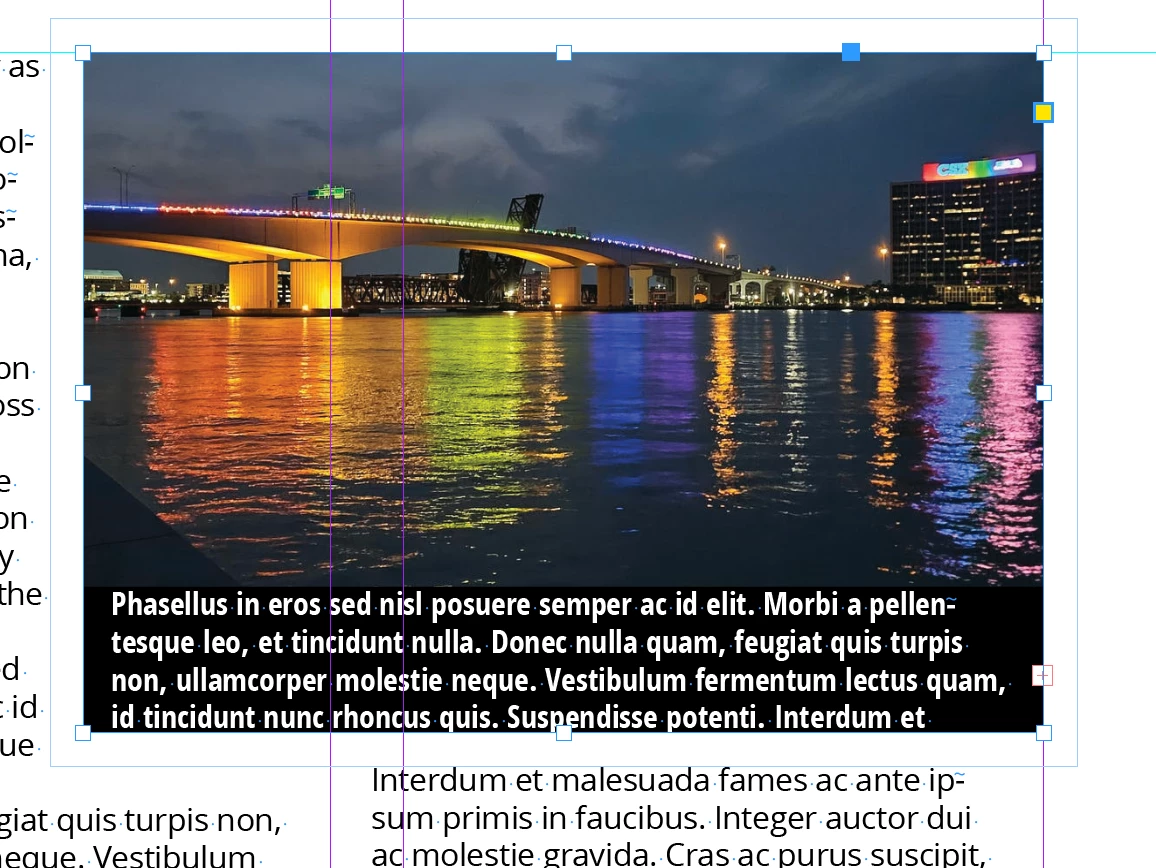
divide text into four columns. The problem I'm having is that text wrap seems to create a larger boundary box around the corners of the objects that I'm attaching it to (see the bottom left corner of the image attached). It is very frustrating and hard to work around when I'm trying to keep lines of text even with one another. I've tried to disable the "Skip by Leading" option in Preferences as well as "Align to baseline grid" in the Paragraph window. Neither seem to fix it. Does anyone have any suggestions/solutions?

4 replies

Brad @ Roaring Mouse
Community Expert
June 11, 2025

Yeah, this has been bugging me for years.

I can tell you WHY it's happening, but I don't know any good way to prevent it from happening.

Your text box first baseline is (probably) set to Ascent, so the top of the frame will start that way, as well as any subsequent columns will start that way, as in my example.

Text wrap, however, wraps according to whether the entire linespace will fit under the wrap, which it doesn't in the first column.

If you set your text box first baseline to leading, you can control it better, but of course that has the drawback of having your first line in the frame being lower than you want it. Not ideal. InDesign needs to rethink their wrap to maybe add the option to treat lines near a wrap in all columns like the first baseline. Not there yet, I'm afraid.

Participating Frequently
June 11, 2025

I tried changing the Baseline to each option, but alas none of them could fix the issue.

Going into the Text Frame Options and keeping the columns' Vertical Justification to Bottom (instead of Top) seems to help in some instances but not others. 

It's so frustrating! I hope that InDesign will get updated to fix this issue. It doesn't make sense that the last column (where the majority of the image/box is) given a different column starting point, if your explanation is correct. I wonder what a long-term solution to this would entail.


Hopefully someone can pop in with a tip that works. Regardless, thank you for the detailed response.

Dave Creamer of IDEAS
Community Expert
June 11, 2025

You never answered my question about your leading. I assume from the screen capture there isn't any paragraph spacing either. 


David Creamer: Community Expert (ACI and ACE 1995-2023)
Dave Creamer of IDEAS
Community Expert
June 10, 2025

Does you text use Auto leading?

I used default settings except for setting an absolute leading and I'm not seeing the problem.

David Creamer: Community Expert (ACI and ACE 1995-2023)
Participating Frequently
June 11, 2025

No, unfortunately I've been using a numerical value for my leading. I even tried switching it over to Auto but that doesn't help at all. 

Peter Spier
Community Expert
June 13, 2025

Dang. Here is an attempt at reuploading the documents.


The problem seems to disappear when I set the baseline grid to match your 10 pt leading set the text to align to the grid and reduce the bottom offset on the text wrap, as suggested above.

Peter Spier
Community Expert
June 10, 2025

My memory is that text wrap on objects that cross column boundaries has been problematic forever, and to be hoonest I don't know that there was ever a "good" way to deal with it.

One thing that might work is a cobination of align to grid and a slightly smaller top and bottom (especially bottom) wrap offsets than you really want which should force text further away than the offset (align to grid) everywhere except when the offset and grid lines match up.

Participating Frequently
June 11, 2025

Using Align to Baseline Grid will probably be the move going forward. We're about to redesign the overall layout so this is actually the perfect time for me to start looking into this and considering it with the changes we'll be making. Thanks for the suggestion! 

Bill Silbert
Community Expert
June 10, 2025

Is the paragraph on the left being interupted by the text wrap or is that the actual end of the paragraph? If it is the end of a paragraph and there is space after applied to that paragraph then the gap would be as expected. It's hard to tell by the way that you've cropped the screen shot.

Participating Frequently
June 10, 2025

It's not the end of the paragraph. If I had more control of the content in our paper, I could probably use line breaks in some way to make it even. Regardless, I would like to know what's causing this issue.

Here's a larger example of the issue. Again, see the bottom left of the image included in my screenshot to see where it's doing that.