
chuzz72
Inspiring
March 9, 2020
Answered

when (in InDesign) you select a colour theme, how do I "simply choose “Pantone Match”"?

  • March 9, 2020
  • 2 replies
  • 1972 views

Hi,

I have been looking into the use of CC colour libraries ALL morning!

As I am an artworker, not designer, I sometimes need the colours from a colour theme converting into spot colours. I found this article (https://theblog.adobe.com/perfect-your-palette-with-the-new-adobe-color/) on-line, reading through it sounds very simple, as stated, "From any theme, simply choose “Pantone Match” to convert the colors to a theme of Pantone colors. Choose your book and match the Pantone shade to craft your perfect print palette."


Can anybody tell me where on earth I find the (not seemingly so) simple option to Pantone Match?


Currently I'm working in Adobe InDesign CC (latest version) and I can't find this option anywhere. Please help!?


Cheers


Chuzz
 

    This topic has been closed for replies.
    Correct answer chuzz72

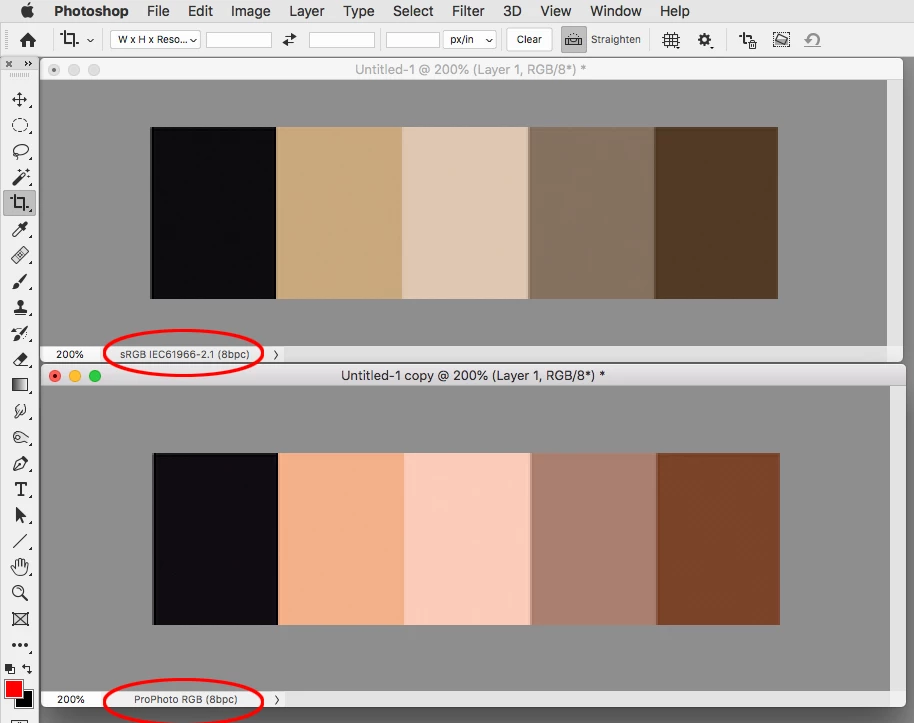
    Right, the .ase files are not saved as spot colors and the RGB definition is also a problem (Pantone Solid Spot colors are defined as Lab). The appearance of the web colors will change depending on your CC document’s assigned RGB profile—try assigning a wide gamut RGB space like ProPhoto vs. sRGB and you will see the problem.


    The Adobe Color web app is great for finding color relationships, but the color management limitations of HTML mean you have to limit the Color Modes you save in to either Lab or sRGB (the web CMYK values are not reliable).


    If you choose RGB as the Color Mode, your CC documents have to be assigned the sRGB profile in order to keep the color appearance


    Hi Rob,

    That's quite a difference. Looks like it's tailored more for design. It gives a good match but looking at this I think it's best to use it as a visual reference and manually bring in any spot colours required.


    Thanks for your help with this 👍


    Cheers


    Chuzz


    2 replies

    rob day
    Community Expert
    Community Expert
    March 9, 2020

    This thread might help:


    https://community.adobe.com/t5/indesign/convert-cmyk-color-theme-to-pantone-colors/td-p/10923934?page=1


    Can anybody tell me where on earth I find the (not seemingly so) simple option to Pantone Match?


    You have to use the Aodbe Color site:

    https://color.adobe.com/mythemes


    Click on an existing theme, and then click PANTONE MATCHES —it’s not a very accurate way of picking color:


    chuzz72
    chuzz72Author
    Inspiring
    March 9, 2020

    Hi Rob,

    Great, found it! Thank you. Yes, it wqas unclear this process had to be done on the website.

    However, after now finding out what it's done it's probably better to still select colours manually.

    As you can see from my screengrabs it shows the spot colours, BUT as per the other documentation you shared, it doesn't actually give you a solid spot colour when imported into Adobe software (ie InDesign) 😩

    rob day
    Community Expert
    Community Expert
    March 9, 2020

    Right, the .ase files are not saved as spot colors and the RGB definition is also a problem (Pantone Solid Spot colors are defined as Lab). The appearance of the web colors will change depending on your CC document’s assigned RGB profile—try assigning a wide gamut RGB space like ProPhoto vs. sRGB and you will see the problem.


    The Adobe Color web app is great for finding color relationships, but the color management limitations of HTML mean you have to limit the Color Modes you save in to either Lab or sRGB (the web CMYK values are not reliable).


    If you choose RGB as the Color Mode, your CC documents have to be assigned the sRGB profile in order to keep the color appearance

    Luke Jennings
    Inspiring
    March 9, 2020

    I use Illustrator to find a Pantone match for a CMYK value. Select a swatch and go to Window> Color Guide> at the bottom left corner of the Color Guide panel, select Pantone+Solid Coated from the fly-out menu. Select the first color added to the color list to add the new spot color to your swatches. Note, not all 4C swatches will have an exact Pantone match. Are you actually planning to print in multiple spot colors?

    chuzz72
    chuzz72Author
    Inspiring
    March 9, 2020

    Hi Luke,

    Thanks for taking the time to reply. I am aware of that technique. What I am trying to experiment with is us as a company utilising CC (color) libraries rather than creating .ase swatch groups (as if I was working alone).


    This is the article I found with the way to achieve what I'd like to do…


    This is the section I am trying to follow…

    This is a screen grab of my test document, the colours sampled from the image, and me not being able to find "Pantone Match" anywhere at all…

    I believe there should be a simple way to create matched spot colours to the selected colour theme? It may be I only want one spot colour and it sounds so simple to be able to do it… if only the "Pantone Match" could be found .


    I appreciate all the ways I can manually find a colour but why adverise Adobe/Pantone can do this 'simply' if it's so hard to find, and indeed, if it can actually do this?


    Cheers

    Chuzz

    rob day
    Community Expert
    Community Expert
    March 9, 2020

    Also, there are going to be color management problems with the web based color themes because there is no color management with HTML coded color.


    Picking the matches in Photoshop via the Color Picker‘s Libraries would get the most accurate color managed matches. Here my image is in the large gamut ProPhoto RGB space, which would include the entire Pantone Solid color gamut (any CMYK space would not)


    The best Pantone + Solid Coated color (Lab)


    There is a closer match in the Goe library: