


tome21547699
Participant
June 22, 2019
Answered

Why Are Character and Paragraph Styles Not Appearing in Control Panel?

  • June 22, 2019
  • 6 replies
  • 10811 views

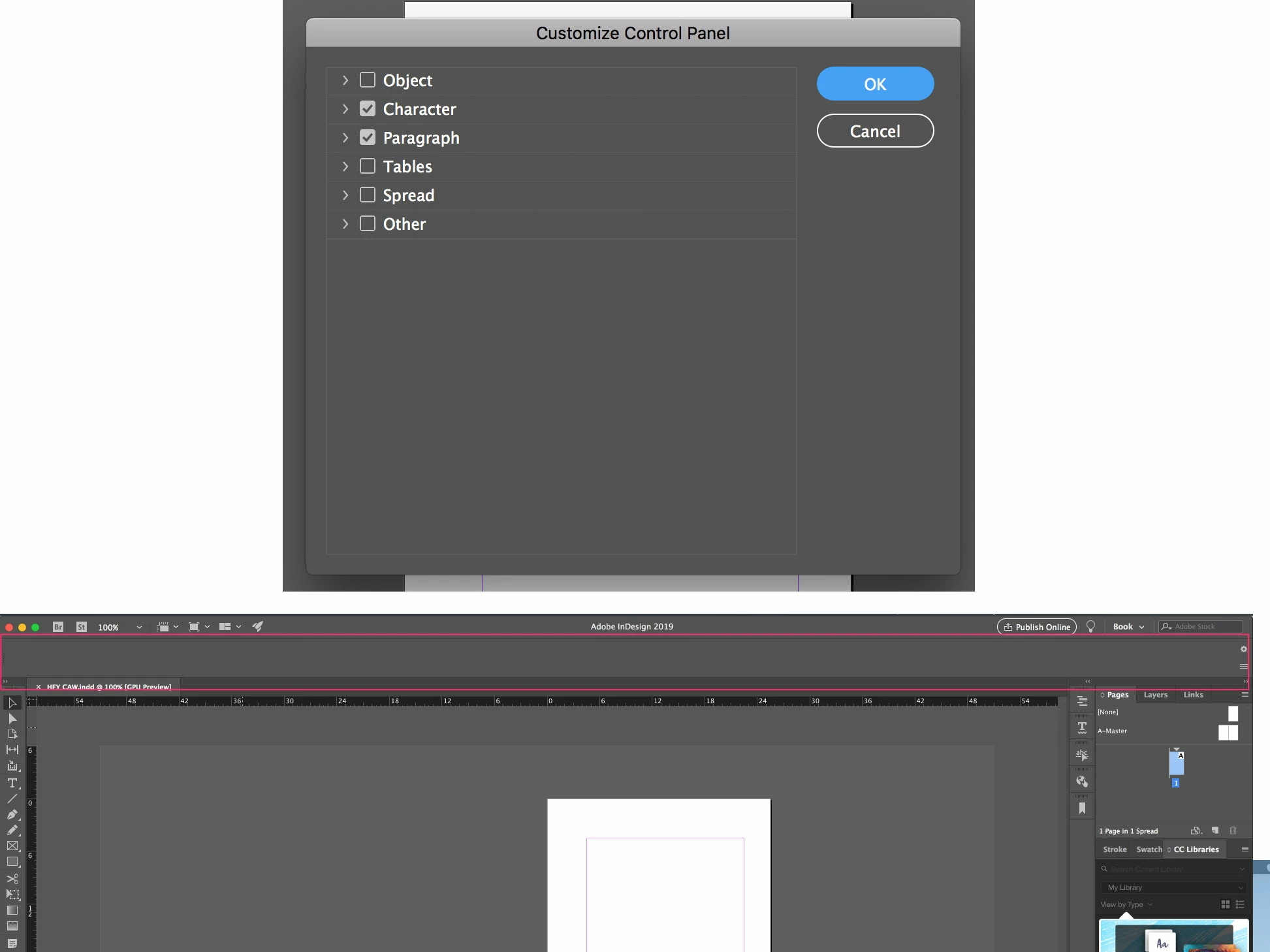
I've clicked the little gear and "Customized" control panel. Only Character Styles and Paragraph Styles are selected. The Control Panel is blank. Other options, such as Object, show up just fine when they are selected. Am I missing something?
This topic has been closed for replies.
Correct answer MilanChe

Try this. It worked for me.


1. (Windows) Start InDesign, and then immediately press Shift+Ctrl+Alt. Click Yes when asked if you want to delete preference files.

2. (Mac OS) Start InDesign, and then immediately press Shift+Option+Command+Control. Click Yes when asked if you want to delete preference files.

6 replies

davidl82833857
Participant
May 19, 2021

Yes, same problem here, suddenly changing workspaces and so far, an unresolvable blank Character panel with ID 16.1. Of course no solution yet, but misery loves company.

MilanCheCorrect answer
Participant
July 6, 2021

Try this. It worked for me.


1. (Windows) Start InDesign, and then immediately press Shift+Ctrl+Alt. Click Yes when asked if you want to delete preference files.

2. (Mac OS) Start InDesign, and then immediately press Shift+Option+Command+Control. Click Yes when asked if you want to delete preference files.

Participant
October 31, 2023

Thank you so much this has been driving me crazy and your suggestion worked straight away. Appreciate your post!


Participating Frequently
February 10, 2021

Well I'm having the same issues too. It was working absolutely fine this morning and then all of a sudden InDesign 16.1 decided to change the appearance of my workspace. 

The font name, style, size, leading, etc which was on the left of screen is now on the right! What the? Plus I've lost all the character options and spacing options for type. They're checked in the 'Customize Control Panel' so they shpuld be there.

Yes, I've done a 'Reset Advanced', I've deleted the cache, I've restarted InDesign, and it makes no difference selecting the Type Tool. Why on earth would InDesign suddenly be doing this?

Participant
November 27, 2020

character and paragraph styles palettes suddenly showing up blank

hysteria! when I regained consciousness:

someone below suggested selected “Advanced reset”
that sounded scarey - could not find any info on what that would do,
so  tried the other options first - this worked instantly!


GO TO Menu Window / Workspace/
in the drop down menu, try changing different workspace options

in one of them, my full palettes of paragraph and styles
instantly all reappeared just as I had left them last time
I had not changed the workspace before quitting previously. no idea how or why this occurred.


in this case - no preference deletes
no hidden library cache deletes

there was a suggestion about exporting as IDML and resaving as .indd - that did not work for me either.

Loriba
Participant
September 25, 2020

Just hit "Reset Advanced" 

Participating Frequently
September 25, 2020

Cant see this running photoshop elements  2020

AnneMarie Concepcion
Community Expert
Community Expert
June 22, 2019

They're not showing up because you have the Selection tool active. Click on the Type tool (the T) and you'll see Character and Paragraph options appear.

AM

Participating Frequently
December 30, 2019

Can you send me screen shots where to find this please running elements 2020

Bill Silbert
Community Expert
Community Expert
June 22, 2019

Try deleting your InDesign caches (this is different than deleting preferences). It should bring back the missing items in your Control Panel.

To do so:

For Macintosh Users: The User Library folder in which InDesign’s cache files are stored is hidden by default on most Macintoshes. To access it make sure that InDesign is closed and click on the desktop to launch a Finder Window (Command-N). With this window in column view follow the path User>Home folder (it’s the folder with an icon that looks like a house—it may have the user’s name rather than “Home”) and click on the Home folder. With the Option Key pressed choose Library from the Finder Go Menu. “Library” will now appear within the Home folder. Within the Library folder find the “Caches” folder. Within the Caches folder find and delete the entire folder “Adobe InDesign”. I find that deleting the InDesign cache folder completely leads to a lasting change. 

For Windows Users: On Windows 7 and above the caches files are hidden. To find them go to the Control Panel and open Folder Options and then click the View tab. Then select “Show hidden files and folders” or “Show hidden files, folders or drive options” in Advanced Settings. Then delete (or rename) the folder at the end of this path: C:\Users\[User Name]\AppData\Local\Adobe\InDesign\Version [#]\<Language>\Cache.

Bill Silbert
Community Expert
Community Expert
June 22, 2019

If what I posted above did not work please let us know what version of InDesign and what operating system you are using. This was actually a bug in the original release of CC 2019 so make sure if that is the version you are using that you have updated it to the latest bug fix through the Creative Cloud desktop app.

Fiftyfootelvis
Participant
April 8, 2022

Yes! This worked for me on InDesign 17.2.
That was driving me crazy.