



dsev1
Inspiring
September 20, 2017
Answered

Why are PDFs from InDesign poor quality and have variable results?

  • September 20, 2017
  • 9 replies
  • 39703 views

Hi,

I am hoping someone may be able to help me to figure this out...

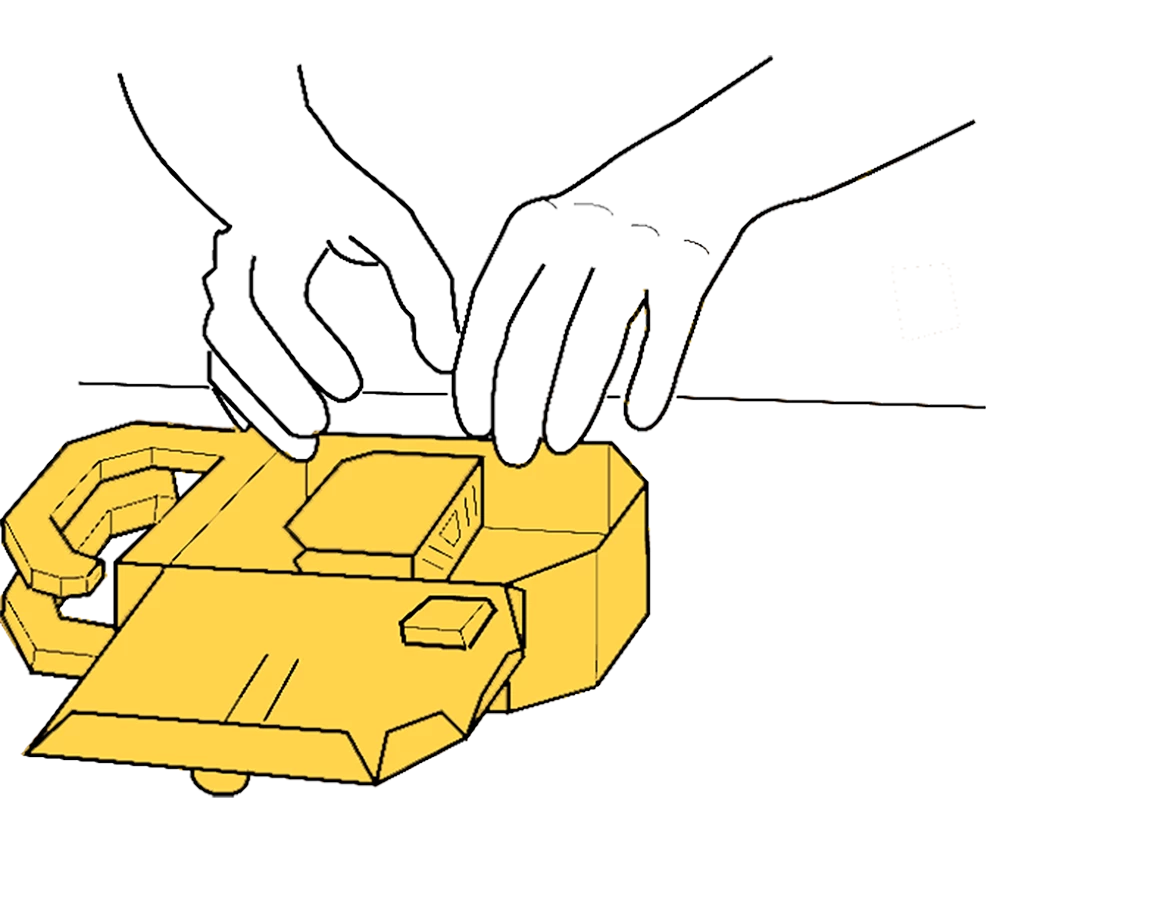
I have an image that I created (original.png) below. It is 1165 x 900. This was saved from photoshop with a 300 dpi. Please notice it looks fairly clean and high quality:
I placed this image InDesign. The problems arise when I try to create a PDF.  (Please note all high quality settings were used for creating these PDFs, like I checked my downsampling to be a minimum of 300 (and I've tried no downsampling) and high quality print option is used, etc).

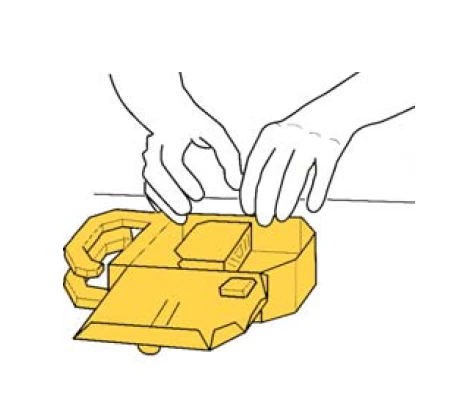
When I use the PRINT> Adobe Print method to create the pdf, I get this (below). Please notice the degradation of quality PLUS artifacting (if you look closely).---BUT it gets even worse...
When I try to use the EXPORT option to create a PDF (Adobe PDF (print) or (interactive)), I get terrible results (below):

Would anyone please help me to correct this, so my PDF quality will be better?  Thank you.

Correct answer Test Screen Name

There's no way to ensure it will look the same. You can adjust your own antialiasing but each user will have their own. Your resolution, while it may be good for print, is going to be reduced to perhaps 50-120 dpi for the screen so it doesn't help much. But keeping vector as vector is probably a good idea. Why can't you colour it in AI?

9 replies

Harsha5FEE
New Participant
October 29, 2021

Hi,


Please try these settings.. It worked for me..

Thanks,

Harsha

Known Participant
December 23, 2022

This comment saved my life. I've done every setting imaginable. Thank you so much!

Eric Dumas
Community Expert
September 21, 2017

Hi,

I would test the Trace function.

Insert your photoshop image and see if illustrator can do most of the tracing for you. It might save you some time.

Doug A Roberts
Community Expert
September 21, 2017

Eric:

So I did original do the line art in Illustrator

Participating Frequently
October 3, 2017

This question is marked as answered and the answer implied that you can't do anything about it. But, I think there is a reason why your exported file is degrading eventhough you ensure all in your knowledge.

The reason is that InDesign has its own pixel dimensions and rearrange all linked file pixels to its own pixel roots. Eventhough your linked file has more than 300ppi resolution, the exported PDF file will only follow the InDesign's export setting pixel output. So, you have to ensure that the frame of the object is aligned precisely with the InDesign pixel setting (such as 72 ppi). And align the object within the frame relative to the frame so that all aligns with InDesign pixel setting. If you are exporting it to 300 dpi output, you have to make sure that your linked file is also resized to 300 dpi and aligned well in InDesign. You can't just randomly place a file by eyeballing the location and expect it to come out as how it was. If you do so, all pixels will be shifted or redistributed or re-divided. You just have to make some calculations when placing the links.

dsev1
dsev1Author
Inspiring
September 20, 2017

Thanks all for your advice. So, I decided the go ahead and "bite the bullet" and go back into AI and learn the Live Paint tool, drop in the yellow, and relink to those .AIs in InDesign. I think this solved the problem----Thank you Test Screen Name for this suggestion. 

Luckily, I had the vector files. Not sure what I would have done without these : /  The raster images had become a rabbit-hole of troubleshooting and not much success.  Thanks all.  Have a good week.

-Dan

Test Screen NameCorrect answer
Brainiac
September 20, 2017

There's no way to ensure it will look the same. You can adjust your own antialiasing but each user will have their own. Your resolution, while it may be good for print, is going to be reduced to perhaps 50-120 dpi for the screen so it doesn't help much. But keeping vector as vector is probably a good idea. Why can't you colour it in AI?

Inspiring
September 20, 2017

Why not just use the vector? should be easy to colour that background in Illustrator. Converting it to a bitmap seems a bit of an unnecessary step and is causing you this havoc.

dsev1
dsev1Author
Inspiring
September 20, 2017

ok, so I tried a few suggestions here...

I used the PSD file in InDesign, instead of a png from PSD, and I bumped up my settings to 600 for max ppi threshold.  But it's still not looking good.  Below, is the orginal image and the exported PDF (using PSD file in indesign):

rob day
Community Expert
September 20, 2017

You can check whether the image has changed using AcrobatPro's Output Preview>Object Inspector. Using your original scaled 50%, with the threshold set to 600ppi, I don't see a problem. Object Inspector tells me the pixel dimension is unchanged at 1165x900:

One thing you have to consider is how the PDF reader application anti-aliases the preview as you zoom in and out. Photoshop and Acrobat use different definitions for the 100% view. I think what you are seeing is the affect of zooming on line art.

dsev1
dsev1Author
Inspiring
September 20, 2017

Rob. thanks. I think you may be onto something...I have noticed as I zoom in on the bad images, the quality does improve.

So, how would I go about ensuring Photoshop 100%, InDesign's 100%, and Acrobat's 100% are all the same?

Thanks!

dsev1
dsev1Author
Inspiring
September 20, 2017

So I did original do the line art in Illustrator, but dropped in the yellow in photoshop.

The problem is more evident with the original and exported poor quality side by side and same size.:

Here are my export settings (I also tried no downsampling):

The effective PPI is 567:

Any ideas? Thanks!!

rob day
Community Expert
September 20, 2017

Your effective ppi is above the 450ppi threshold you've set in the Compression tab so the png is going to be downsampled nearly in half to 300ppi.

Also the original you posted in #1 looks like it has been upsampled from some lower resolution.

Brainiac
September 20, 2017

the exported version looks OK to me. Antialiased but you can't control that. This sort of work would be better done as a vector in Illustrator I suspect.

What specifically don't you like? Please be detailed. I know that when I've been staring at a problem I see all the flaws very differently than someone seeing it for the first time.

Eric Dumas
Community Expert
September 20, 2017

The artefacts happen when the PDF settings use a 'jpeg' compression.

Can yo add a couple of screen shots to show the settings you used when exporting to pdf? so we can give you the best feedback possible.

Thanks

Derek Cross
Community Expert
September 20, 2017

Never use print to PDF always use Export.

What is the Effective PPI resolution of the image in InDesign ?

Try Placing the original as a PSD image rather than a png (if you have it).