Known Participant
January 26, 2023
Answered

Yearbook panels sorted by grade/class - DataMerge , possible use of scripts

  • January 26, 2023
  • 2 replies
  • 1491 views

I use DataMerge for about 3 years by now. But until today I'm not using any scripts to do my job.

All the thirdparties plugins are too expensive and now I want to make some things by myself.

Of Course if I can get some help with pros like you guys, will be more easy.


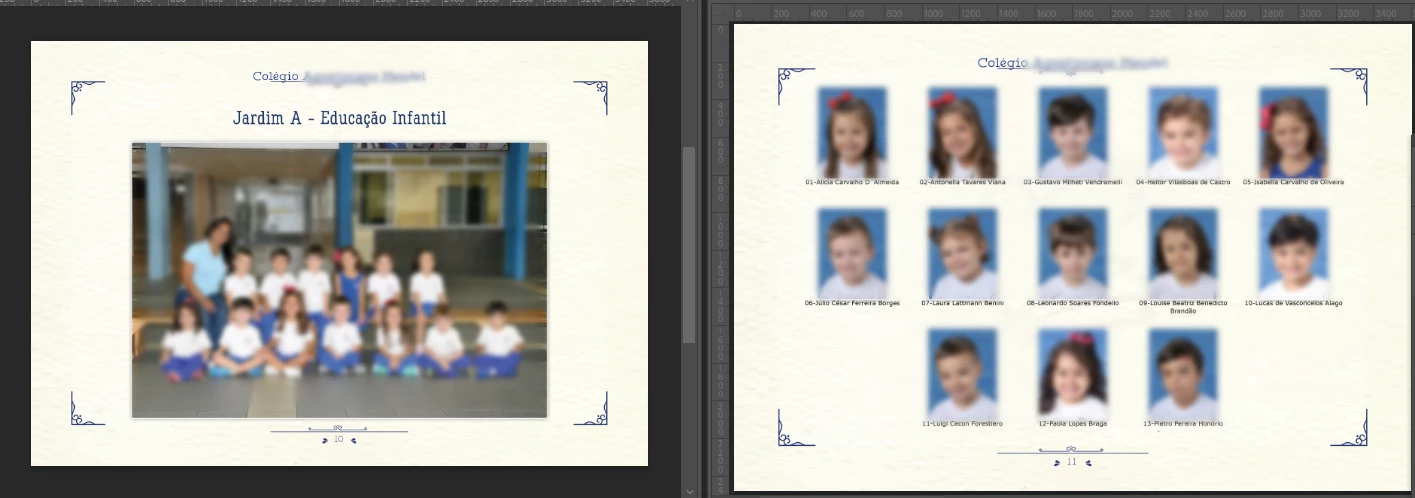
My true problem is to make yearbook pages. Today I make like this.

With DataMerge I create all pages with the data of the class. like

eg: High Schooll 2nd Grade - Noon Period ,

High Schooll 3nd Grade - Noon Period

High Schooll 4nd Grade - Noon Period


.. ...and so on.

Them one class by the time I populate the pictures of the students...With Captions


And I getting to work with the script inlineMerge , but that script populate all the data in one textBox.

I have to manually separate the classes.


My data is allways in .txt. 

Is possible to sort by class ?

I really need a script ? If I did , can you help ?

I"m learning the basics of scripts, but I dont known where to start.

This topic has been closed for replies.
Correct answer Loic.Aigon


Ok, I guess you can write code to do some datamerge, messing documents and so on. But, if I had to do this without any paid-for plugin, I would consider XML import.


I did a quick and dirty template into which I can inject data and get all the data imported in one pass. Feel free to drop an eye on attached file (remember it's a proof of concept, would probably need some adjustment).


Good thing is, you don't need scripting. Well theorically speaking given that your data is in Excel. So in your position, my challenge would be to turn my excel data into a valid XML structure I could inject into inDesign.


It's likely you can export data to XML from Excel (or use some CSV to XML online converter). But it will be some XML structure that won't fit InDesign. You would need to change the structure and XSLT can be used for that. XSLT is basically a file including instructions to reformat an XML structure.


It may sound complicated but regarding pros and cons, I would consider it. I don't think it will be specifically more complex than learning how to use datamerge with scripting plus all the additional code.


Here are some details:

1) The InDD template:
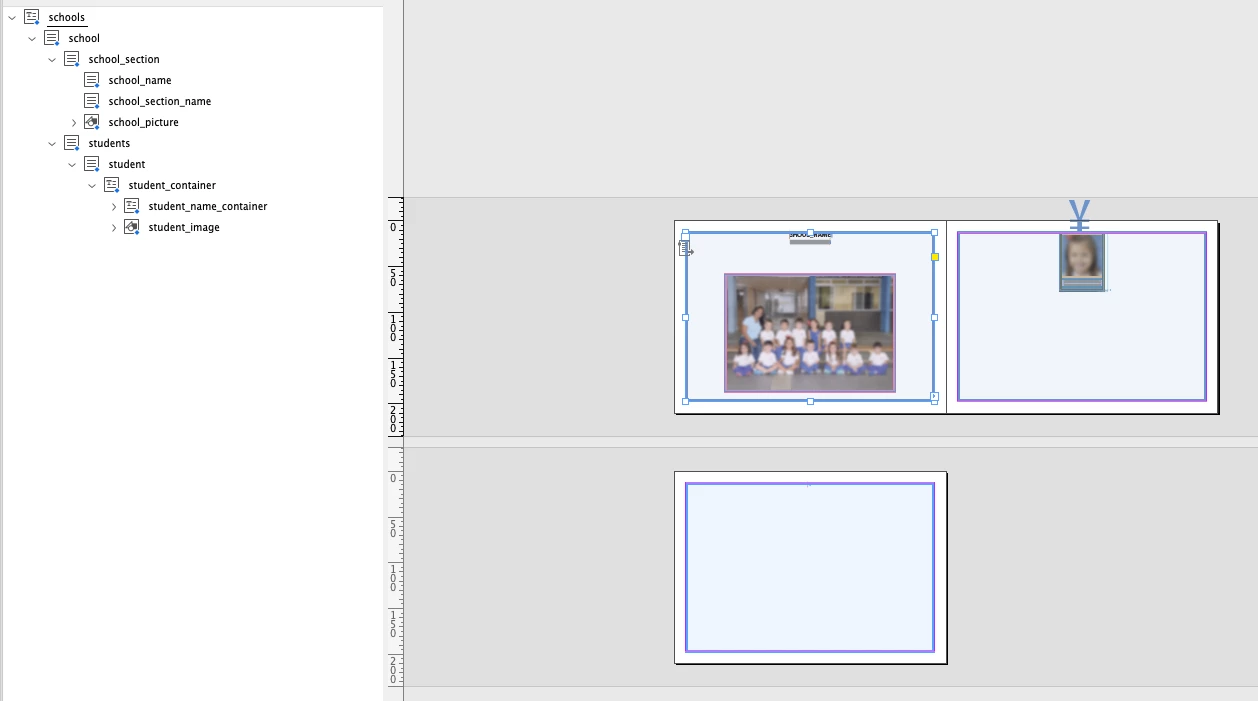
What I did here is to place all items I need with repeating formatting in mind. For ex, I don't create all "students" frames, only one that will be repeated. The same apply for the "school" (i.e. all data for a specific school) that will be repeated.

2) Data

I exported a default XML and created dummy additional data (Escuela A, Escuela B, Escuela C).

<?xml version="1.0" encoding="UTF-8"?>
<schools>
   <school>
      <school_section>
         <school_name>ESCUALA A</school_name>
         <school_section_name>SECTION A</school_section_name>
         <school_picture href="file:///Users/ozalto/Desktop/escuela.png"/>
      </school_section>
      <students>
         <student>
            <student_container>
               <student_name_container>
                  <student_first_name>FIRST NAME A1</student_first_name>
                  <student_last_name>LAST NAME A1</student_last_name>
               </student_name_container>
               <student_image href="file:///Users/ozalto/Desktop/student1.png"/>
            </student_container>
         </student>
         <student>
            <student_container>
               <student_name_container>
                  <student_first_name>FIRST NAME B1</student_first_name>
                  <student_last_name>LAST NAME B1</student_last_name>
               </student_name_container>
               <student_image href="file:///Users/ozalto/Desktop/student2.png"/>
            </student_container>
         </student>
         <student>
            <student_container>
               <student_name_container>
                  <student_first_name>FIRST NAME C1</student_first_name>
                  <student_last_name>LAST NAME C1</student_last_name>
               </student_name_container>
               <student_image href="file:///Users/ozalto/Desktop/student3.png"/>
            </student_container>
         </student>
      </students>
   </school>
   <school>
      <school_section>
         <school_name>ESCUALA B</school_name>
         <school_section_name>SECTION B</school_section_name>
         <school_picture href="file:///Users/ozalto/Desktop/escuela.png"/>
      </school_section>
      <students>
         <student>
            <student_container>
               <student_name_container>
                  <student_first_name>FIRST NAME A2</student_first_name>
                  <student_last_name>LAST NAME A2</student_last_name>
               </student_name_container>
               <student_image href="file:///Users/ozalto/Desktop/student3.png"/>
            </student_container>
         </student>
         <student>
            <student_container>
               <student_name_container>
                  <student_first_name>FIRST NAME B2</student_first_name>
                  <student_last_name>LAST NAME B2</student_last_name>
               </student_name_container>
               <student_image href="file:///Users/ozalto/Desktop/student2.png"/>
            </student_container>
         </student>
         <student>
            <student_container>
               <student_name_container>
                  <student_first_name>FIRST NAME C2</student_first_name>
                  <student_last_name>LAST NAME C2</student_last_name>
               </student_name_container>
               <student_image href="file:///Users/ozalto/Desktop/student1.png"/>
            </student_container>
         </student>
      </students>
   </school>
   <school>
      <school_section>
         <school_name>ESCUALA C</school_name>
         <school_section_name>SECTION C</school_section_name>
         <school_picture href="file:///Users/ozalto/Desktop/escuela.png"/>
      </school_section>
      <students>
         <student>
            <student_container>
               <student_name_container>
                  <student_first_name>FIRST NAME C1</student_first_name>
                  <student_last_name>LAST NAME C1</student_last_name>
               </student_name_container>
               <student_image href="file:///Users/ozalto/Desktop/student2.png"/>
            </student_container>
         </student>
         <student>
            <student_container>
               <student_name_container>
                  <student_first_name>FIRST NAME C2</student_first_name>
                  <student_last_name>LAST NAME C2</student_last_name>
               </student_name_container>
               <student_image href="file:///Users/ozalto/Desktop/student3.png"/>
            </student_container>
         </student>
         <student>
            <student_container>
               <student_name_container>
                  <student_first_name>FIRST NAME C3</student_first_name>
                  <student_last_name>LAST NAME C3</student_last_name>
               </student_name_container>
               <student_image href="file:///Users/ozalto/Desktop/student1.png"/>
            </student_container>
         </student>
      </students>
   </school>
</schools>

3) Last step is to import data into template:
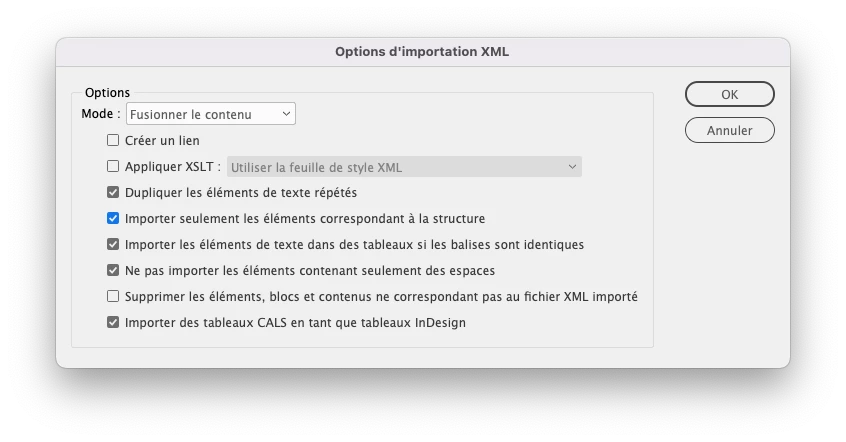
 

4) Result
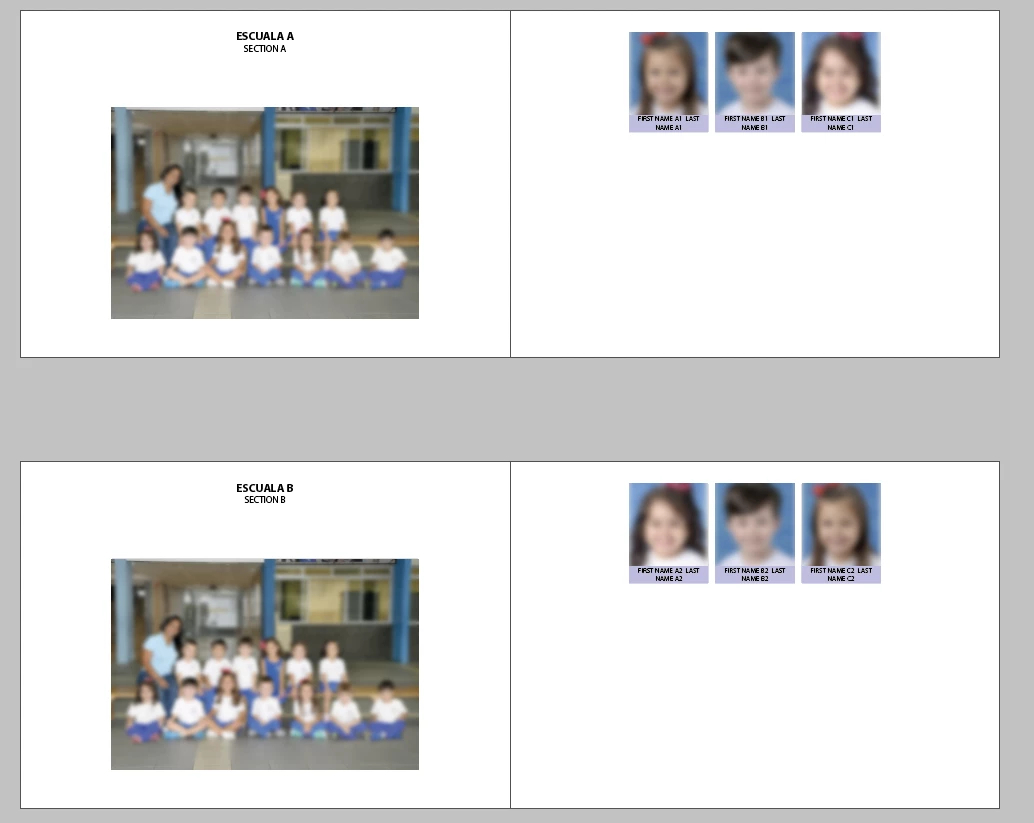
Once again, not the prettiest result but it shows that XML data gently flowed into the template.


You get the idea. I hope it can help.



2 replies

TᴀW
Legend
January 30, 2023

I think my (not free) Yearbook Creator add-on could help you a lot:

Yearbook Creator - Id-Extras.com

Loic.Aigon
Legend
January 30, 2023

Yes, Ariel, I am myself a big advocate of paid-for solutions instead of twisting your own arm trying to build complex things that editors have already solved. The ROI is often unbeatable. I was only introducing XML as a solution as our friend was looking for a "free" approach and I wish he can consider your tool 😉

Loic

Loic.Aigon
Legend
January 26, 2023

We are always helping people who want to do efforts in order to accomplish their goals. The first question is how adequate data merge is for your project. I am having some issues understanding why it's a 2 step effort currently but I am probably missing a thing or two.

So my questions right now would be: 

1) Can you share screenshots at minimum about the end result?

1) Can you share screenshots at minimum about the initial layout?

2) Do you have control over data output (I mean the csv here)? Can it be xml if needed?

Once your project, I think we can discuss the best option and provide guidelines.

Loic


Known Participant
January 26, 2023

thanks in advance !


sure , this is a old layout . But its something like that . Some job we have the "group" shot , and the faces at side. 

I use datamerge with excell exporting in tab-delimited. (don't know , but I get some errors using .csv)

in the data we have:

group photo | individual photo | name | Grade | 

Loic.Aigon
Loic.AigonCorrect answer
Legend
January 27, 2023


Ok, I guess you can write code to do some datamerge, messing documents and so on. But, if I had to do this without any paid-for plugin, I would consider XML import.


I did a quick and dirty template into which I can inject data and get all the data imported in one pass. Feel free to drop an eye on attached file (remember it's a proof of concept, would probably need some adjustment).


Good thing is, you don't need scripting. Well theorically speaking given that your data is in Excel. So in your position, my challenge would be to turn my excel data into a valid XML structure I could inject into inDesign.


It's likely you can export data to XML from Excel (or use some CSV to XML online converter). But it will be some XML structure that won't fit InDesign. You would need to change the structure and XSLT can be used for that. XSLT is basically a file including instructions to reformat an XML structure.


It may sound complicated but regarding pros and cons, I would consider it. I don't think it will be specifically more complex than learning how to use datamerge with scripting plus all the additional code.


Here are some details:

1) The InDD template:

What I did here is to place all items I need with repeating formatting in mind. For ex, I don't create all "students" frames, only one that will be repeated. The same apply for the "school" (i.e. all data for a specific school) that will be repeated.

2) Data

I exported a default XML and created dummy additional data (Escuela A, Escuela B, Escuela C).

<?xml version="1.0" encoding="UTF-8"?>
<schools>
   <school>
      <school_section>
         <school_name>ESCUALA A</school_name>
         <school_section_name>SECTION A</school_section_name>
         <school_picture href="file:///Users/ozalto/Desktop/escuela.png"/>
      </school_section>
      <students>
         <student>
            <student_container>
               <student_name_container>
                  <student_first_name>FIRST NAME A1</student_first_name>
                  <student_last_name>LAST NAME A1</student_last_name>
               </student_name_container>
               <student_image href="file:///Users/ozalto/Desktop/student1.png"/>
            </student_container>
         </student>
         <student>
            <student_container>
               <student_name_container>
                  <student_first_name>FIRST NAME B1</student_first_name>
                  <student_last_name>LAST NAME B1</student_last_name>
               </student_name_container>
               <student_image href="file:///Users/ozalto/Desktop/student2.png"/>
            </student_container>
         </student>
         <student>
            <student_container>
               <student_name_container>
                  <student_first_name>FIRST NAME C1</student_first_name>
                  <student_last_name>LAST NAME C1</student_last_name>
               </student_name_container>
               <student_image href="file:///Users/ozalto/Desktop/student3.png"/>
            </student_container>
         </student>
      </students>
   </school>
   <school>
      <school_section>
         <school_name>ESCUALA B</school_name>
         <school_section_name>SECTION B</school_section_name>
         <school_picture href="file:///Users/ozalto/Desktop/escuela.png"/>
      </school_section>
      <students>
         <student>
            <student_container>
               <student_name_container>
                  <student_first_name>FIRST NAME A2</student_first_name>
                  <student_last_name>LAST NAME A2</student_last_name>
               </student_name_container>
               <student_image href="file:///Users/ozalto/Desktop/student3.png"/>
            </student_container>
         </student>
         <student>
            <student_container>
               <student_name_container>
                  <student_first_name>FIRST NAME B2</student_first_name>
                  <student_last_name>LAST NAME B2</student_last_name>
               </student_name_container>
               <student_image href="file:///Users/ozalto/Desktop/student2.png"/>
            </student_container>
         </student>
         <student>
            <student_container>
               <student_name_container>
                  <student_first_name>FIRST NAME C2</student_first_name>
                  <student_last_name>LAST NAME C2</student_last_name>
               </student_name_container>
               <student_image href="file:///Users/ozalto/Desktop/student1.png"/>
            </student_container>
         </student>
      </students>
   </school>
   <school>
      <school_section>
         <school_name>ESCUALA C</school_name>
         <school_section_name>SECTION C</school_section_name>
         <school_picture href="file:///Users/ozalto/Desktop/escuela.png"/>
      </school_section>
      <students>
         <student>
            <student_container>
               <student_name_container>
                  <student_first_name>FIRST NAME C1</student_first_name>
                  <student_last_name>LAST NAME C1</student_last_name>
               </student_name_container>
               <student_image href="file:///Users/ozalto/Desktop/student2.png"/>
            </student_container>
         </student>
         <student>
            <student_container>
               <student_name_container>
                  <student_first_name>FIRST NAME C2</student_first_name>
                  <student_last_name>LAST NAME C2</student_last_name>
               </student_name_container>
               <student_image href="file:///Users/ozalto/Desktop/student3.png"/>
            </student_container>
         </student>
         <student>
            <student_container>
               <student_name_container>
                  <student_first_name>FIRST NAME C3</student_first_name>
                  <student_last_name>LAST NAME C3</student_last_name>
               </student_name_container>
               <student_image href="file:///Users/ozalto/Desktop/student1.png"/>
            </student_container>
         </student>
      </students>
   </school>
</schools>

3) Last step is to import data into template:


4) Result

Once again, not the prettiest result but it shows that XML data gently flowed into the template.


You get the idea. I hope it can help.

