Known Participant
June 2, 2017
Answered

Issue with Table of Contents Formatting

  • June 2, 2017
  • 1 reply
  • 7872 views

I have created a TOC in InDesign CC. The paragraph styles that I have to be included in the TOC are:

  1. Heads
  2. SubHeads
  3. Subhead-Group4

I then created paragraph styles for the TOC:

  1. TOC1
  2. TOC2
  3. TOC3

I styled each of the TOC 1,2,3 the way I wanted and then in the style area of the TOC dialog box I attributed each of those styles to the Head, Subhead and Sub-head-group 4 respectively. I also created character styles for the page numbers and leaders and also attributed them to each as well.

When I update my Table of Contents however the formatting gets wacky looking. The tabs and indents that were created for each TOC paragraph style is no long applied correctly. Also, the heads seem to revert to the line breaks as they are in the document (which has a shorter column width than the contents) as opposed to the way I broke them in the example attached.

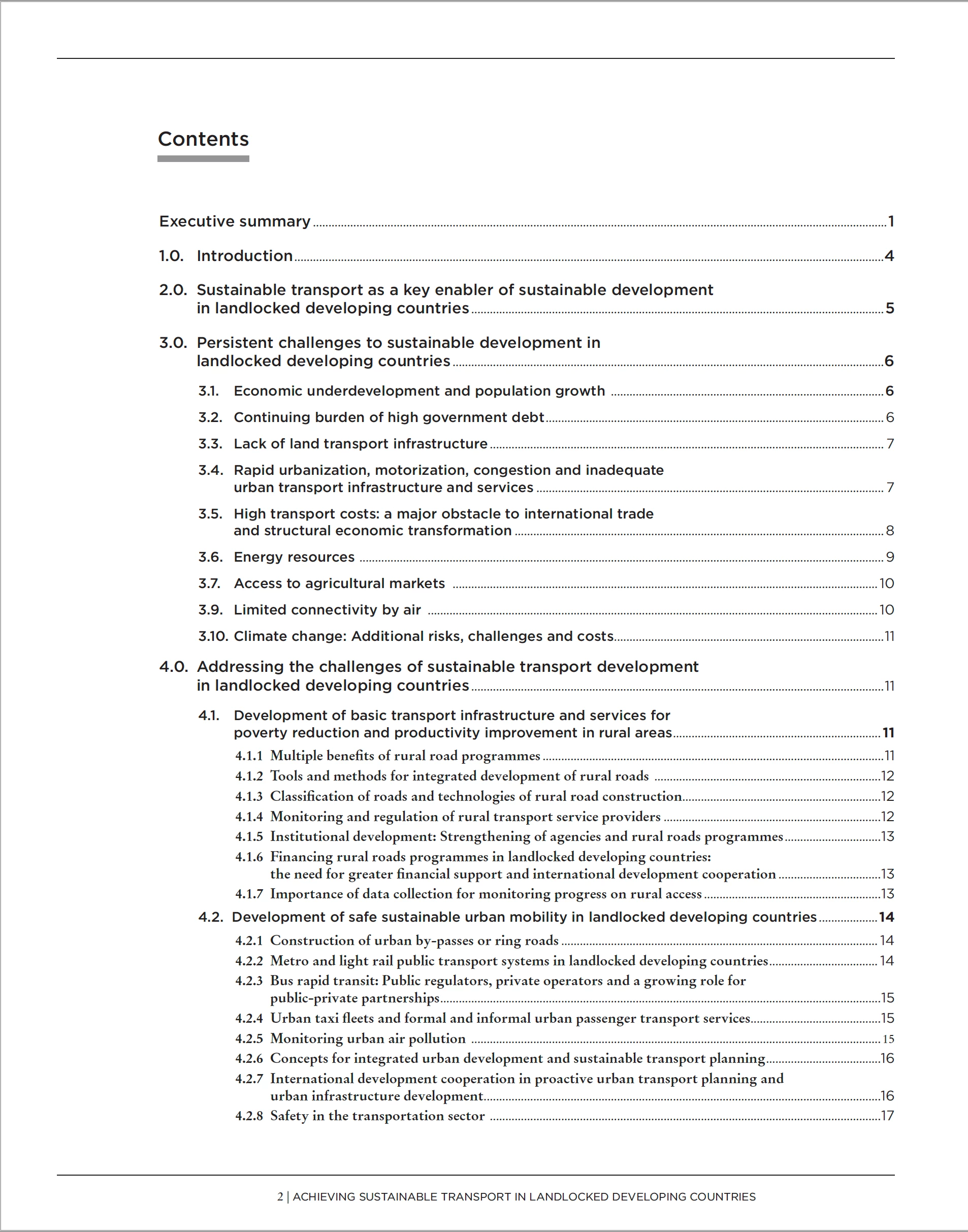
I don't know what I am doing wrong. See below for the want I want it to look.

Please help!!!
    This topic has been closed for replies.
    Correct answer Barb Binder

    I'm getting closer. I inserted tabs in the source document and got rid of the soft returns  which did resolve The TOC 1 (Heads) and TOC2 (Subheads) issue. However, I'm not sure what to do with the TOC3 content that I currently am creating the hanging indents by spaces. When I try to add a tab in place of the space, I get a line of leader dots. How do I get rid of them?? I assume that this is coming from the TOC3 style for between entry and number...


    You are so close!!

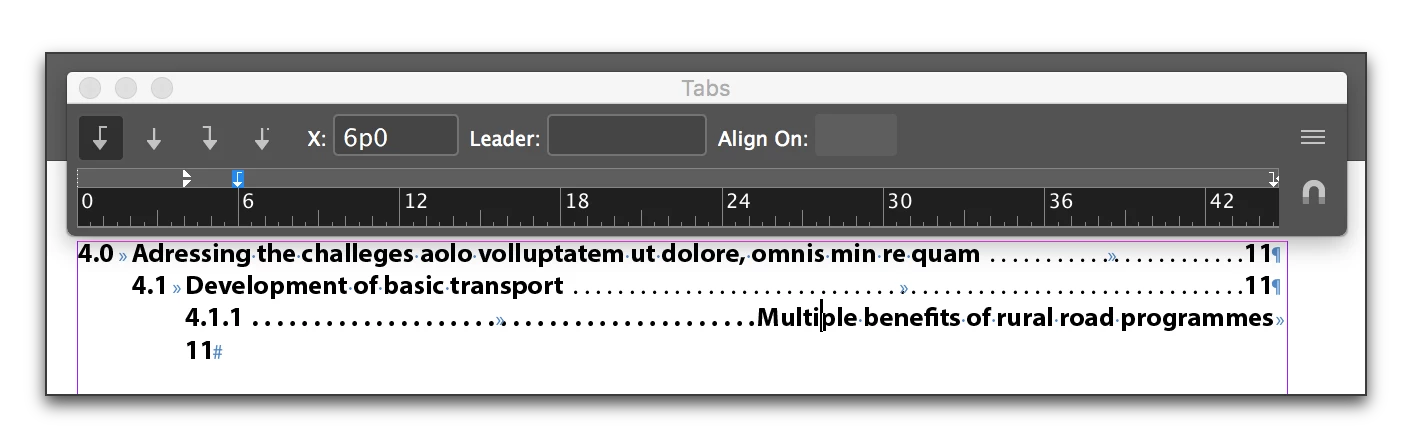
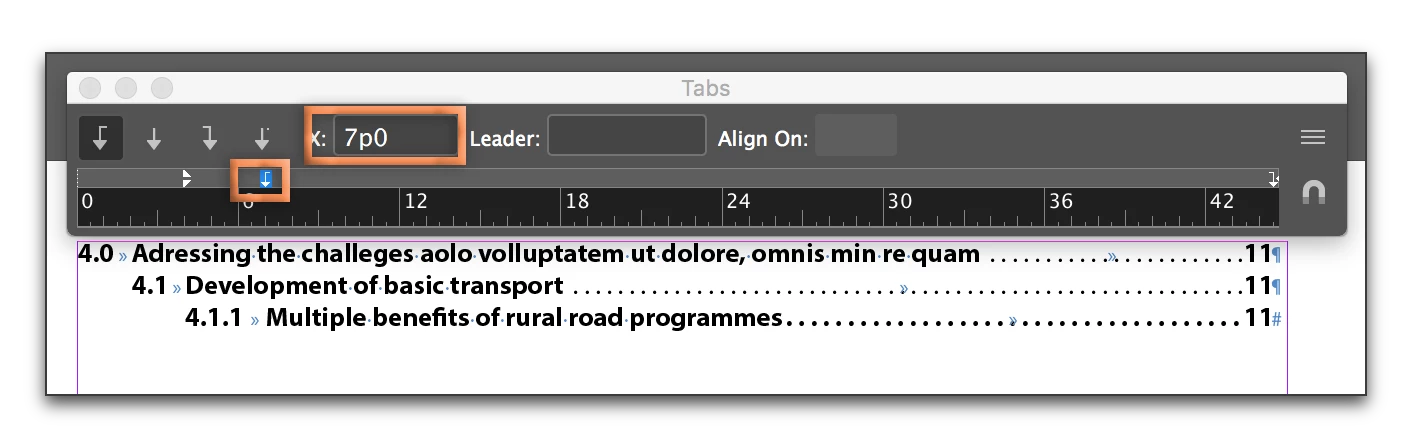
    For the heading 4.1.1, the first tab is too close to the numbers, so the text is moving to the 2nd tab stop.

    Select one of the TOC3s. Choose Type > Tabs. Select the first tab in the tab bar, and increase the distance until the formatting falls back into place. Then right click over TOC3 in the Paragraphs style panel and choose Redefine Style.

    1 reply

    Barb Binder
    Community Expert
    Community Expert
    June 2, 2017

    Will you please show your results, with hidden characters visible (Type > Show Hidden Characters). Chances are it will come down to your tab settings, but we need to see what character follows the paragraph numbers to give you specific instructions.

    As for the line breaks, InDesign copies the text from the source chapters as is—so if you pressed Sh+Enter to break the lines, then that will be copied to the TOC. Are there soft returns/line breaks in the heads? Alternative ways to control the breaks is that does not impact the TOC:

    1. Use No Break on selected words
    2. Balance ragged lines on the headings
    ~Barb at Rocky Mountain Training
    Known Participant
    June 2, 2017

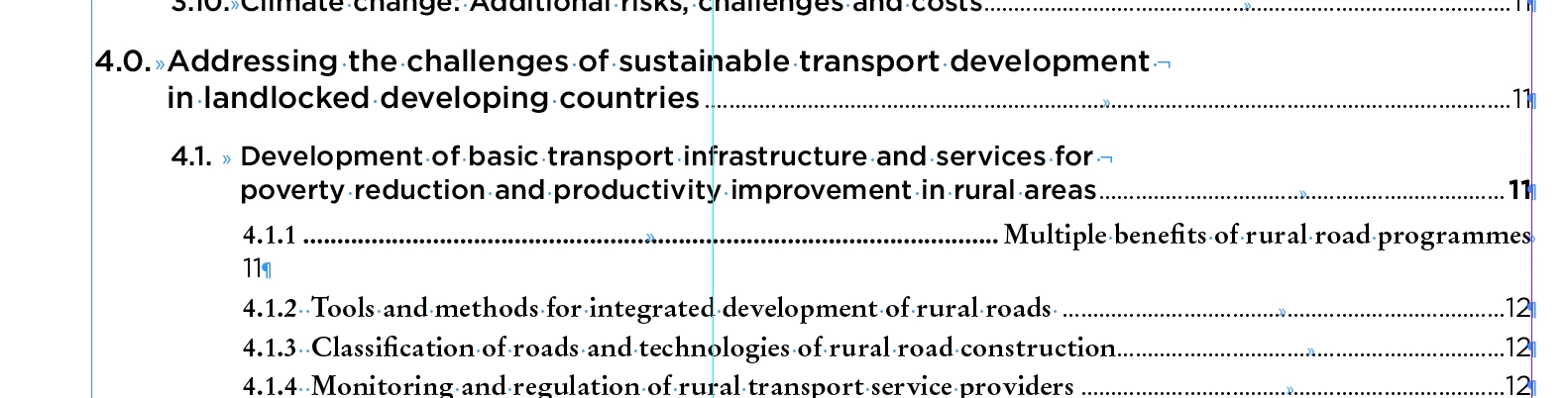
    Thanks for your response. I will take a look at your suggestions for the line breaks but in the meantime I am attaching my result as well as how I indicated the styles in the dialog box. I am also attaching the way I had formatted it correctly with the hidden characters showing. When I applied the styles, the tabs got removed for some reason that I just can't figure out. 

    Barb Binder
    Community Expert
    Community Expert
    June 2, 2017

    Ok, I can see the hard return characters at the end of the short lines. So you will want to remove those from the source documents and then update the table of contents.

    As for the rest of the formatting, you want to have tabs and not spaces following the paragraph numbers. And that should also be happening in the source documents.

    Finally, I see that you're creating hanging indents by manually adding spaces. You can do that with your paragraph style. I'm not at my computer right now but I'll be back in about an hour. I'll send an image that shows you how to set it up. If you want to give it a try on your own, the way the correct way to create a hanging indent is to set a left indent that matches the tab position. Then have a  negative 1st line indent that pulls the first line left back towards the margin.

    ~Barb at Rocky Mountain Training