Mitchell Kivits
Participating Frequently
August 1, 2021
Answered

Placing a graphic as background in linked text boxes

  • August 1, 2021
  • 3 replies
  • 3064 views

Using indesign I have a series of linked text boxes. I want to place a eps graphic as a background into the first text box. The graphic is larger then all the text boxes. I want the graphic to appear as the background in all the text boxes and be cropped. Is this possible?
    This topic has been closed for replies.
    Correct answer jane-e

    Hi @Mitchell Kivits 


    Try this:


    Put your text on a layer called text (or rename Layer 1). Lock the layer as you do the next step.


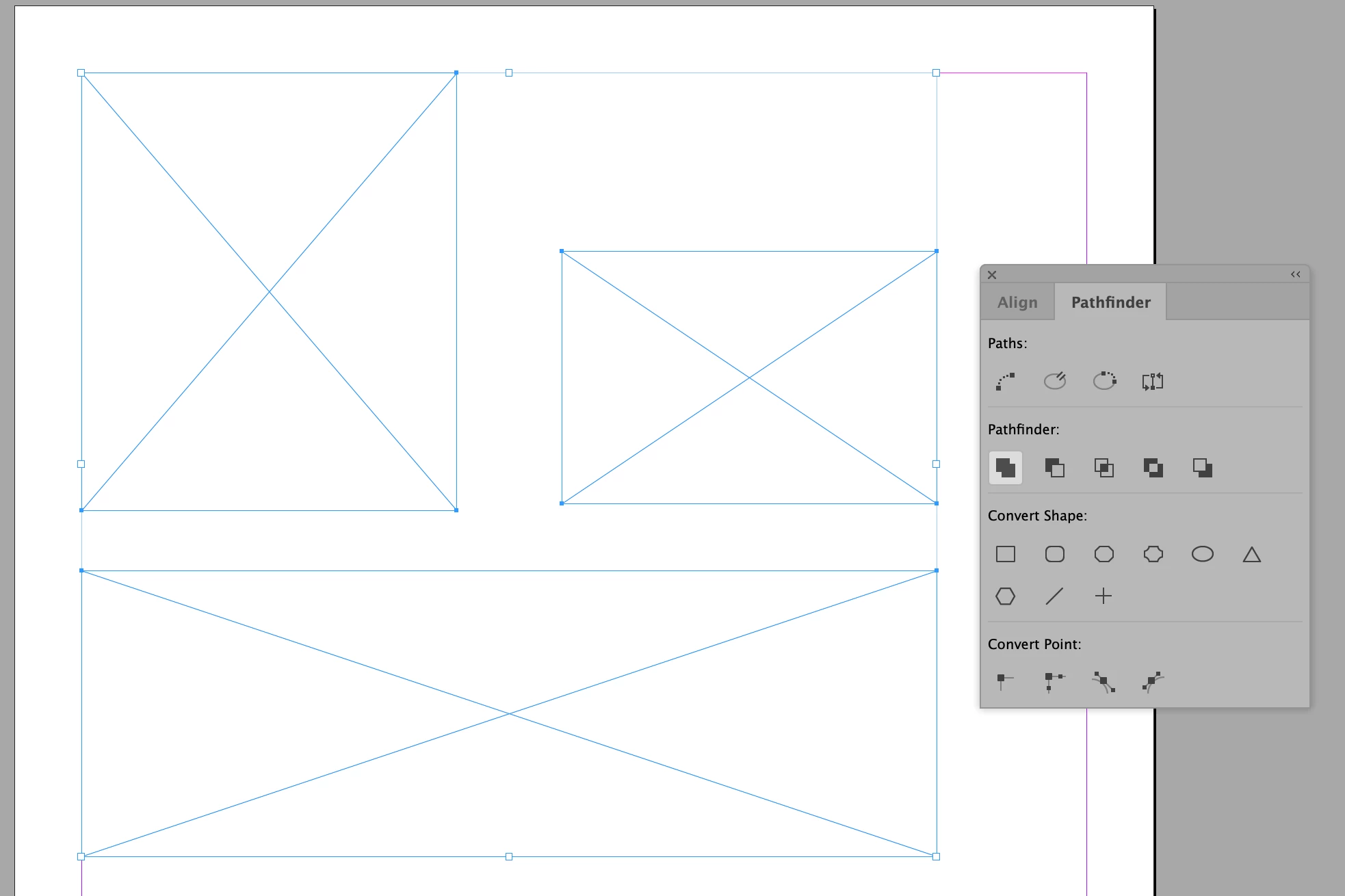
    Create a layer called "Graphics" in the layers panel and draw the graphic frames, matching the size of the text frames. Select them. Go to Window > Object and Layout > Pathfinder > and click "Add".


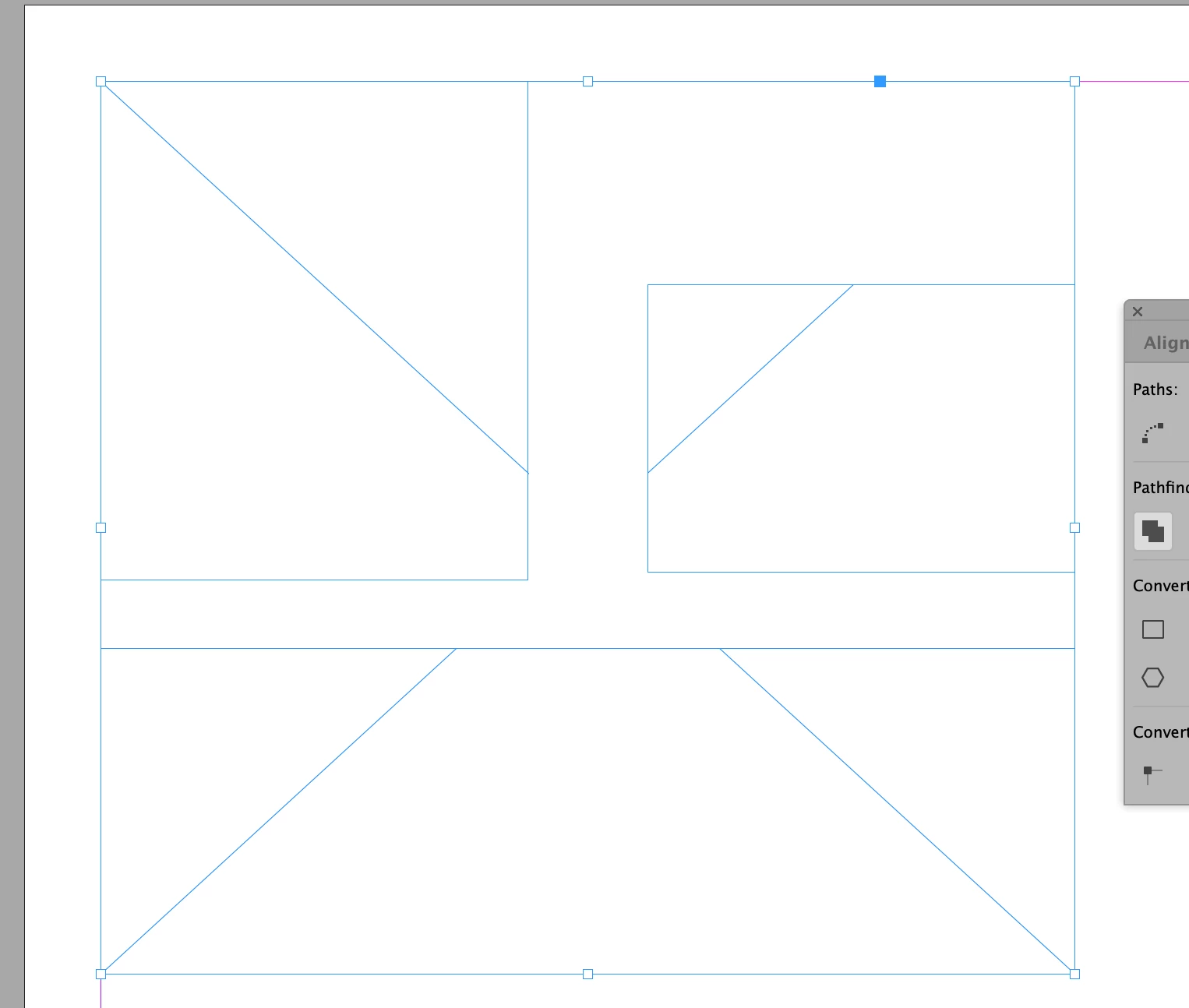
    "Add" makes them one frame. You will see one "X" instead of multiple.


    The image will go in the one joined frame.


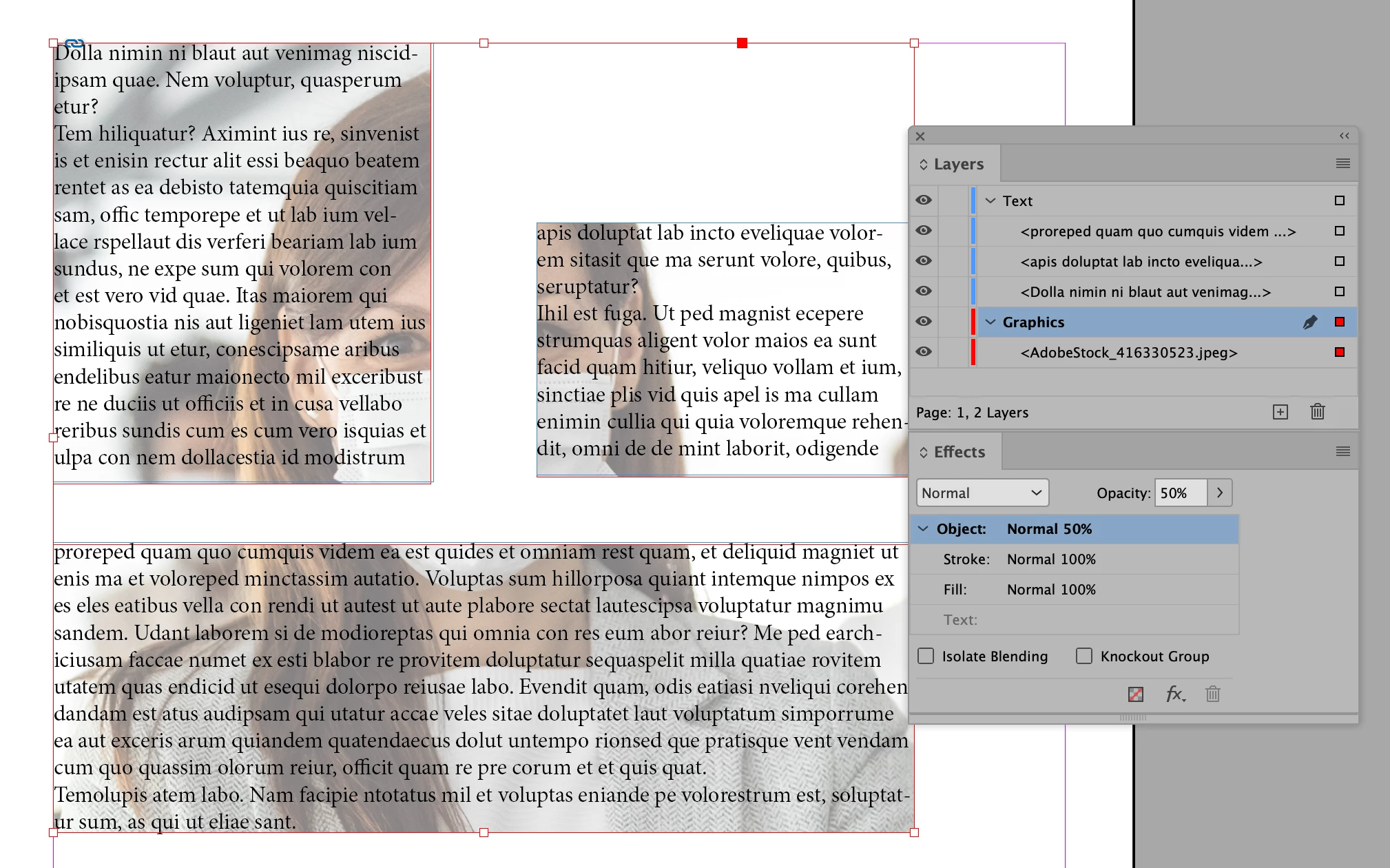
    Is this what you are looking for? I used the Effects panel to change the opacity of the image. Note the Layers panel and order of the layers.

    If it is and you need more details, please ask.


    ~ Jane

    3 replies

    jane-e
    Adobe Expert
    August 3, 2021

    @Mitchell Kivits wrote:

    \ I want to place a eps graphic as a background into the first text box.


    You didn't say your skill level, but there are two things to be aware of:

    • You can put text or a graphic into a frame, not both
      [Exception: if you anchor an image to text, it is treated as text]
    • A graphic goes in a graphic frame, not a text frame
      [Exception: you can select a text frame and Place a graphic into it, but that converts the frame to a graphics frame]


    It not entirely clear what you want to do. Is it one large image and you want it to show up behind the text in frames and not show up elsewhere on the page?


    If so, I would do this:

    • Create a set of new frames the same size and in the same position as the text frames.
    • Select these frames and go to Pathfinder > Add to make them one disconnected frame.
    • Put the image into this frame. It needs to be behind the text in the stacking order, preferably on its own layer.


    To crop, the image simply needs to be bigger than the frame.


    If this is what you are trying to do and you need clarification, please ask again.


    If it's something else, please show a screen shot or sketch it out.


    ~ Jane


    Mitchell Kivits
    Participating Frequently
    August 7, 2021

    Thanks for your reply.  My skill level is probably not that high. How do you determine your skill level anyway?

    "It not entirely clear what you want to do. Is it one large image and you want it to show up behind the text in frames and not show up elsewhere on the page?" yes.

    As @Laubender Uwe Laubender mentioned that you can do it with color, instead I just thought you could that with an image as well.

    jane-e
    jane-eCorrect answer
    Adobe Expert
    August 7, 2021

    Hi @Mitchell Kivits 


    Try this:


    Put your text on a layer called text (or rename Layer 1). Lock the layer as you do the next step.


    Create a layer called "Graphics" in the layers panel and draw the graphic frames, matching the size of the text frames. Select them. Go to Window > Object and Layout > Pathfinder > and click "Add".


    "Add" makes them one frame. You will see one "X" instead of multiple.


    The image will go in the one joined frame.


    Is this what you are looking for? I used the Effects panel to change the opacity of the image. Note the Layers panel and order of the layers.

    If it is and you need more details, please ask.


    ~ Jane

    Adobe Expert
    August 3, 2021

    Hi Mitchell,

    don't know if this is a double-post, but to answer your question:


    There is no feature in InDesign's text frame options to define a background image like you could do with HTML.

    You can only define a fill color and control it with an object style.

    What you can do instead is not much: work with a "sandwich" method and stack an image the size of the text frame behind it. You could group the image frame with the text frame even if the text frame is threaded with other frames.


    So there is no automatic action or object style where you can apply this to every text frame of a story for example.


    Regards,
    Uwe Laubender

    ( ACP )

    Mitchell Kivits
    Participating Frequently
    August 7, 2021

    Thanks for you reply.

    Mitchell Kivits
    Participating Frequently
    August 1, 2021

    Sorry placed in in the wrong group. Please remove. Thanks.